PowerFlex: How to Identify the Physical location of an SVM Disk (RDM - Raw Device Mapping)
Summary: How to Identify the Physical location of an SVM Disk (RDM - Raw Device Mapping)
This article applies to
This article does not apply to
This article is not tied to any specific product.
Not all product versions are identified in this article.
Instructions
Description
How to correlate between SVM's RDM Disks and the Physical disk Devices.
Steps
SVM Level:
List All or Specific Disks:
List all disk devices:
ls -l /dev/disk/by-id/ | grep scsi- | awk {'print $9 " " $11'} | sed -r 's/^.{6}//' | awk {'print $0'} | sed 's/..\/..\///g'
List all disk devices Example:
ScaleIO:/ # ls -l /dev/disk/by-id/ | grep scsi- | awk {'print $9 " " $11'} | sed -r 's/^.{6}//' | awk {'print $0'} | sed 's/..\/..\///g' 6000c2952e4e35b264b899761ba06af1 sda 6000c2952e4e35b264b899761ba06af1-part1 sda1 6000c2952e4e35b264b899761ba06af1-part2 sda2 600605b00a36937012d0034b35edc01b sdf 600605b00a36937012d0034b35f56b55 sdk 600605b00a36937012d0034c35fd1c74 sdh 600605b00a36937012d0034c3605794d sdc 600605b00a36937012d0034d360e0a83 sde 600605b00a36937012d0034e3616eb21 sdi 600605b00a36937012d0034e362001ee sdj 600605b00a36937012d0034f3629590c sdg 600605b00a36937012d00350363504f7 sdd 600605b00a36937012d00350363ed3de sdb 600605b00a3693701f92005d07062b43 sdl
List a specific disk (Example for /dev/sdg):
ls -l /dev/disk/by-id/ | grep scsi- | grep sdg | awk {'print $9'} | sed -r 's/^.{6}//' | awk {'print $0'}
To find a disk device identifier (Example for /dev/sdg):
ScaleIO:/ # ls -l /dev/disk/by-id/ | grep scsi- | grep sdg | awk {'print $9'} | sed -r 's/^.{6}//' | awk {'print $0'} 600605b00a36937012d0034f3629590c
Note: In the above output, the disk device identifier is: 600605b00a36937012d0034f3629590c
The disk device identifier will be used in the following next step.
The disk device identifier will be used in the following next step.
ESX Level:
Identify Physical Device:
On the ESXi level, you run a query multi-path command on that specific device you got from the previous command:
esxcfg-mpath -m -d naa.[disk identifier]
Example:
[root@/dev/disks] esxcfg-mpath -m -d naa.600605b00a36937012d00350363504f7 vmhba1:C2:T9:L0 vmhba1 sas.500605b00a369370 sas.60d00350363504f7 naa.600605b00a36937012d00350363504f7
From this output, we can see that this disk is logically located on Target number 9 (vd number 9), in the following order: Host Adapter : Bus Channel : Target : Lun
Note: The ESXi sees the Logical Disks (VD) and not the Physical disks (PD).
Identify VMDK File:
Grep the disk device identifier:
find /vmfs/volumes/ -type f -name '*.vmdk' -size -1024k -exec grep -l '^createType=.*RawDeviceMap' {} \; > /tmp/rdmsluns.txt for i in `cat /tmp/rdmsluns.txt`; do vmkfstools -q $i; done | grep [disk identifier] -B1
The output indicates the VMDK file bound to the disk device identifier.
Example:
[root@sio:/tmp] find /vmfs/volumes/ -type f -name '*.vmdk' -size -1024k -exec grep -l '^createType=.*RawDeviceMap' {} \; > /tmp/rdmsluns.txt [root@sio:/tmp] for i in `cat /tmp/rdmsluns.txt`; do vmkfstools -q $i; done | grep 600605b00a36937012d0034f3629590c -B1 Disk /vmfs/volumes/58076039-ede5c01f-4fde-90e2ba7db974/ScaleIO-10.xxx.xxx.x/ScaleIO-RDM-565898493.vmdk is a Passthrough Raw Device Mapping Maps to: vml.0200000000600605b00a36937012d0034f3629590c4d5239333631
In the following screenshot you can see the RDM device in the vSphere Client UI: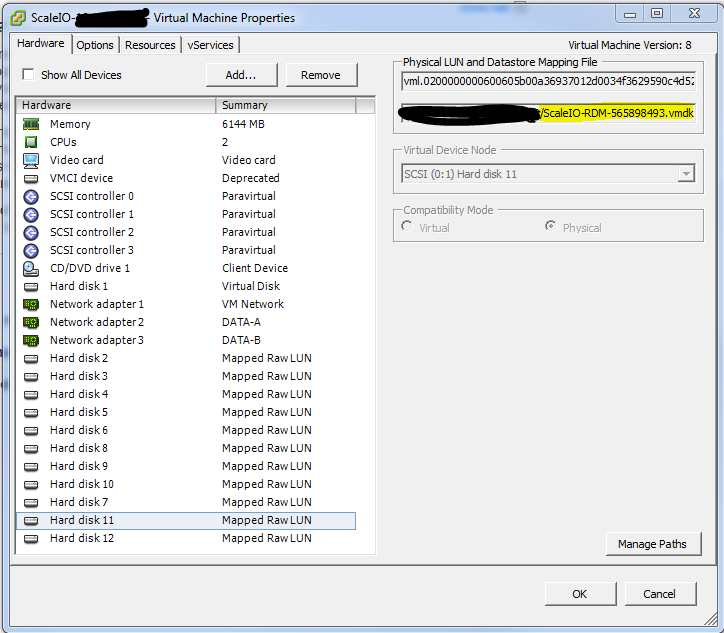
Article Properties
Article Number: 000158283
Article Type: How To
Last Modified: 20 Aug 2025
Version: 8
Find answers to your questions from other Dell users
Support Services
Check if your device is covered by Support Services.