NetWorker: Manually Mounting Windows VM Save Set Disk For FLR Process Without vProxy Appliance
Summary: This KB provides an alternative method for performing a VMware File Level Restore (FLR) which does not require an available vProxy appliance. This method can be used if the standard NetWorker VMware Protection (NVP) FLR process is failing, unsupported Virtual Machine's (VM) configuration, or Operating System. The steps outlined in this KB must be performed with the involvement of the NetWorker Backup Administrator, VM's System Administrator, and VMware Administrator. ...
This article applies to
This article does not apply to
This article is not tied to any specific product.
Not all product versions are identified in this article.
Instructions
Before following this KB, it is advised to attempt the process outlined in the following KB: NVP vProxy: Perform VM FLR without vProxy FLR Agent
During a vProxy File Level Restore (FLR) or Instant Access restore, the NetWorker VMware Protection (NVP) solution uses Network File System (NFS) protocol to create an NFS export on the Data Domain device. The NFS export is mounted to the vProxy appliance and data can be copied from the disk to the target VM. There are several factors which can result in NFS mount failures.
The process outlined in this KB aids in performing an FLR of a Windows VM which was backed up to Data Domain using the NVP solution. The process does not involve using the vProxy appliance or vflragent to perform the FLR. An NFS export is created on the Data Domain using the VMs save set (backup) folder. A VMware NFSv3 Datastore is created using the newly created NFS export. Using the "Add Existing Hardware" function in VMware, we can add the disk from the NFS export to an existing Windows VM. Data is then copied from the disk to a permanent location on the VM using Windows File Explorer.
Prerequisites:
NFS ports (2049, 2052) must be open between the ESXi hosts and the Data Domain system. On the ESXi hosts, the netcat command can be used to verify NFS port communication with the Data Domain:
nc -zv target_system port
See: NVP vProxy: Troubleshooting Network Connectivity For Backup and Restore Operations
Identifying the save sets and their location on the Data Domain:
1. Identify the save set location on the Data Domain system. You must get the long Save Set ID (SSID) of the VM backup needed for restore.
mminfo -q vmname=vmname -r "volume,savetime,ssid,ssid(60)"
Example:
[root@nsr ~]# mminfo -q vmname=win-client02.amer.lan -r "volume,savetime,ssid,ssid(60)"
 volume          date   ssid       ssid
...
VMBackupPool.002 11/07/2024 3744297136 db5876c2-00000006-df2d70b0-672d70b0-00225000-592bbe56
2. Log in to the Data Domain system over SSH using the sysadmin account.
NOTE: It is advised to enable SSH logging in the tool (e.g: PuTTy). The commands used are expected to exceed the command buffer so the output file generated can be used to collect the data needed.
A. Get the mtree name of the NetWorker server:
mtree list
B. Use the following command to create a file system report for the NetWorker mtree:
filesys report generate file-location path /data/col1/NW-MTREE
C. Search the output file for the ssid long name:

See: NetWorker NVP vProxy: Confirm that a VM save set resides on the Data Domain file system
Create the NFS Export:
This can be done from the command line on the data domain or by using the Data Domain web management interface.
Command-line:
1. From a sysadmin prompt on the DD create the NFS export using the folder path identified in step 2C:
Syntax:
nfs export create EXPORT_NAME path /PATH/TO/SAVE/SET clients * options "rw,no_root_squash,no_all_squash,secure"
Example:
sysadmin@ddve01# nfs export create VPROXY_FLR path /data/col1/nsr/VMBackupDevice02/93/60/9204bf87-00000006-cb282ab0-67282ab0-00365000-592bbe56 clients * options "rw,no_root_squash,no_all_squash,secure"
NFS export 'VPROXY_FLR' created.
sysadmin@ddve01#
Data Domain web interface:
1. Log in to the Data Domain web interface as the sysamin user.
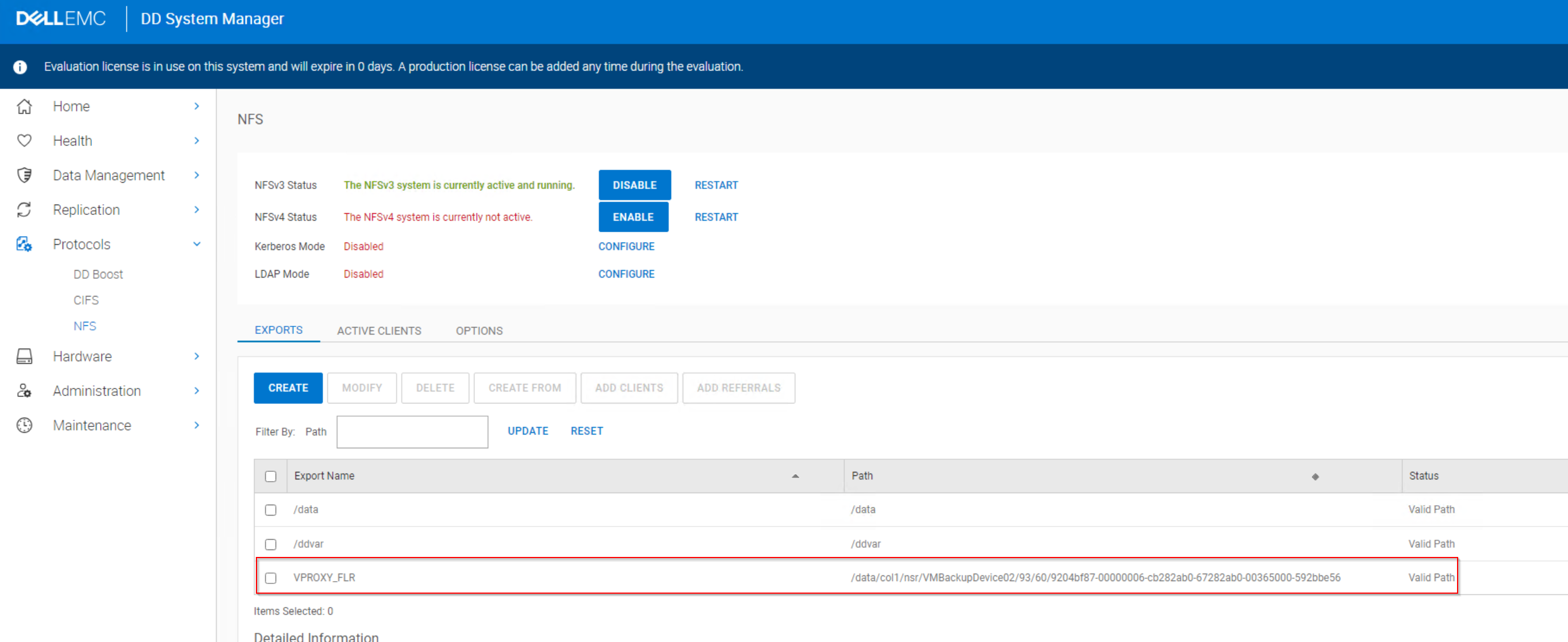
2. Go to Protocols -> NFS.
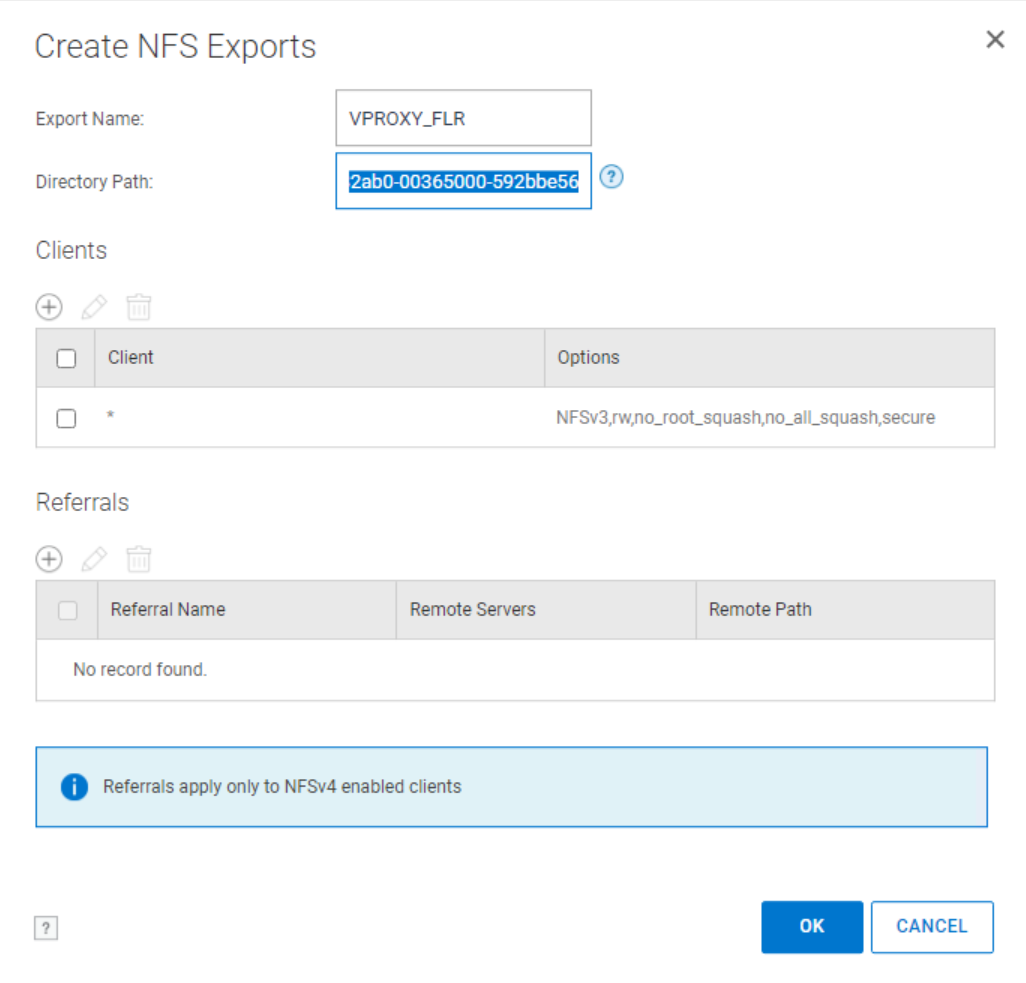
3. Create a new NFS export.
Export Name: Provide a name of your choosing.
Directory Path: Specify the save set folder path collected in step 2,C.
Clients: Click + and enter * for the clients. You can choose a more restrictive client list, such as the ESXi host IP address; however, it may be simpler for testing to specify *.
Creating VMware Datastore and Adding the Disk to the VM
1. Log in to the vSphere web client using a user with administrative rights, for example: administrator@vsphere.local
2. Go to the datastores tab.
3. Under Actions, click Storage -> New Datastore.
4. Select NFS.
5. Select NFSv3.
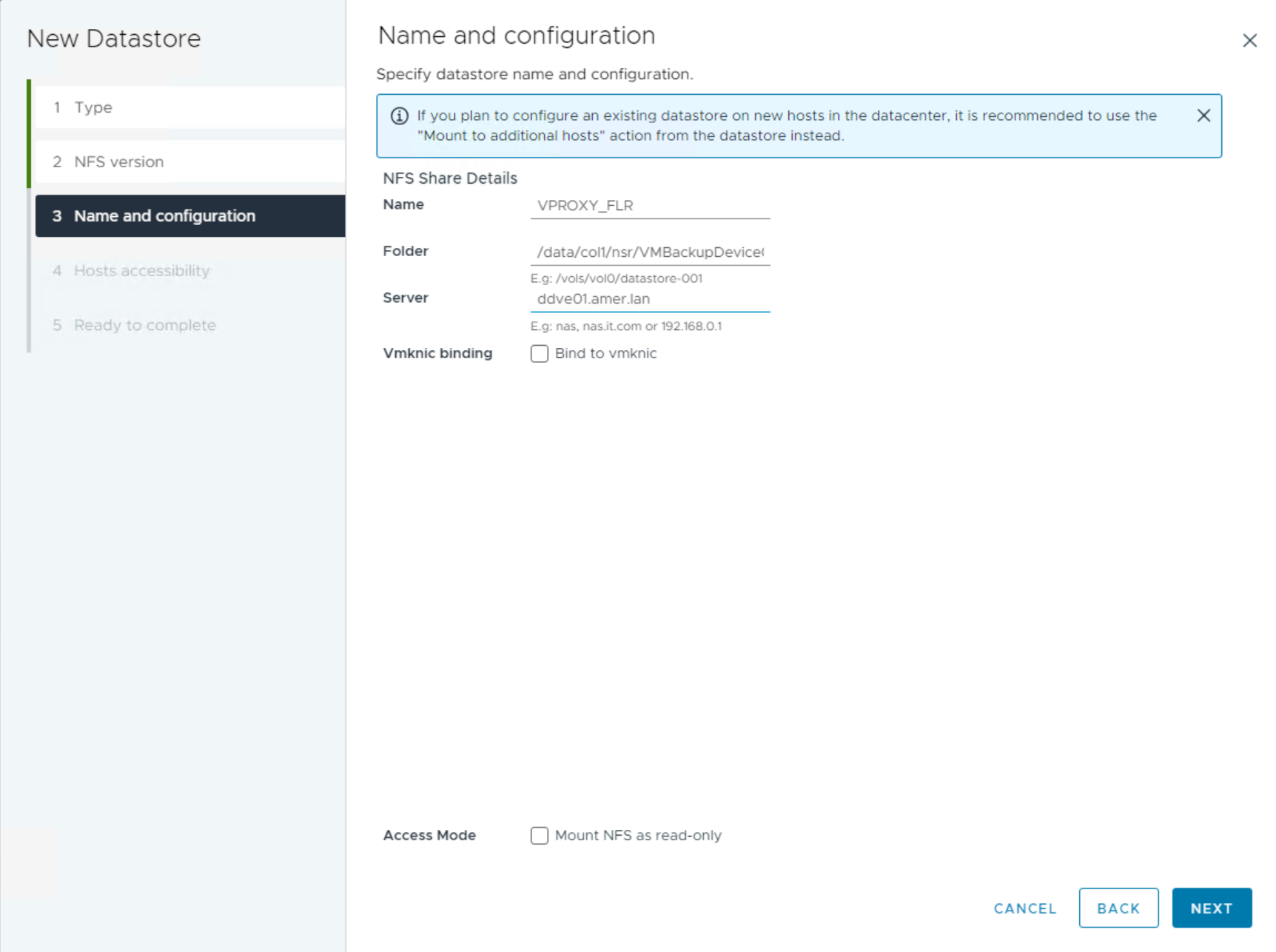
6. Enter the NFS share details:
Name: The NFS share name
Path: The export path
Server: The IP address or resolvable hostname of the Data Domain
7. In the Host Accessibility tab, select the ESXi host the target VM (VM used to copy data) resides on.
8. Confirm the settings and click Finish.
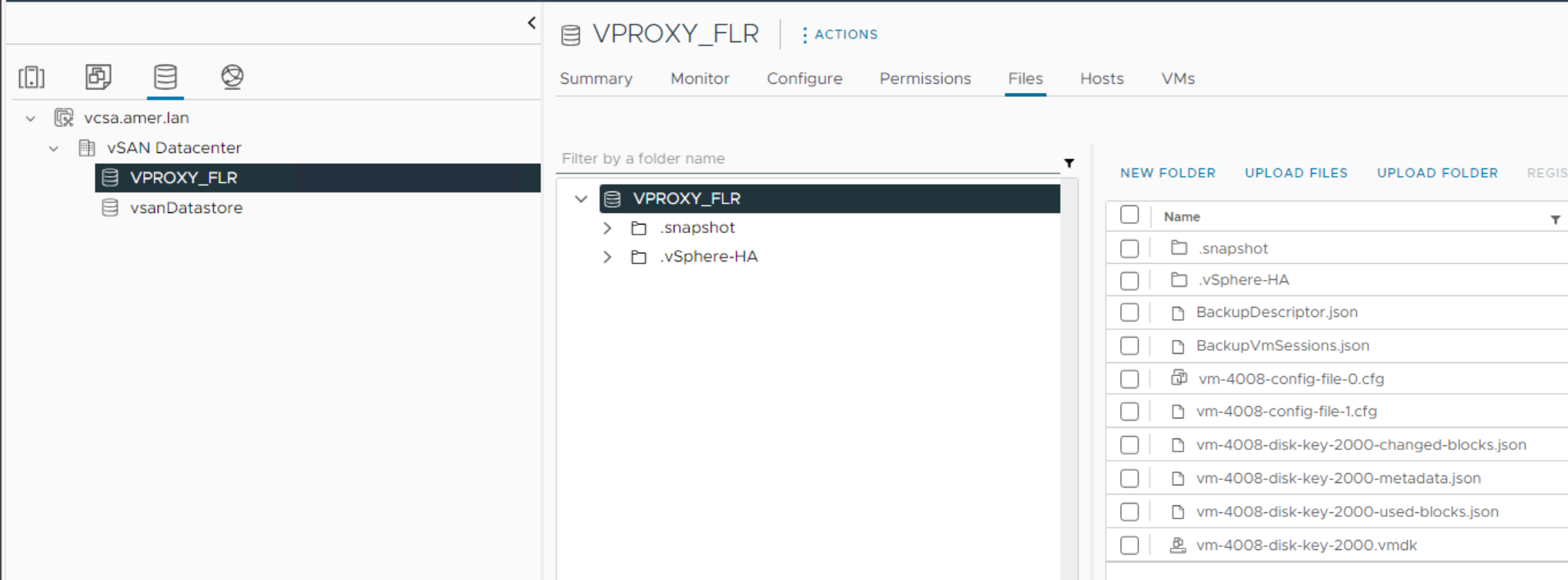
The mount operation should complete successfully, and you can review the VM files:
9. Add the disk to the target VM that you want to use to recover the files to:
NOTE: It is recommended to mount this disk to another VM other than the production source VM.
A. Right-click the VM and click Edit Settings.
b. Select Add New Device -> Existing Hard Disk.
c. Select the NFS datastore and select the VMDK which contains the data needed for restore.
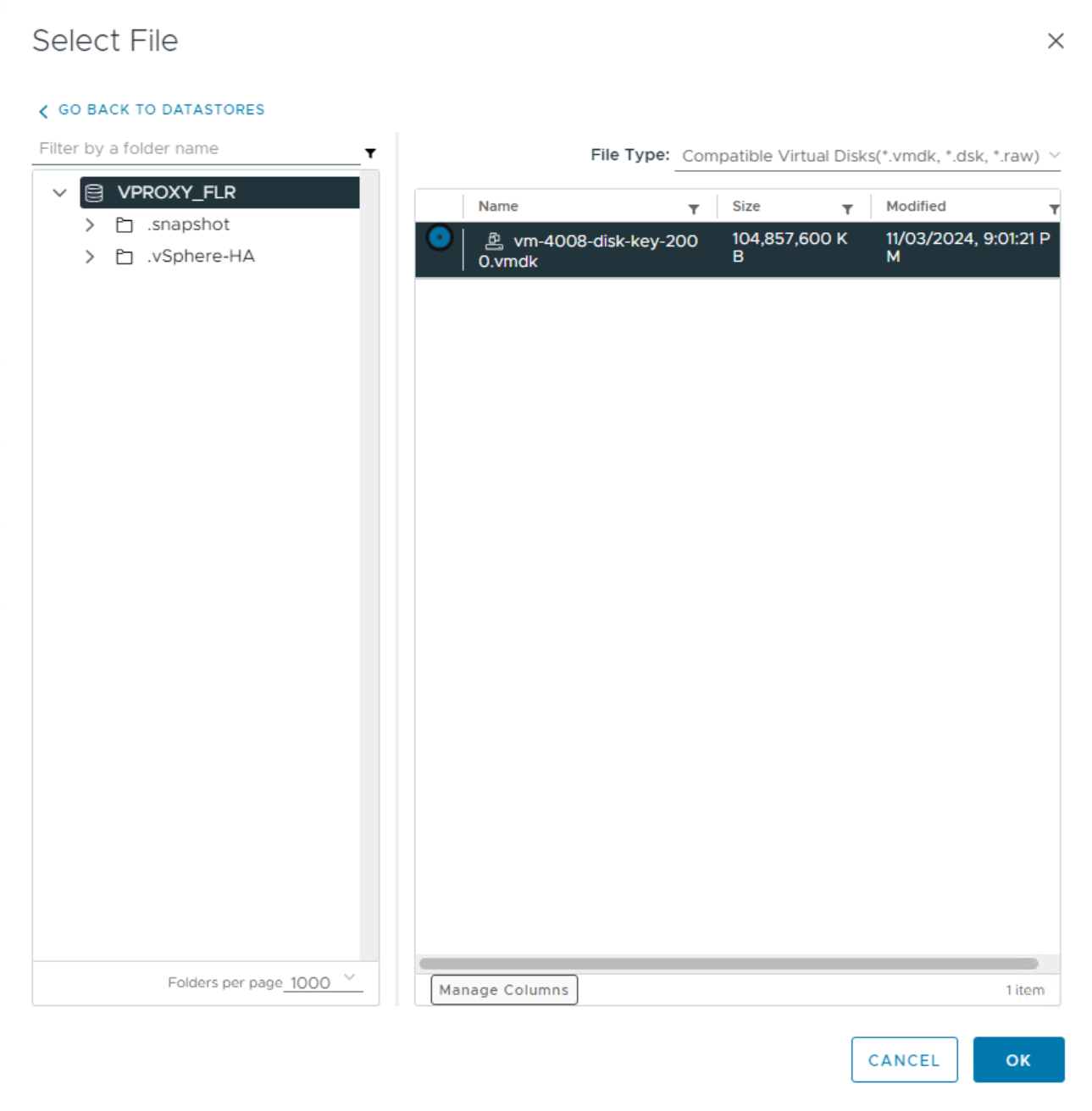
10. Click OK and monitor the Tasks and Events window for completion status.
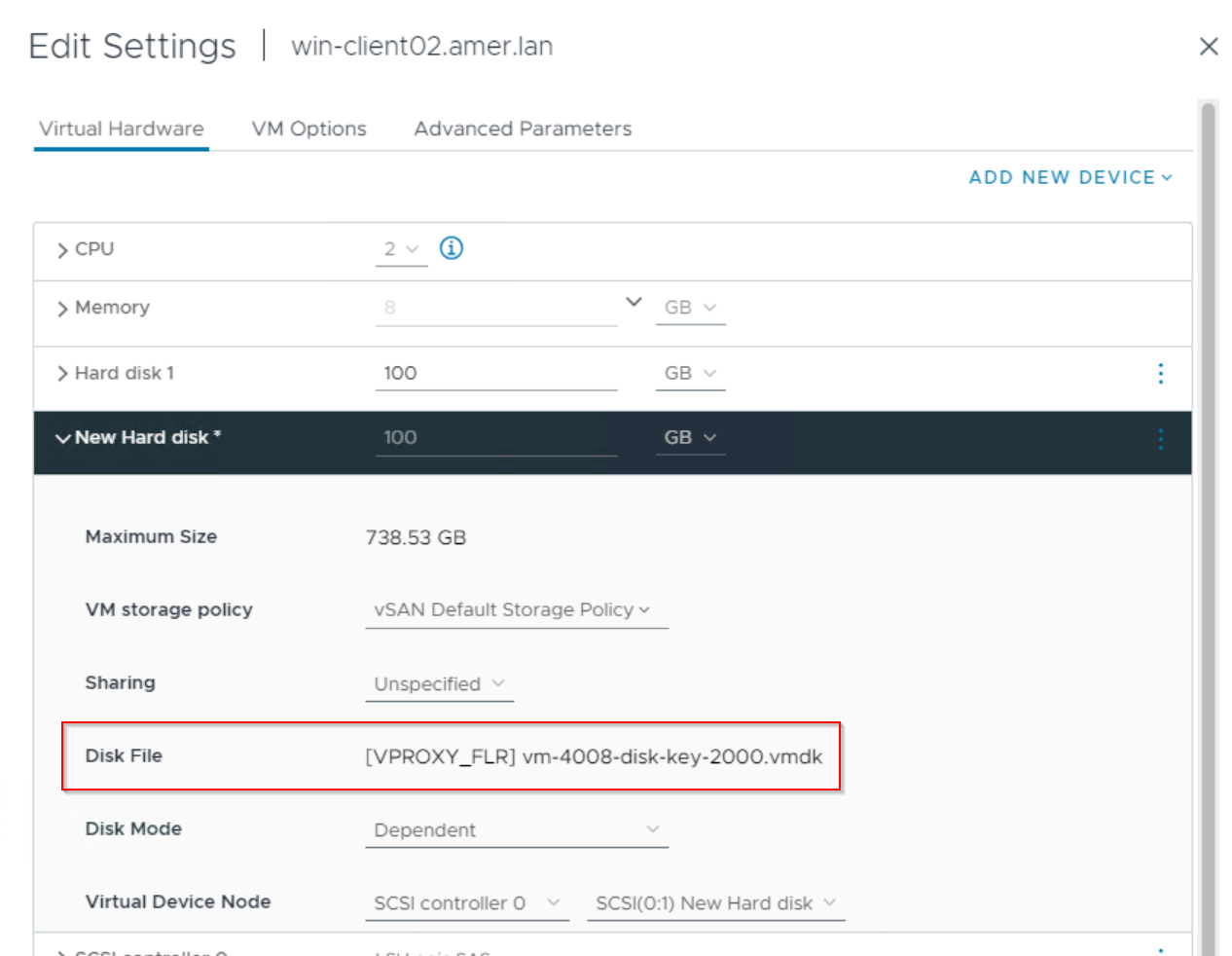
11. You see that the disk added to the VM and residing on the NFS datastore:
Managing the Disk From Within the VMs Operating System
1. Log in to the VM where the disk was added using the system\domain Administrator account.
2. Open Disk Management.
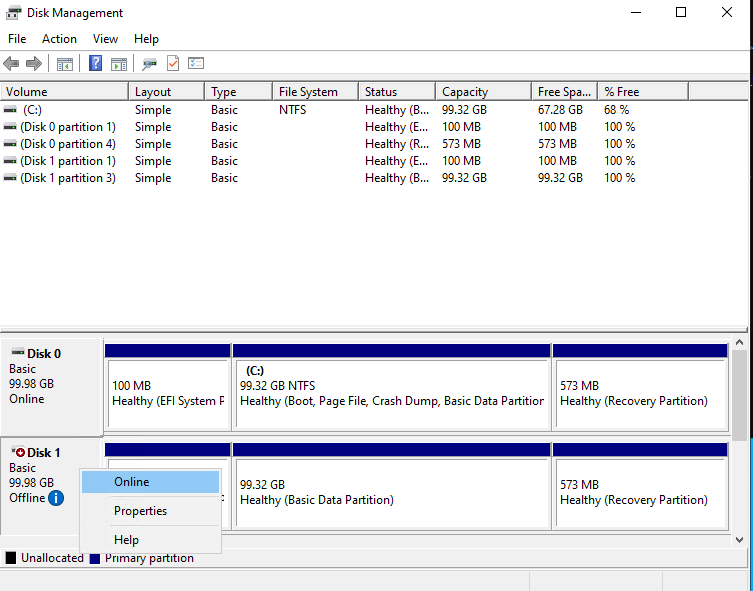
3. The added disk may appear "Offline," right-click the disk and select Online:
4. Right-Click the disk again and select Change Drive Letter and Paths.
5. Assign a Drive Letter and click Ok.
6. The drive should now appear from Windows File Explorer:
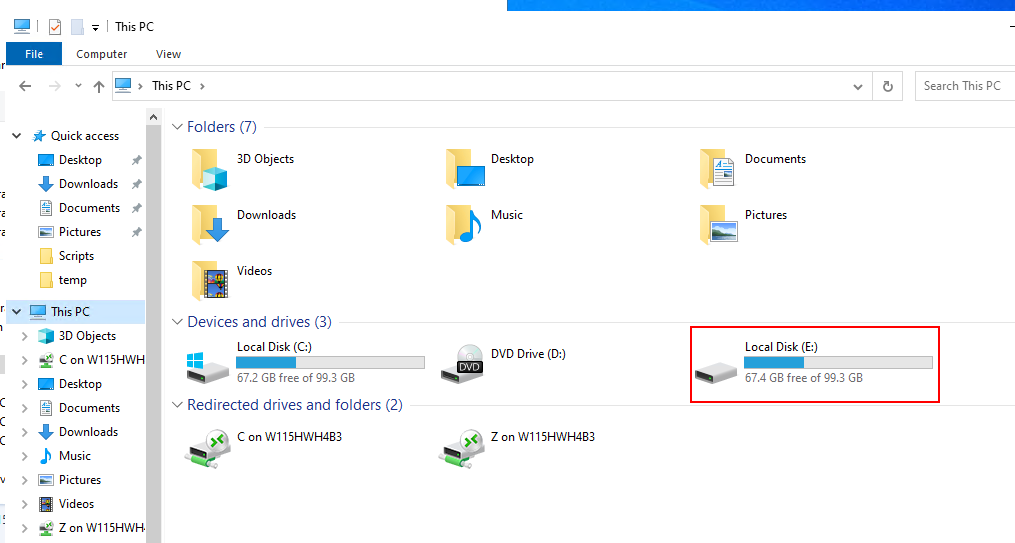
You can copy needed data from the NFS disk to the local file system.
Cleaning Up After Restore Operations:
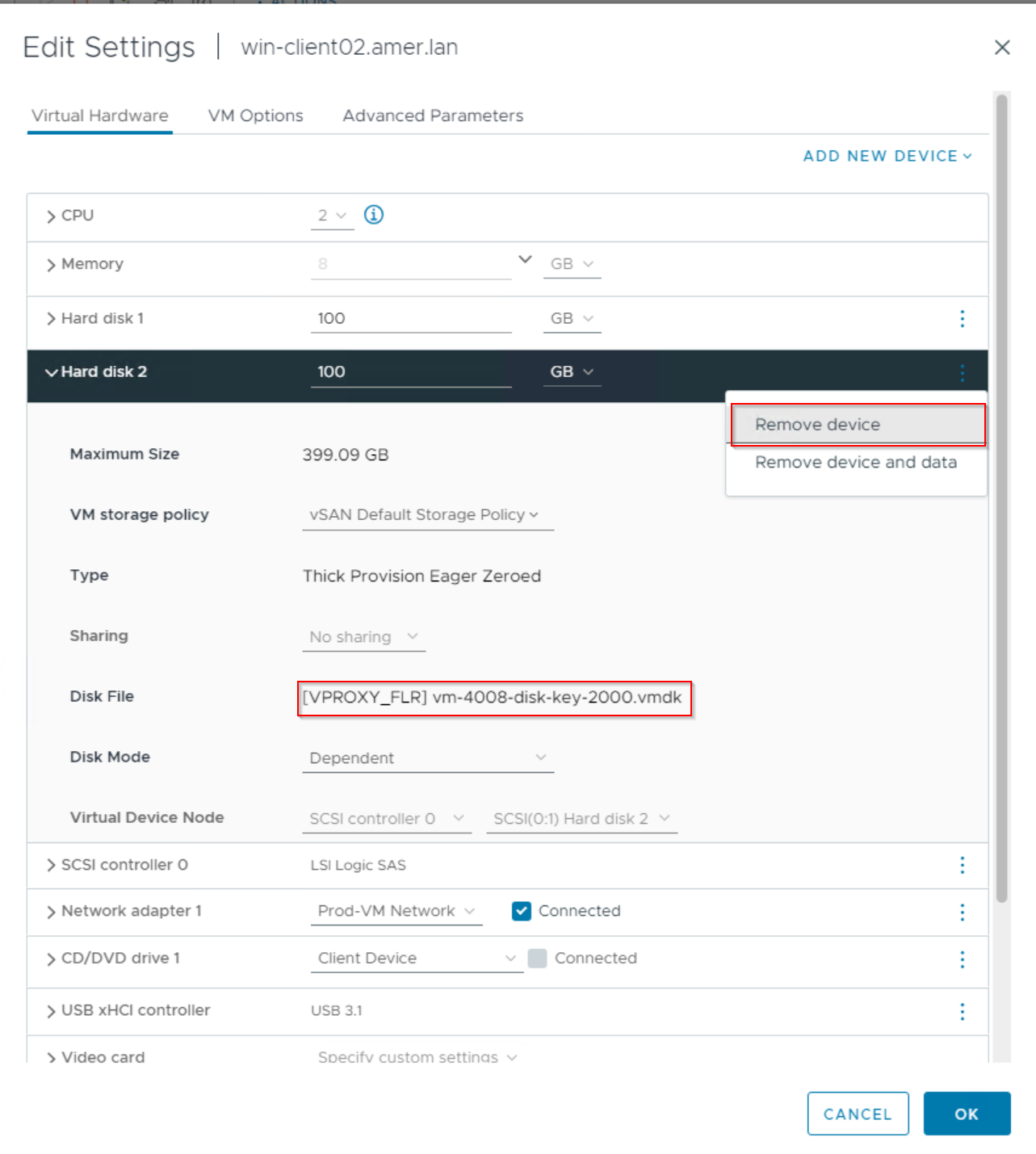
1. Right-click the VM and remove the NFS disk:
CAUTION: DO NOT "Remove device and data" this could delete the .vmdk from the save set. Use the Remove Device option to detach the disk from the VM, but not delete any data. Use the Disk File path to confirm that the disk is from the temporary NFS datastore, and not an existing VM disk.
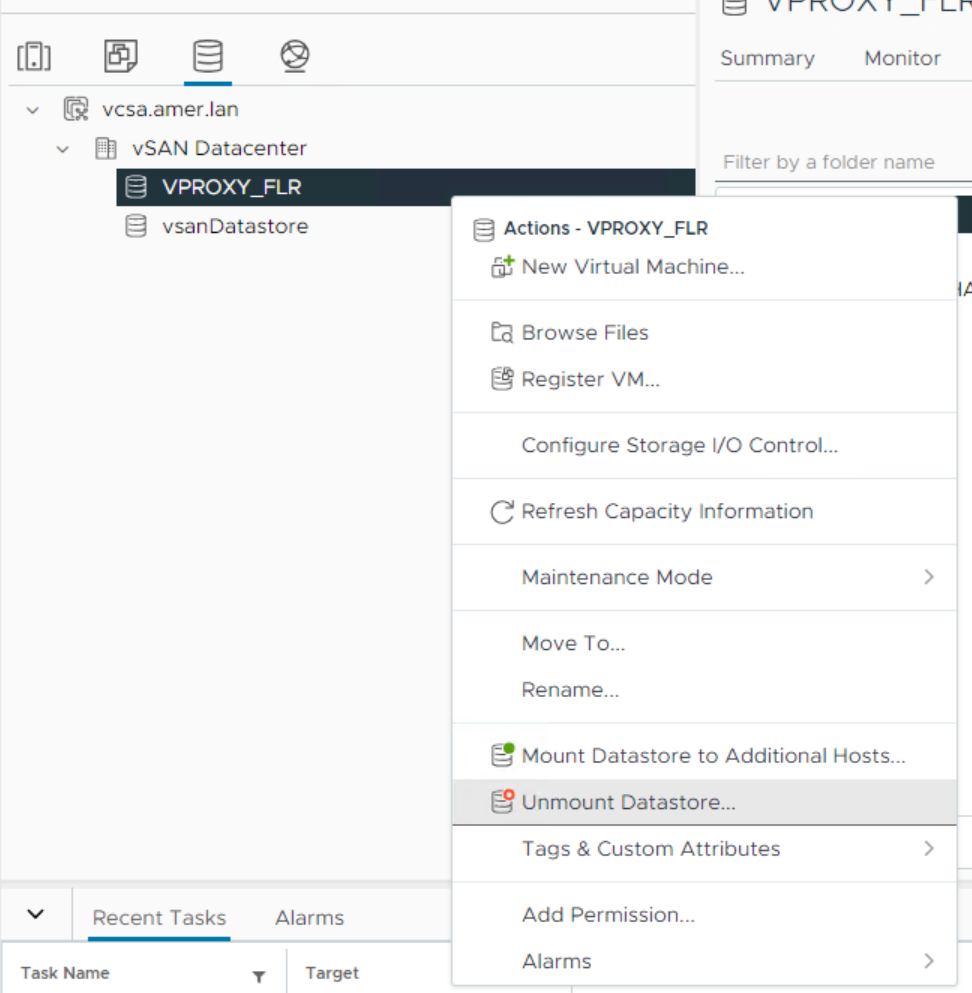
2. Go to the Datastores tab and unmount the NFS datastore, ensure to unmount it from any of the ESXi hosts it was mounted to:
3. Remove the NFS export on the DD:
Command-line:
From a sysadmin prompt on the DD run:
nfs export destroy EXPORT_NAME
Example:
sysadmin@ddve01# nfs export destroy VPROXY_FLR
NFS export(s) destroyed.
sysadmin@ddve01#
Data Domain web interface:
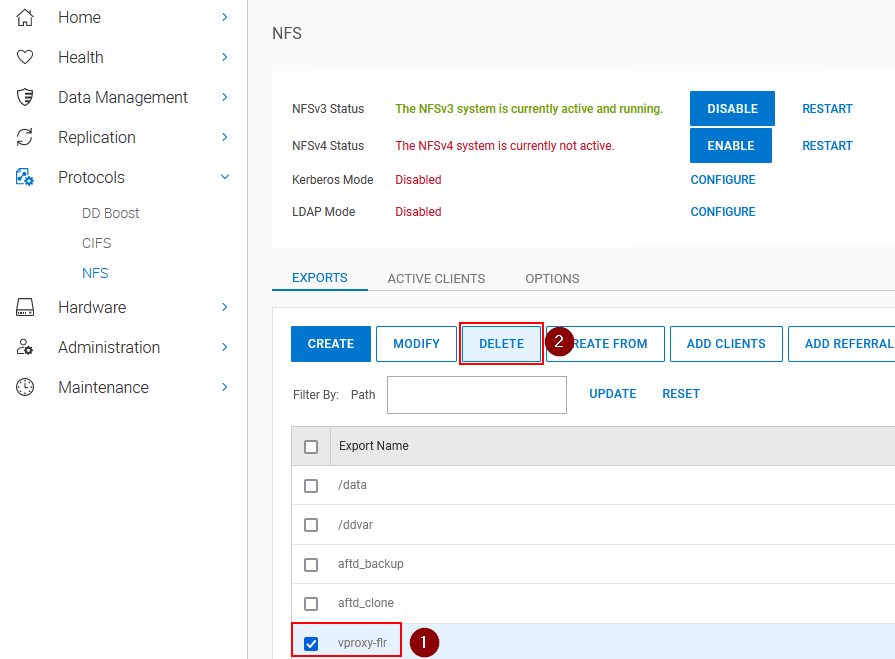
From the Data Domain management web interface, delete the NFS export:
Affected Products
NetWorkerProducts
NetWorker Family, NetWorker SeriesArticle Properties
Article Number: 000224596
Article Type: How To
Last Modified: 14 Apr 2026
Version: 10
Find answers to your questions from other Dell users
Support Services
Check if your device is covered by Support Services.