PowerEdge: Windows Server 22 Patch KB5022291 update Causes Blue Screen Error
Summary: Installation of January 10, 2023 patch KB5022291 on Windows Server 2022 may result in Blue Screen error on the following systems and configurations. Dell 14G PowerEdge Server with Intel Optane persistent memory Series 100 configured in App Direct mode is affected. Dell 15G PowerEdge Server with Intel Optane persistent memory Series 200 configured in App Direct mode is affected. Note: Memory Settings configured in Memory Mode in the BIOS function correctly with KB5022291 or higher version of Windows Server 2022 updates. Optane Series 100 Memory Mode is Persistent Memory set to Off. Optane Series 200 Memory Mode has Optane DIMMs disabled under Memory Mapout. ...
Symptoms
The operating system will not complete the boot process.

Cause
Resolution
Do not replace hardware.
The resolution involves disabling persistent memory in the BIOS, updating Windows Server 2022 with August 8, 2023 KB5029250, and then re-enabling persistent memory in the BIOS.
Disable persistent memory in the BIOS settings.
Optane Series 200: BIOS Setup Menu (F2) -> System BIOS -> Memory settings > Memory Mapout > disable the slots in which PMEM is installed.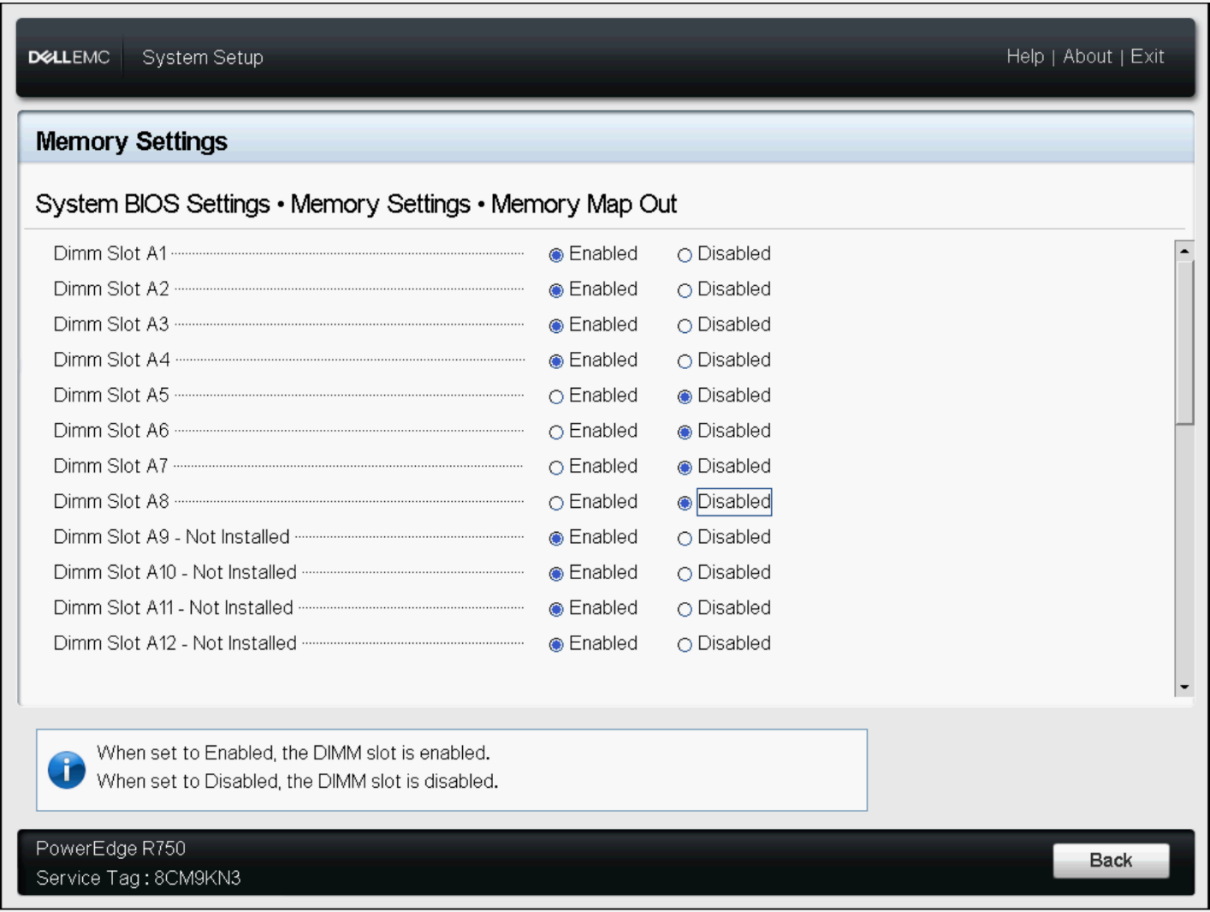
Optane Series 100: BIOS Setup Menu (F2) -> Persistent Memory -> Persistent Memory > Turn it OFF.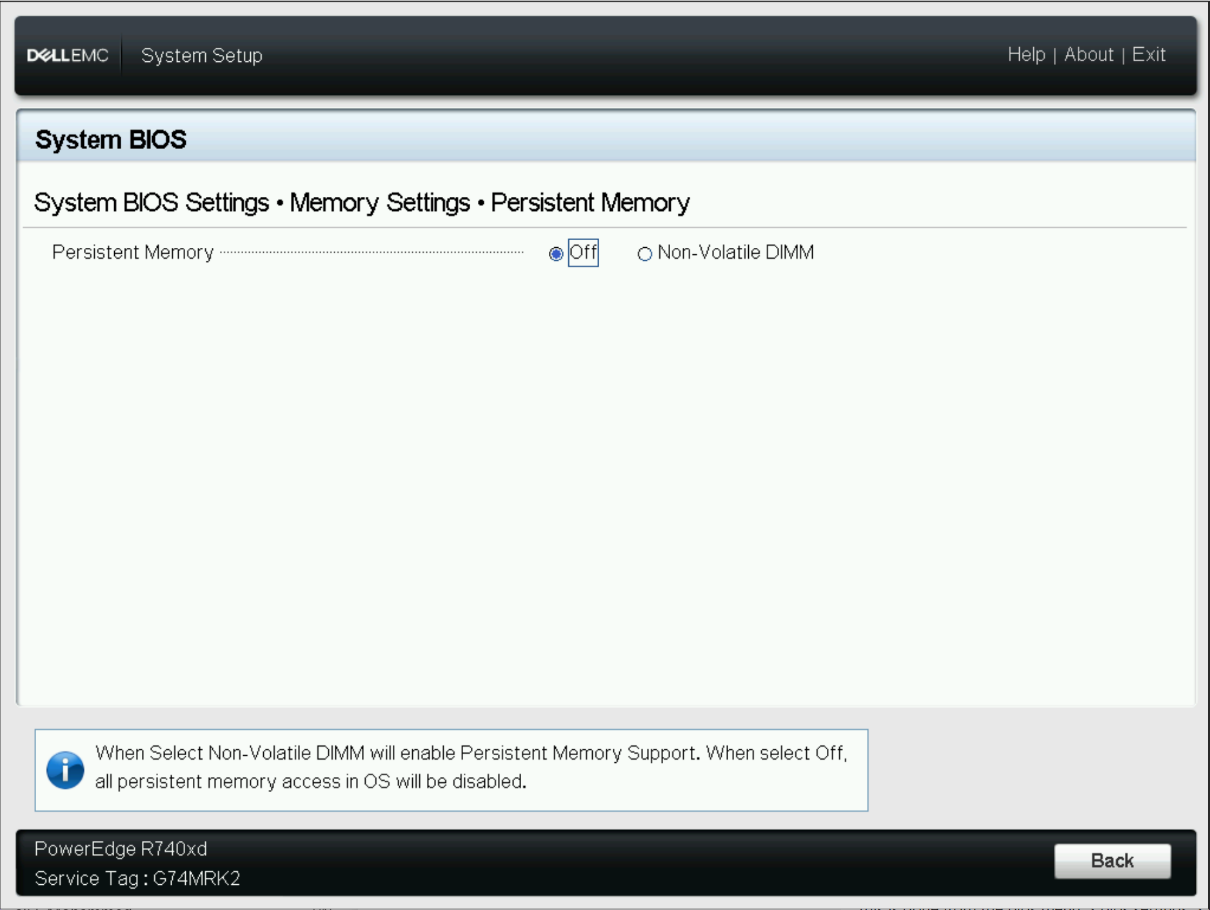
Save and exit BIOS.
Boot to the OS.
Update the Windows OS to August 8,2023 KB5029250 Cumulative Update, or later. Reboot the system for the changes to be complete.
Boot back into the OS, go to Settings, System, About and verify that the OS Build is 20348.1906 or greater.
Reboot the server back to the OS.
Trigger another Reboot and go to the BIOS Setup Menu (F2).
Re-Enable the App Direct Mode in the BIOS settings.
Optane Series 200: BIOS Setup Menu(F2) -> System BIOS -> Memory settings > Memory Mapout > enable the slots in which PMEM is installed.
Optane Series 100: BIOS Setup Menu(F2) -> Persistent Memory -> Persistent Memory> Select Non-Volatile DIMM
Save and exit BIOS.
Boot back to the OS.