PowerMax, VMAX All Flash, VMAX3: Replication Data Pointer Space is Near Capacity Threshold
Summary: When Replication Data Pointer (RDP) thresholds are surpassed, the array creates alerting messages for users to address the situation.
This article applies to
This article does not apply to
This article is not tied to any specific product.
Not all product versions are identified in this article.
Symptoms
- TimeFinder SnapVX snapshots
- RDP space is reaching capacity thresholds.
RDP threshold alert:
Replication Data Pointer has reached 50% capacity.
Replication Data Pointer has reached 60% capacity.
Replication Data Pointer has reached 70% capacity.
Replication Data Pointer has reached 80% capacity.
Replication Data Pointer has reached 85% capacity.
Replication Data Pointer has reached 90% capacity.
Replication Data Pointer has reached 95% capacity.

Replication Data Pointer Meta Data Usage reached 90-99%.
Cause
This alert signifies that the array's RDP reached or surpassed a set percent utilization threshold value while using TimeFinder SnapVX for local replication operations. The array generates an alert and dials home to Dell to inform that the RDP space reached a certain utilization percentage. Dell sends a follow-up email to the array’s designated contact to notify them that the threshold has been reached.
RDP is an internal file system on the array which keeps metadata pointers for SnapVX snapshots. It also allows access to the version or original data that SnapVX snapshots protect. The number of pointers that are allowed in RDP is finite. By default, roughly 24% of the metadata space is devoted for backend volumes (Thin Data Devices) on the array. Once this RDP space reaches 100%, SnapVX snapshots may fail. This is because the array no longer tracks new versions of data on Source devices that are not previously versioned within the active snapshot.
Resolution
Instructions:
- Review the current utilization of RDP space in the array.
- Review the current SnapVX snapshots and their device utilization.
- Take necessary actions to reduce the RDP usage.
- Special care must be taken when Snap Secure is in place because it takes priority over host writes to those source volumes if the system reaches Replication Cache or SRP resource limits. See the Dell Solutions Enabler TimeFinder SnapVX CLI User Guide 10.x, statement Secure snapshot rules and restrictions for more information.
Recommended Action Options:
- Terminate unneeded SnapVX snapshots.
- Review the snapshots. One or more snapshots may no longer be needed.
-
If you have one or more linked targets that are associated with the snapshot, the linked targets must be unlinked before the snapshot can be terminated.
- Consider using self-expiring timers on SnapVX snapshots.
- If the refresh rate of the source volumes on the snapshots is too high, consider using TimeFinder Clone. TimeFinder Clone does not use RDP for version tracking.
- Expand the amount of RDP space.
- At HYPERMAX OS 5977.810.784 and later, there is the capability to expand RDP consumption space in the cache from default values. Contact your local Dell Technologies representative or the Dell Technologies VMAX Support team for more information.
How to view RDP usage:
The following are available on Dell Software and HYPERMAX OS levels or later:
- Solutions Enabler: 8.2.x
- Unisphere for VMAX: 8.2.x
- HYPERMAX OS 5977.810.784
Solutions Enabler:
- Issue a
symcfg list -v, where you can use'Replication Usage'withgrep(Linux) orFIND(Windows).
Unisphere for VMAX:
- Go to <SN> > Data Protection > Protection Dashboard.
- A
'Replication Cache Used %'or'Replication Utilization'bar is present.
Unisphere for PowerMax:
- Select the array serial number > Select capacity > Enable Show detailed > System Usage > Replication Meta Data:
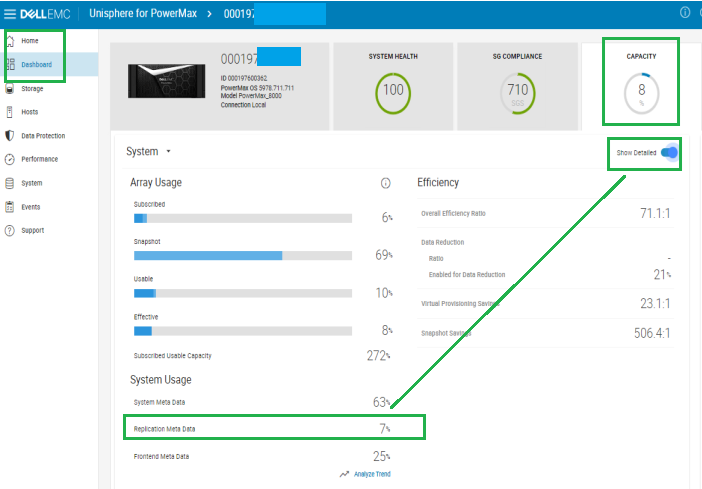
OR
- Select the array serial number > Performance > Dashboard > Select Array > Array Efficiency.
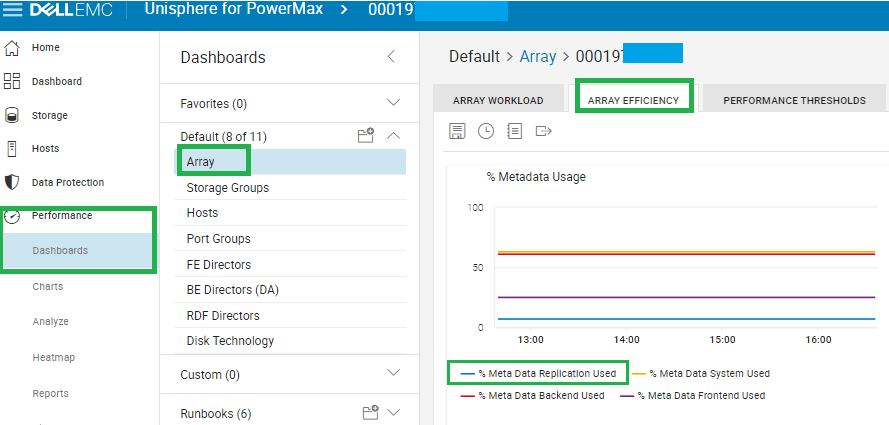
The term for RDP is rephased as "Metadata Replication Used" as per online help.
% Metadata Replication Used is the used percentage of the allocation for local replication (RDP) in the metadata page-file.
How to Monitor for Alerts for RDP usage:
The following are available on Dell Software and HYPERMAX OS levels or later:
- Solutions Enabler: 8.2.x
- Unisphere for VMAX: 8.2.x
- HYPERMAX OS 5977.810.784
Solutions Enabler:
- Use
symevent monitorto monitor for real-time events. - Use
symevent listto list past events. - When the alert occurs, the following message appears:
The device pool or Storage Resource Pool (SRP) is almost full.
Unisphere for VMAX or Unisphere for PowerMax:
- Go to Home > Administration > Alert Settings > Symmetrix Threshold Alerts.
- Ensure that Local Replication Utilization is enabled.
- The default notification threshold cannot be changed, but a new alert policy can replace it. Click the Create button and follow the wizard prompts to create your thresholds.
- Go to Home > Administration > Alert Settings > Notifications for Unisphere to notify you when the alert is set up. You can enable Syslog, Email, or Simple Network Management Protocol (SNMP) alerting.
Additional Information
These messages do not generate a service request (SR). Instead, an email is generated and sent to the Primary Contact for the account providing instructions about how to review with a link to this article.
For more information about SnapVX and RDP, review the Dell Technologies SnapVX Tech Note:
Local replication with SnapVX | Dell PowerMax and VMAX All Flash: TimeFinder SnapVX Local Replication | Dell Technologies Info Hub
TimeFinder Business Continuity Volume (BCV) and TimeFinder Clone replication do not use RDP system on VMAX3 or VMAX All Flash systems.
Affected Products
PowerMax, PowerMax 2000, PowerMax 8000, VMAX 100K, VMAX 200K, VMAX 250F, VMAX 400K, VMAX 450F, VMAX 850F, VMAX 950F, VMAX3 SeriesProducts
VMAX All Flash, VMAX3 SeriesArticle Properties
Article Number: 000025002
Article Type: Solution
Last Modified: 17 Apr 2026
Version: 12
Find answers to your questions from other Dell users
Support Services
Check if your device is covered by Support Services.