Intel Graphics Driver Fails to Install
Summary: How to install the Intel video driver if it fails to install.
This article applies to
This article does not apply to
This article is not tied to any specific product.
Not all product versions are identified in this article.
Symptoms
This article contains information about the Intel graphic driver not installing on your system.
Intel Graphics Driver
When installing the Intel graphics driver, it may fail to install. The most common reason is that the hardware is not supported.
Here is an alternate method of installing the Intel graphics driver:
- Download the appropriate drivers from Dell.com/Support/Drivers and extract the file (Figure 1). Instead of installing the driver to a new folder.
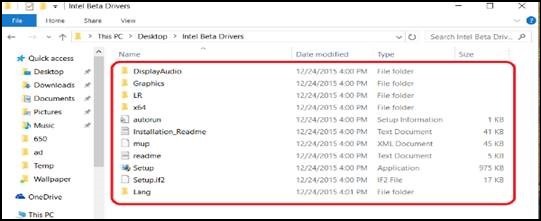
Figure 1
- Go to Device Manager (Figure 2).
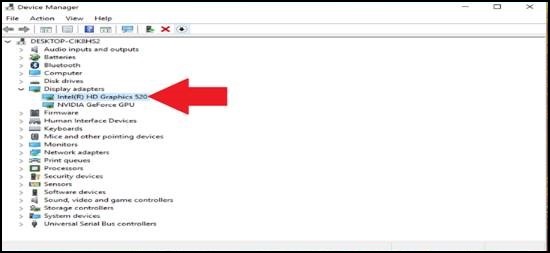
Figure 2
- Right-click Intel HD Graphics (Figure 3).
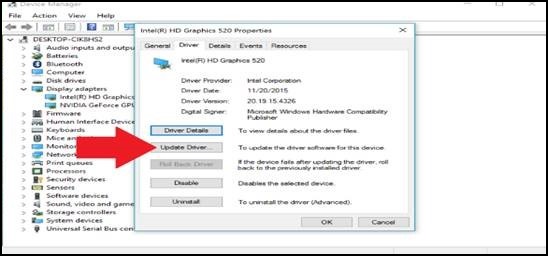
Figure 3
- Select "Browse my computer for driver software" (Figure 4).
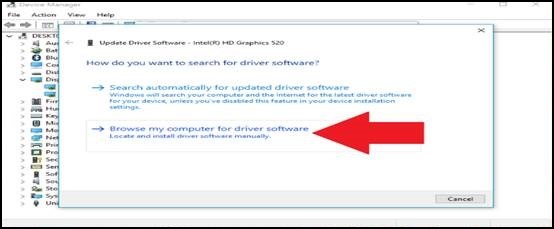
Figure 4
- Select "Let me pick from a list of device drivers on my computer" (Figure 5).
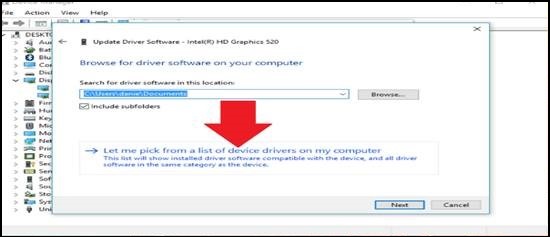
Figure 5
- Select the "Have Disk..." button in lower right-hand area (Figure 6).
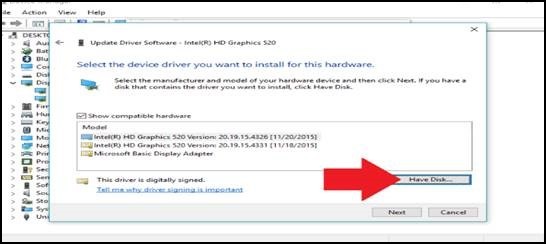
Figure 6
- Navigate to the folder where you extracted the drivers.
- Go into the Graphics folder and choose the file that it is asking for (Figure 7).
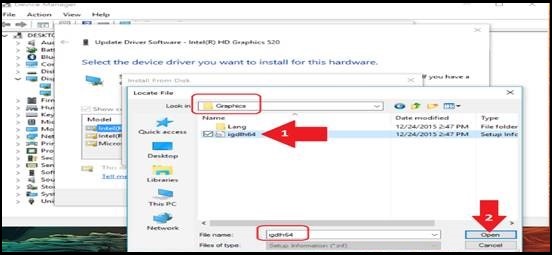
Figure 7
- On the "Install From Disk" window choose "OK" (Figure 8).
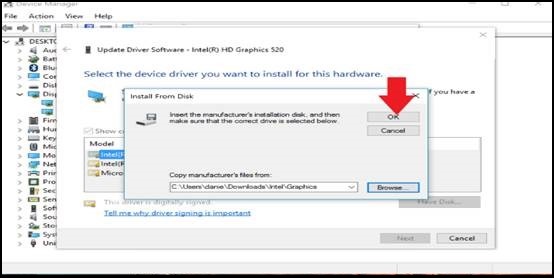
Figure 8
- Select "Next" (Figure 9).
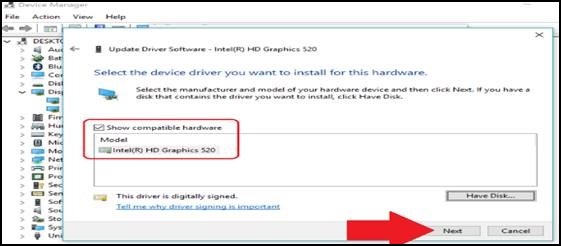
Figure 9
- The Update Driver Software window should now appear showing installation progress. Your display may flicker as the old driver is removed and the new driver is added (Figure 10).
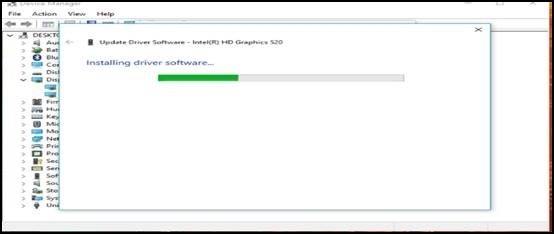
Figure 10
- You should get a screen that states "Windows has Successfully Updated Your Driver" (Figure 11).
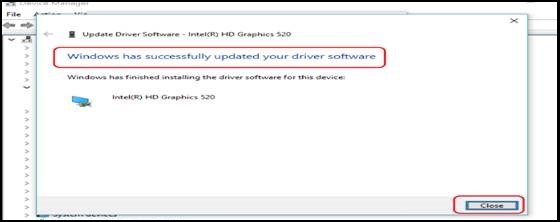
Figure 11
If you have further questions about this solution, please contact Dell Technical Support.
Article Properties
Article Number: 000126557
Article Type: Solution
Last Modified: 19 Apr 2026
Version: 4
Find answers to your questions from other Dell users
Support Services
Check if your device is covered by Support Services.