iDRAC: iDRAC9 - How to enable and disable lockdown mode
Summary: This article explains how to enable and disable lockdown mode in iDRAC9.
This article applies to
This article does not apply to
This article is not tied to any specific product.
Not all product versions are identified in this article.
Instructions
System Lockdown mode helps to prevent unintended changes after a system has been initially configured. This feature can help in protecting the system from unintentional or malicious changes. Lockdown mode is applicable to both configuration and firmware updates. When the system is locked down, any attempt to change the system configuration is blocked. When the system is in lockdown mode, any attempts are made to change critical system settings result in an error message being displayed.
The article introduces Lockdown Mode and provides three ways to enable Lockdown Mode.
Table of contents:
1. Introduction of Lockdown Mode
What is Lockdown Mode?
Lockdown Mode is a new feature introduced in iDRAC9. When enabled, the feature prevents modification of the iDRAC settings to prevent misactions or malicious modifications. Enabling Lockdown mode requires an Enterprise License.
Functional effects
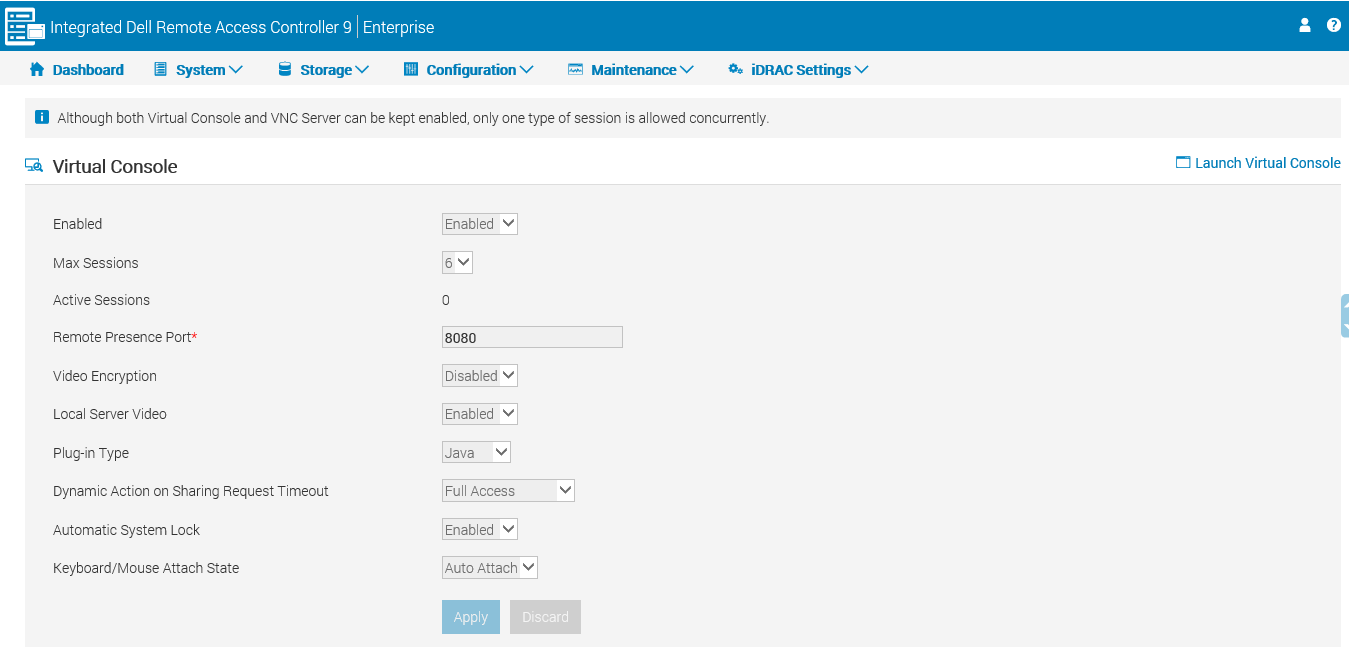
- Disable most settings for iDRAC web pages. The settings are grayed out as in the figure below:
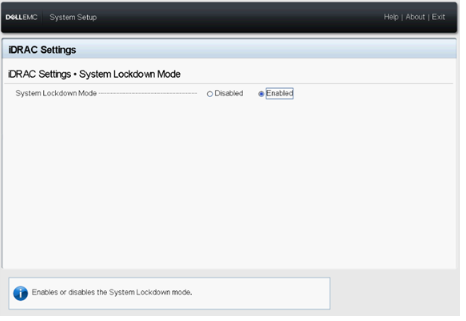
- Disable iDRAC settings under F2. The settings are grayed out as in the figure below:

2. How to enable Lockdown mode
-
Using the iDRAC Web interface
After login iDRAC9, go to the Dashboard - More Actions - Turn on the System Lockdown Mode.
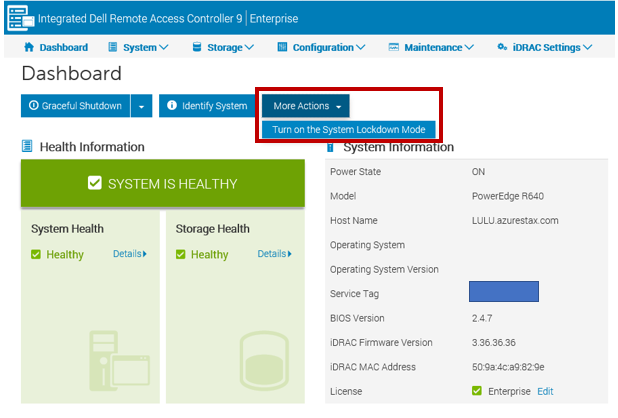
When Lockdown mode is enabled, the web interface has yellow highlights (unlimited dashboard).

When Lockdown mode is enabled, the web interface has yellow highlights (unlimited dashboard).
- Using the System setup interface:
Press F2 to enter the iDRAC Settings interface at boot time and select system Lockdown Mode for iDRAC Settings.
- Using iDRAC CLI:
Command-line: racadm set idrac.lockdown.systemlockdownmode<parameter>
The parameters are 0 and 1:
0 - Disable lockdown mode
1 - Enable lockdown mode
Example:
Enable Lockdown mode: racadm set idrac.lockdown.SystemLockdownMode 1
Stop Lockdown mode:
racadm set idrac.lockdown.SystemLockdownMode 0
For more information, see the manual: iDRAC9 with Controller Version RACADM CLI Guide
Note: It is not recommended to set up Lockdown Mode actions in two different ways simultaneously.
3. Precautions
The following list describes a selection of tasks that can be performed even if the system is in Lockdown mode:
- Power cap setting
- System power operations (power on/off, reset)
- Power priority
- Identify operations (Chassis or PERC)
- Part replacement
- Running diagnostics
- Modular operations (FlexAddress or Remote-Assigned Address)
- Group Manager passcode
Affected Products
iDRAC9Article Properties
Article Number: 000135182
Article Type: How To
Last Modified: 05 Dec 2024
Version: 5
Find answers to your questions from other Dell users
Support Services
Check if your device is covered by Support Services.