How do I Submit an ePSA or QR Code Online for additional Troubleshooting?
Summary: The error code the ePSA tool provides, is formatted as four numbers (1000 or 2000), and then another set of four numbers.
This article applies to
This article does not apply to
This article is not tied to any specific product.
Not all product versions are identified in this article.
Symptoms
When you have an ePSA code, you can submit the Service Tag, ePSA error and validation code at the SupportAssist Pre-Boot System Performance Check page, to learn how to proceed.
Note: The error code the ePSA tool provides, is formatted as four numbers (1000 or 2000), and then another set of four numbers.
When you have another number, either:
When you have another number, either:
- Rerun the self-diagnostics, be sure to write down the Service Tag, ePSA error and validation code as shown.
- Refer to Dell KnowledgeBase article Error Codes on Dell Commercial and Consumer products.
Cause
Some newer computers are shipped with version 3.0 of the ePSA diagnostics tool. When an issue is found a Quick Response Code (QR Code), is shown (Figure 1). You scan the QR Code from your phone, which opens the SupportAssist Pre-Boot System Performance Check page, there you can submit the Service Tag, ePSA error and validation code, to learn how to proceed.
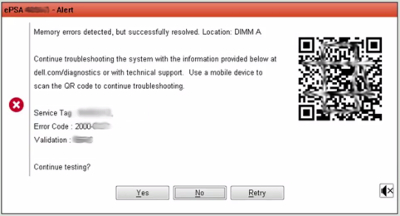
Figure 1: ePSA QR Code Example
QR Code readers are available from the Google Play and Apple apps stores.
For more information, refer to the Dell video ePSA Pre-boot System Assessment. 
Resolution
 Out of warranty? No problem click here, enter your Service Tag and view our offers.
Currently, offers are only available for US, Canada, UK, and France PC Customers. Server and Storage not applicable.
Article Properties
Article Number: 000181166
Article Type: Solution
Last Modified: 07 May 2026
Version: 3
Find answers to your questions from other Dell users
Support Services
Check if your device is covered by Support Services.