Dell Latitude xx00 and xx10 computers do not sleep the same between Windows 10 v.1909 and v.2004
Summary: The following article provides information about dealing with sleep issues on Windows 10 builds beneath 2004 on Latitude xx00 and Latitude xx10 laptops.
This article applies to
This article does not apply to
This article is not tied to any specific product.
Not all product versions are identified in this article.
Symptoms
Dell xx00 and xx10 computers do not sleep the same between Windows 10 v.1909 and v.2004
Latitude laptops go into sleep mode when the monitor goes to sleep.
This happens even if the laptop is set to never sleep.
Affected Platforms:
- Latitude 3300
- Latitude 5300
- Latitude 5400
- Latitude 7200
- Latitude 7300
- Latitude 7400
- Latitude 3310
- Latitude 3410
- Latitude 3510
- Latitude 5310
- Latitude 5410
- Latitude 5510
- Latitude 7210
- Latitude 7310
- Latitude 7410
- Latitude 9410
- Latitude 9510
Cause
Microsoft engineering teams recommend that impacted devices are upgraded to Windows 10 Version 20H1 or newer.
Microsoft has advised that Windows 10 Version 1909 will reach end of service (EOS) on 2021-11-05 for Home / Professional and 2022-10-05 for Enterprise versions and is not planning to change address this behavior.
Microsoft Announcement of end of servicing for Windows 10 1909 Professional

Microsoft Announcement of end of servicing for Windows 10 1909 Engineering
Resolution
Disable monitor standby and use a blank screen saver while on AC power.
Optional Settings that may be required on older builds of Windows 10
If you need Remote Management in Windows 10 1909, you must change the Power Management settings and use the 19xx driver series.
- Intel Serial IO Driver may need to be rolled back to the 19xx driver series if sleep issues occur.
Note: Refer to the following article on how to roll back a driver: How to Roll Back a Device Driver on a Dell System Using Windows
- Power Settings for Remote Management if required:
- Go to "Advanced" tab in the driver's property and enable/disable following items:
- Reduce Speed on Power Down - Disabled
- Ultra Low Power Mode - Disabled
- Enable PME - Enabled
- Energy Efficient Ethernet - Disabled
- Link Speed Battery Saver - Disabled
- Go to "Power Management" tab in the driver's property and untick "Allow the computer to turn off this device to save power" (Figure 1).
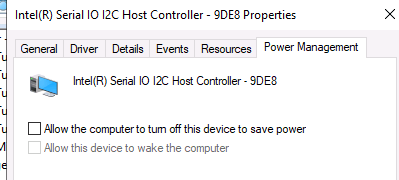
(Figure 1. Unticking "Allow the computer to turn off this device to save power"
- Go to "Advanced" tab in the driver's property and enable/disable following items:
Affected Products
Latitude 3300, Latitude 3310 2-in-1, Latitude 3310, Latitude 5300 2-in-1, Latitude 5300, Latitude 5310, Latitude 3400, Latitude 3410, Latitude 3500, Latitude 3510Products
Latitude 7200 2-in-1, Latitude 7210 2-in-1, Latitude 5310 2-in-1, Latitude 7300, Latitude 7310, Latitude 5400, Latitude 5410, Latitude 7400 2-in-1, Latitude 7400, Latitude 7410, Latitude 9410, Latitude 5500, Latitude 5510, Latitude 9510Article Properties
Article Number: 000183053
Article Type: Solution
Last Modified: 01 Oct 2025
Version: 4
Find answers to your questions from other Dell users
Support Services
Check if your device is covered by Support Services.