VMware: vCenter services not starting automatically after a restore from an image-based backup
Summary: vCenter services not starting automatically after a restore from an image-based backup
This article applies to
This article does not apply to
This article is not tied to any specific product.
Not all product versions are identified in this article.
Symptoms
- vCenter/PSC not fully starting after restoring VM from backup
- The backup method was an Image-Based Backup.
- Backups using the VAMI file-based backup are not impacted.
- vmon service is masked - thereby not allowing all services managed by vmon to start.
- Unmasking vmon allows services to start successfully.
- On reboot, vmon becomes masked again.
On a manual start of the services, it fails as below,
#service-control --start --all
Operation not cancellable. Please wait for it to finish...
Performing start operation on service lwsmd...
Service lwsmd startup type is not automatic. Skip
Performing start operation on service vmafdd...
Service vmafdd startup type is not automatic. Skip
Performing start operation on service vmdird...
Service vmdird startup type is not automatic. Skip
Performing start operation on service vmcad...
Service vmcad startup type is not automatic. Skip
Performing start operation on service vmware-sts-idmd...
Service vmware-sts-idmd startup type is not automatic. Skip
Performing start operation on service vmware-stsd...
Service vmware-stsd startup type is not automatic. Skip
Performing start operation on service vmdnsd...
Service vmdnsd startup type is not automatic. Skip
Performing start operation on profile: ALL...
Service vmware-vmon startup type is not automatic. Skip
Service-control failed. Error: Failed to start services in profile ALL. RC=11, stderr=Connect error. ErrCode: 111
Here is how you check if a vmon is masked.
# systemctl list-unit-files | grep vmware-vmon.service
vmware-vmon.service          masked
To unmask the service.
#systemctl unmask vmware-vmon.service
Note: This allows you to start the service -, but the issue recurs on reboot.
Cause
N/A
Resolution
-
Go to the vCenter Server Management Interface, https://vCenter_FQDN_or_IP: 5480, and click the Setup vCenter Server Appliance button.

-
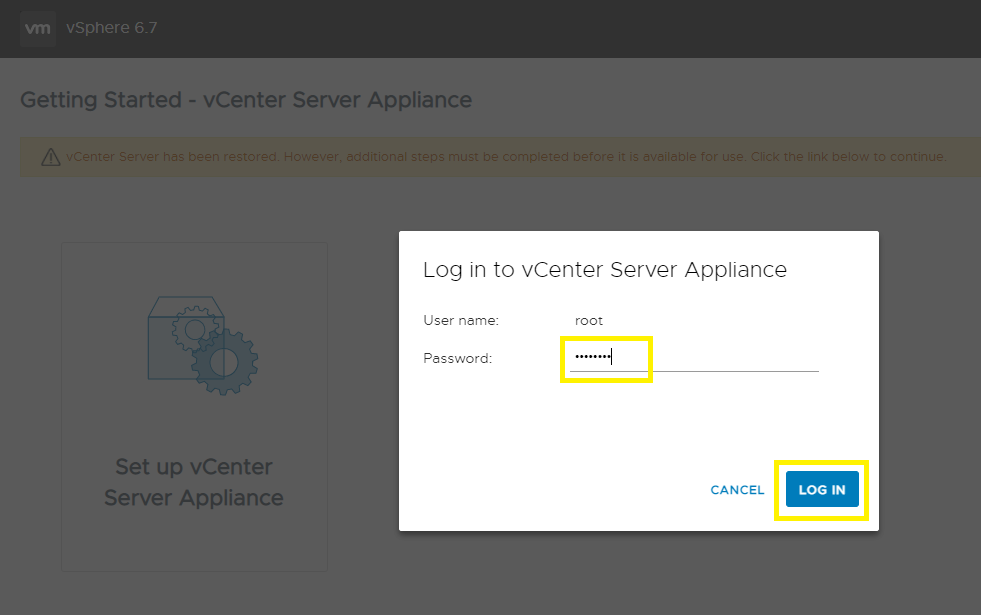
Input the root password and click LOG IN.
-
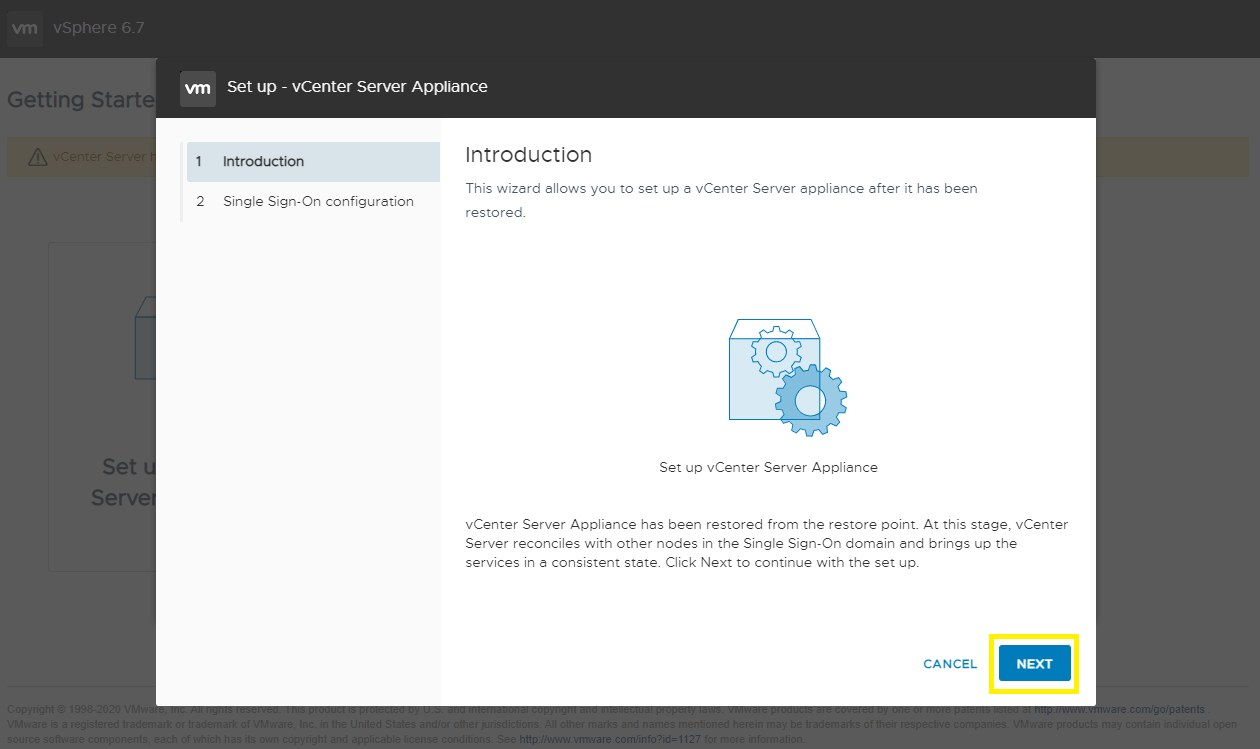
Click NEXT.
-
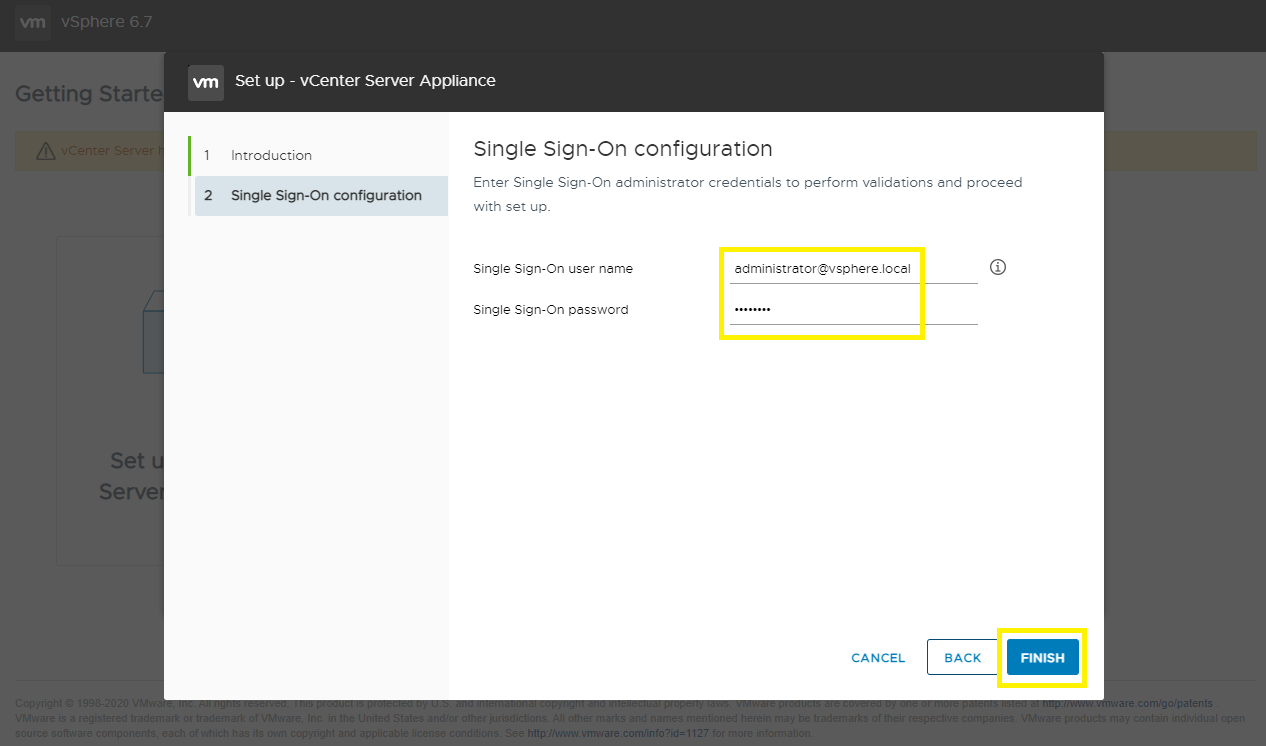
Input an SSO username and password, then click FINISH.
-
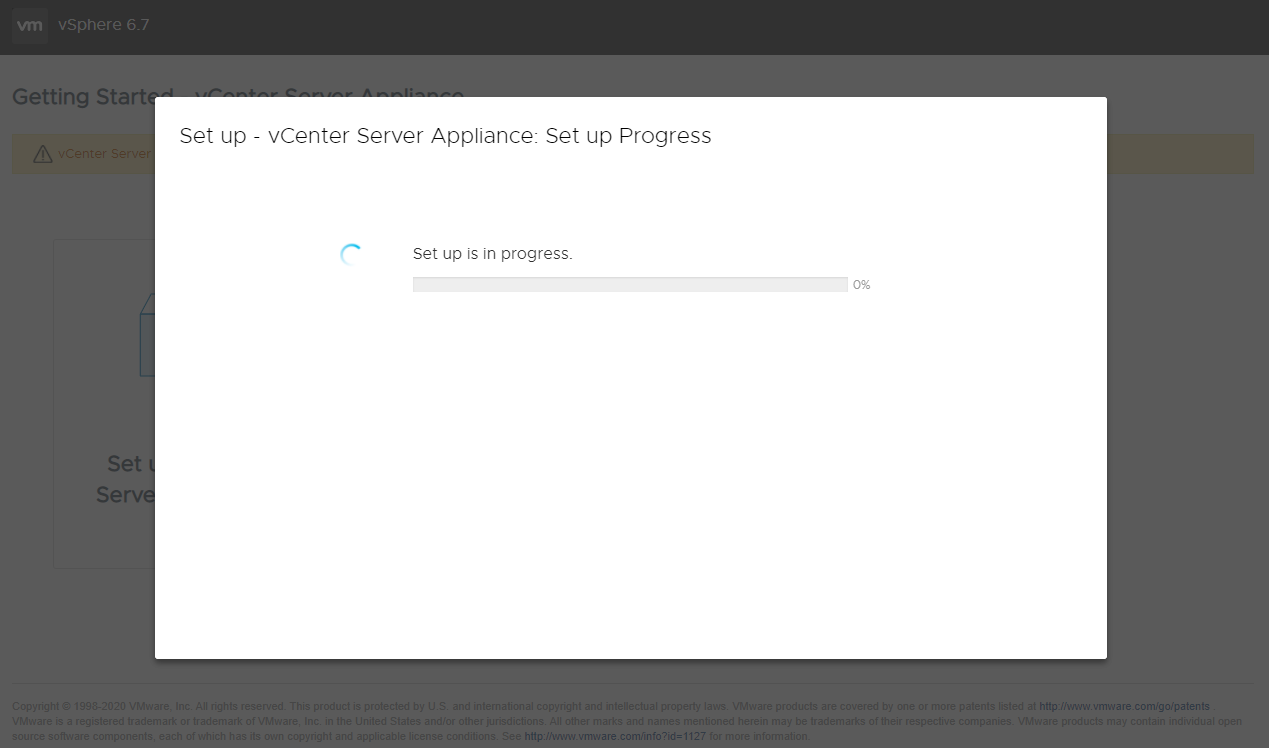
Reconciliation starts. Wait 15 - 30 minutes to finish.
-
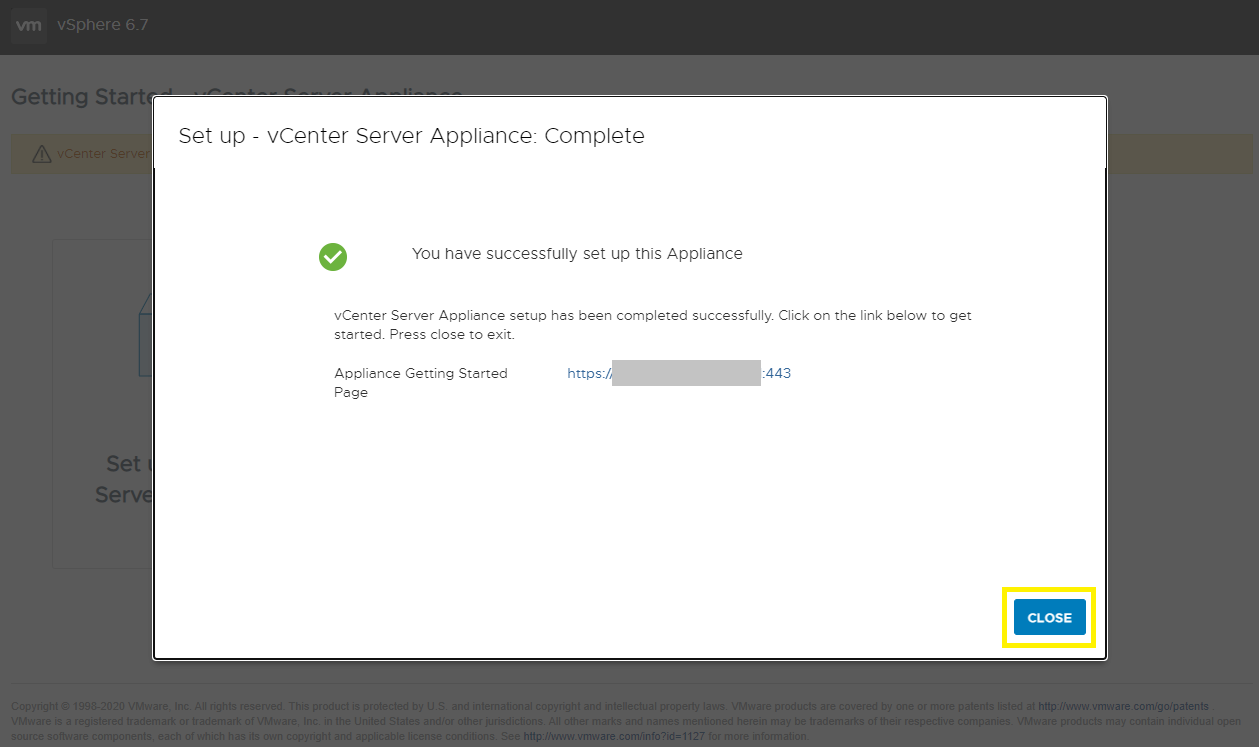
Reconciliation completes, and you can access the vSphere Client.
Affected Products
VxRack, VxRail, VxRail SoftwareArticle Properties
Article Number: 000195302
Article Type: Solution
Last Modified: 04 Sep 2025
Version: 3
Find answers to your questions from other Dell users
Support Services
Check if your device is covered by Support Services.