Dark Screen or Brightness Control not able to Increase
Summary: Customer may experience a dark screen or the brightness control not able to increase. The auto brightness control feature does not work.
This article applies to
This article does not apply to
This article is not tied to any specific product.
Not all product versions are identified in this article.
Symptoms
Affected Products:
- Dell U2724D Monitor
- Dell U2724DE Monitor
- Dell U2424H Monitor
- Dell U2424HE Monitor
Cause
The Auto brightness control sensor is blocked.
Resolution
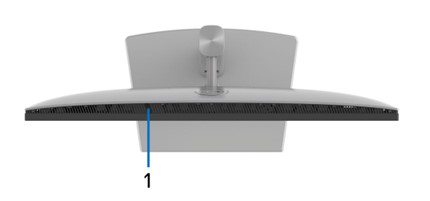
Check that the sensor is visible
Remove any obstruction that may be attached to the top of the monitor, about 5.8 cm (2 inches) to the left from the center of the monitor that might be blocking the Auto Brightness Control sensor.
To enable or disable the sensor
- Press the joystick button, the on-screen display (OSD) menu launcher appears.
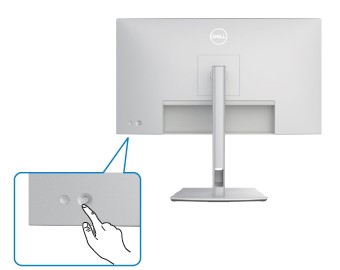
Function Description 
Press Joystick to open the OSD Menu Launcher. 
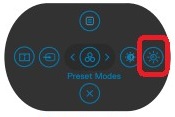
For right and left navigation 
For up and down navigation - Use the joystick to select the Auto Brightness Enable or Disable function on the right of the OSD Menu
- Press the Joystick button to Enable or Disable Auto Brightness.
Affected Products
Dell U2424H, Dell U2424HE, Dell U2724D, Dell U2724DEArticle Properties
Article Number: 000217955
Article Type: Solution
Last Modified: 24 Apr 2025
Version: 5
Find answers to your questions from other Dell users
Support Services
Check if your device is covered by Support Services.