NetWorker: Unable to log in to NMC or using nsrlogin, receiving: "Authentication library error: GET failed with HTTP-ERROR: 404"
概要: Unable to log in to the NMC or using the nsrlogin command from the CLI on the NetWorker server. This KB goes over this issue/resolution when it is also found that the nsr directory on the NetWorker server is at 100% capacity. ...
この記事は次に適用されます:
この記事は次には適用されません:
この記事は、特定の製品に関連付けられていません。
すべての製品パージョンがこの記事に記載されているわけではありません。
現象
- You are unable to log in to the NetWorker Management Console (NMC) or CLI using
nsrlogin - NetWorker authentications fail with the following error:
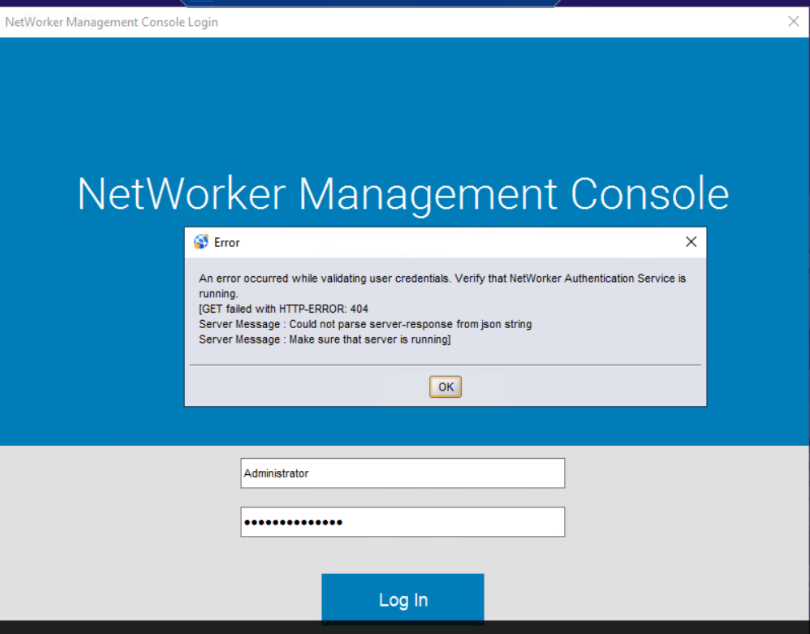
Authentication library error: GET failed with HTTP-ERROR: 404
Server Message : Could not parse server-response from json string
Server Message : Make sure that server is running
- NetWorker server (
nsrd) service is running:- Linux:
ps -ef | grep nsr - Windows:
tasklist | findstr nsr
- Linux:
- Port 9090 is listening:
- Linux:
netstat -apno | grep 9090 - Windows:
netstat -ano | findstr 9090 - NetWorker port test command:
nsrports -t localhost -p 9090
- Linux:
原因
This issue can appear due under different circumstances:
- After upgrade/installation of NetWorker on a Windows based server
- The /nsr installation location has reached 100% capacity
- Authentication Server (AUTHC) database corruption
The AUTHC service has started but is unresponsive to authentication requests.
解決方法
Before any steps are taken to resolve the issue, confirm that the installation drive is not at 100% capacity. If the installation drive is full, or nearing capacity, increase disk space accordingly.
The AUTHC database must be reconfigured.
Linux:
1. Shutdown NetWorker services:
2. Rename the AUTHC directory:
3. Run the AUTHC configuration script:
5. Confirm NetWorker services come up:
6. Confirm port 9090 connections succeed:
nsr_shutdown
2. Rename the AUTHC directory:
mv /nsr/authc /nsr/authc`date -I`.bak
3. Run the AUTHC configuration script:
/opt/nsr/authc-server/scripts/authc_configure.sh
NOTE: You are prompted to reconfigure the AUTHC keystore and NetWorker Administrator password.
4. Start NetWorker services: systemctl start networker
5. Confirm NetWorker services come up:
ps -ef | grep nsr
6. Confirm port 9090 connections succeed:
nsrports -t localhost -p 9090
NOTE: The AUTHC service appears as a jsvc.exe process for
nsrtomcat+. This can be observed with `ps -ef | grep jsvc`
7. Log in to the NMC or NetWorker Web User Interface (NWUI) using the NetWorker Administrator account.
8. Once NetWorker functionality is returned, you can delete the old AUTHC folder at your discretion.
Windows:
1. Uninstall NetWorker.
2. From Windows File Explorer, go to the NetWorker installation directory and rename the authc-server folder. The default location is "C:\Program Files\EMC NetWorker\nsr\authc-server"
3. Reinstall NetWorker.
NOTE: NetWorker installation packages can be downloaded from: https://www.dell.com/support/home/product-support/product/networker/drivers. During the installation, you are prompted to re-create the NetWorker keystore and default Administrator password.
4. Confirm NetWorker services come up: tasklist | findstr nsr
5. Confirm port 9090 connections succeed: nsrports -t localhost -p 9090
The AUTHC process is listed as a java.exe process. The Details tab in Task Manager can be used to identify this process: 
6. Log in to the NMC or NetWorker Web User Interface (NWUI) using the NetWorker Administrator account.
7. Once NetWorker functionality is returned, you can delete the old AUTHC folder at your discretion.
その他の情報
If AD/LDAP was integrated, re-add the external authority to NetWorker; existing NMC Roles and User Group permissions remain intact.
対象製品
NetWorker, NetWorker Management Console製品
NetWorker Family, NetWorker, NetWorker Series文書のプロパティ
文書番号: 000031476
文書の種類: Solution
最終更新: 20 6月 2025
バージョン: 5
質問に対する他のDellユーザーからの回答を見つける
サポート サービス
お使いのデバイスがサポート サービスの対象かどうかを確認してください。