How to Reset, Remove, or Recover BIOS Passwords
概要: Forgot your Admin, System, or HDD password in BIOS? Learn safe methods via BIOS settings, jumpers, or Dell password release code—to reset or clear passwords easily.
この記事は次に適用されます:
この記事は次には適用されません:
この記事は、特定の製品に関連付けられていません。
すべての製品パージョンがこの記事に記載されているわけではありません。
手順
Can't remember your BIOS password or need help to remove it? This guide explains your options-whether you set a System, Admin, or Hard Drive password.
Understanding Types of BIOS passwords
Your Dell computer can have three types of BIOS passwords:
- System Password: Stops the computer from booting
- Setup Password: Prevents unauthorized users from changing BIOS settings
- Hard Drive Password: Locks the drive and data
All three types can be cleared using the same methods below.
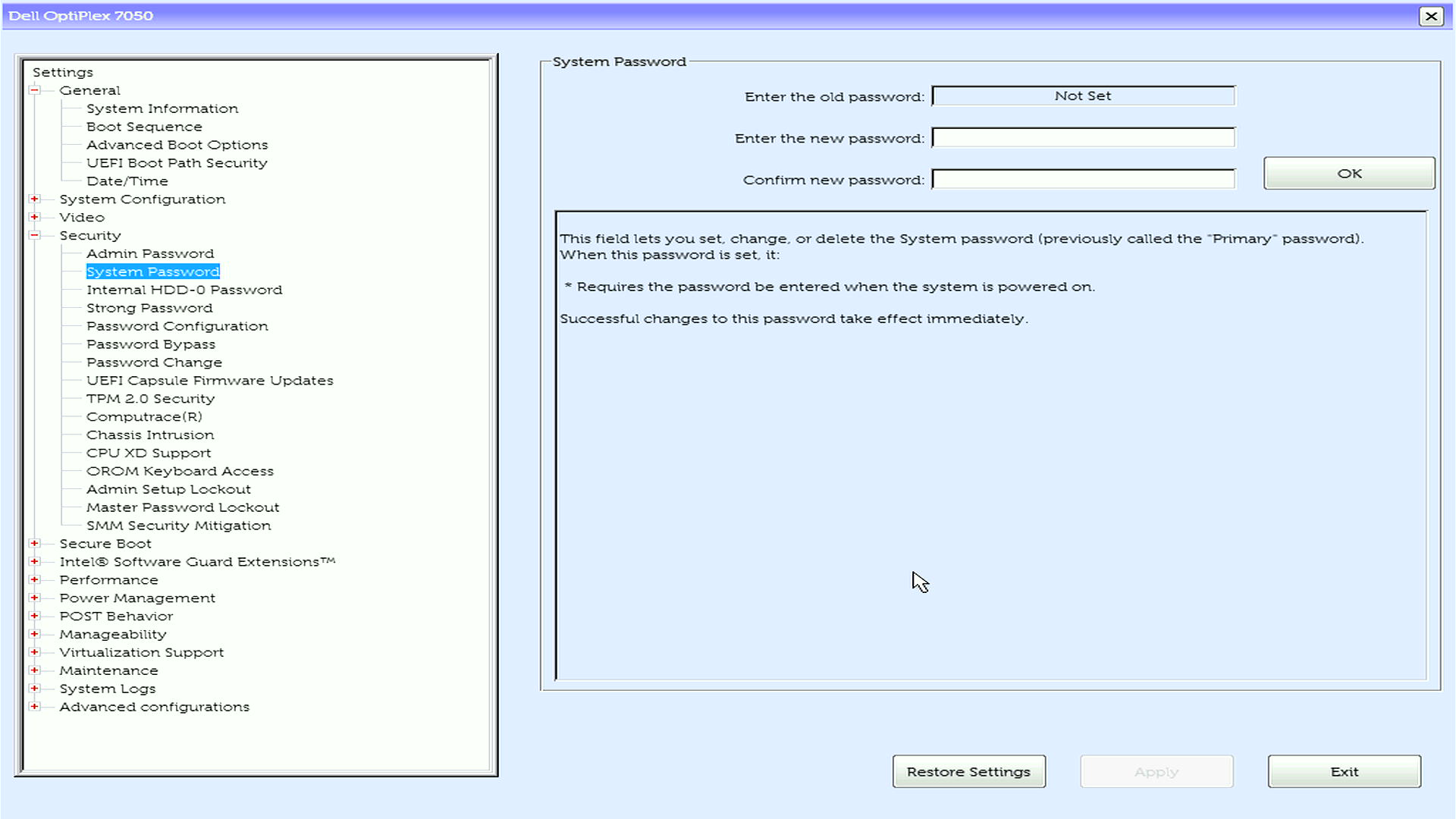
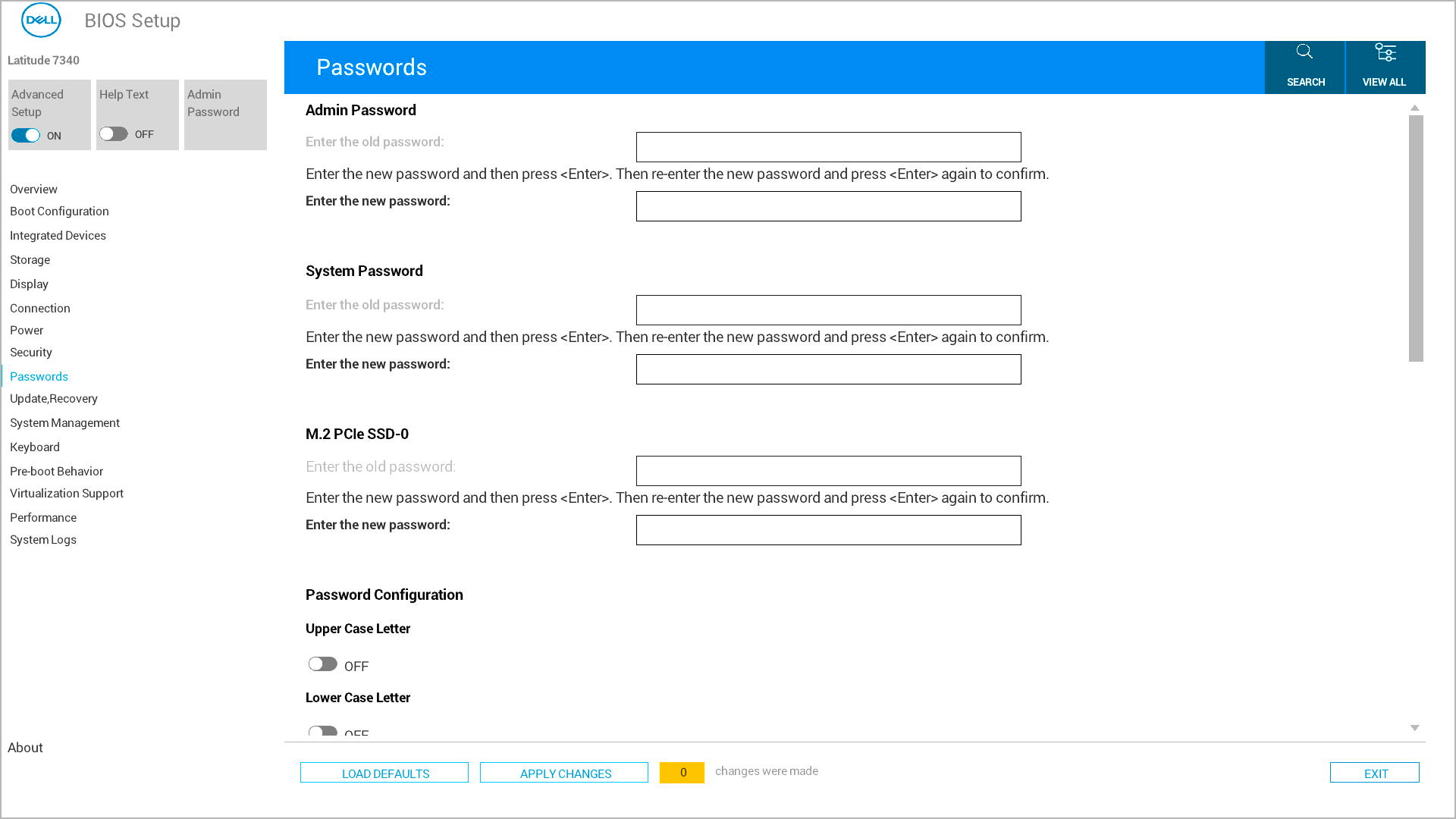
If You Know the Password
If you remember your BIOS password, you can easily remove or change it yourself through the BIOS setup:
- Turn on your computer
- Press F2 repeatedly when you see the Dell logo
- Enter your current password
- Go to the Security section
- Select the password you want to remove
- Press Enter and leave the new password field blank
- Press Enter again to confirm
- Save changes and exit
Your password is now removed.
Note: If your BIOS interface looks different or these steps don't match your system, refer to your computer's service manual for specific instructions.
If You Forgot the Password
If you've forgotten your BIOS password, you have two recovery options depending on your computer model:
Option 1: How to Clear Via Jumper (desktops)
This works on most Dell desktops. Laptops don't have jumpers.
WARNING: Using the jumper reset method removes all BIOS passwords from your computer. This includes system passwords, setup passwords, and hard drive passwords. It does not remove other passwords like your Windows login or online account passwords.
What you need:
- Screwdriver
- Your computer's service manual
Steps:
- Turn off your computer and unplug all cables
- Download your service manual from Dell Support
- Find the password jumper location in your manual (labeled "PSWD" or "PASSWORD")
- Open your computer case
- Remove the small plastic cap from the password jumper
- Turn on the computer without the jumper cap
- Let it boot completely, then turn it off
- Replace the jumper cap
- Close the case and reconnect cables
Note: Jumper locations vary by model. Always check your service manual for exact instructions.
Option 2: Getting a Dell Password Release Code
This works on all Dell computers and is your only option for laptops or computers without jumpers.
Steps:
- Turn on your computer
- Enter a wrong password 3-5 times until you see an error code
- Write down the exact error code
- Contact Dell Technical Support
- Provide the error code and proof of ownership
- Dell will give you a release code to unlock your computer
Using the password release code
- Dell will provide a release code after verification
- Write down the code exactly as given
- Enter the password release code at your computer's password prompt
- Your computer should unlock and boot normally
- Access BIOS setup (F2 during startup) to set a new password if desired
When to use your service manual
Always check your service manual if:
- You can't find the password jumper
- The steps don't match your computer
- You need specific instructions for your model
Download your manual at Dell Support using your computer's Service Tag or Express Service Code.
Need More Help?
- Ready to protect your computer? Learn: Understanding BIOS Password Types
- To create new passwords: see guides for Admin Password, System Password, or Hard Drive Password Setup
Frequently Asked Questions (FAQs)
1. Can I reset any BIOS password myself?
Answer: Some desktop models allow jumper reset, but many laptops need a password release code from Dell Support.
2. Will clearing a password erase my files?
Answer: No. It only affects the password in the BIOS.
3. Can Dell always reset HDD passwords?
Answer: Not always, especially on NVMe SSDs, Dell cannot create a password release code for NVMe SSDs.
対象製品
Alienware, Dell All-in-One, Dell Pro All-in-One, Dell Pro Max Micro, Dell Pro Max Slim, Dell Pro Max Tower, Dell Pro Micro, Dell Pro Slim, Dell Pro Tower, Dell Slim, Dell Tower, Inspiron, Legacy Desktop Models, OptiPlex, Vostro, XPS, G Series
, G Series, Alienware, Dell Laptops, Dell Plus, Dell Pro, Dell Pro Max, Dell Pro Plus, Dell Pro Premium, Inspiron, Latitude, Dell Pro Rugged, Vostro, XPS, Legacy Laptop Models, XPS Tablets, Fixed Workstations, Mobile Workstations, Dell Pro Max Micro XE FCM2250, Dell Pro Max Slim XE FCS1250, Dell Pro Max Tower T2 XE FCT2250, Dell Pro Max 14 Premium MA14250, Dell Pro Max 16 Premium MA16250, Dell Pro Max 16 Plus MB16250, Dell Pro Max 18 Plus MB18250, Dell Pro Max 16 XE MC16250, Dell Pro Micro Plus XE QBM1250, Dell Pro Slim Plus XE5 QBS1250, Dell Pro Tower Plus XE5 QBT1250
...
文書のプロパティ
文書番号: 000131024
文書の種類: How To
最終更新: 13 10月 2025
バージョン: 26
質問に対する他のDellユーザーからの回答を見つける
サポート サービス
お使いのデバイスがサポート サービスの対象かどうかを確認してください。