How to Run Dell Preboot Diagnostics and Hardware Tests on Your Dell Computer
概要: How to run Dell Preboot diagnostics to identify hardware issues on your Dell computer. Learn instructions on using Dell onboard diagnostics, performing in-depth tests, and troubleshooting with Dell diagnostics boot options. ...
この記事は次に適用されます:
この記事は次には適用されません:
この記事は、特定の製品に関連付けられていません。
すべての製品パージョンがこの記事に記載されているわけではありません。
手順
Preboot diagnostics allow you to test your computer hardware at a basic level before the operating system loads.
Select from the table of contents to learn how to run the test you want. The top option is the most basic, and the subsequent options are more advanced.
Diagnostic Quick Test
- Turn on your computer.
- At the Dell logo, press the F12 key several times until the One Time Boot Menu appears.
- On the boot menu screen, select the Diagnostics option (Figure 1.)
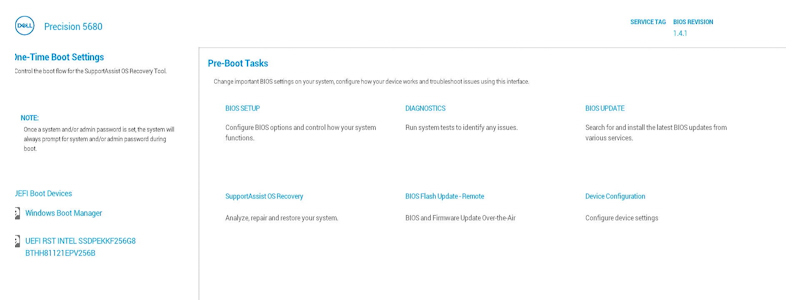
Figure 1: One Time Boot Menu
The diagnostic quick test begins (Figure 2.)

Figure 2: Diagnostic Quick TestNOTE: The mouse and touch screen (if installed) are not active during testing.NOTE: To run a diagnostic test on a specific device, press Esc and then select Advanced test on the lower left corner and then follow the steps in the Diagnostic advanced test section.Once the quick test completes, the results are shown.
It will state either:
- All tests passed successfully, either:
- Scan the QR code for additional help.
- Select EXIT in the lower right corner to reboot the computer.
- Select ADVANCED TEST on the lower left corner to run a specific test, follow the steps in the Diagnostic advanced test section to learn how to run a specific test.
- A message stating what hardware is not working correctly, either:
- See the following articles for troubleshooting steps to possibly resolve the issue.
Select the article which matches the error range and look up the specific error you have, and perform the troubleshooting steps.
- Scan the QR code to report the issue.
- Browse to SupportAssist Pre-Boot System Performance Check to report the issue (Make a note of the error code, validation code, and service tag.)
- Browse to Contact Technical Support to see what your options are (Make a note of the error code, validation code, and service tag.)
- See the following articles for troubleshooting steps to possibly resolve the issue.
- All tests passed successfully, either:
Advanced Diagnostic Test
NOTE: The default is that all the tests are selected.
- When you want to run a specific test, select to clear the Select all check box and then select the tests you want to run. (Figure 3.)
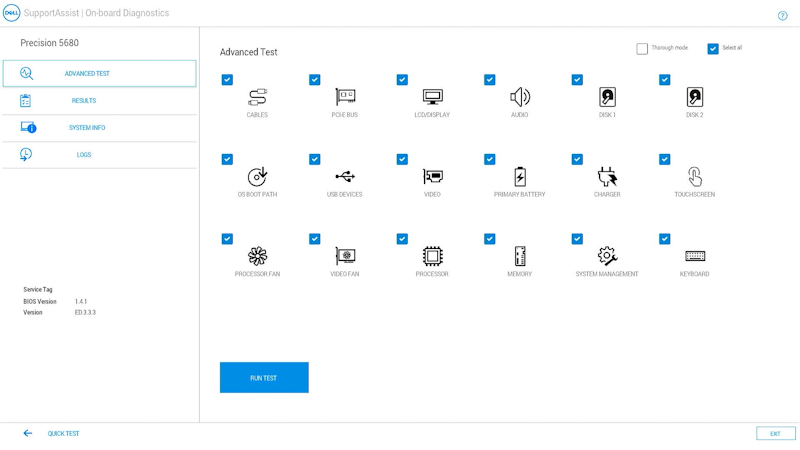
Figure 3: Advanced Test ScreenNOTE: The hardware test options may vary depending on the hardware installed on your Dell computer.NOTE: To run a thorough test on the hardware, select to check the Thorough mode box. - Select RUN TEST.
NOTE: On Dell laptops, user response is required during the LCD test.
Once the test completes, the results are shown.
It will state either:
- All tests passed successfully, either:
- Scan the QR code for additional help.
- Select EXIT in the lower right corner to reboot the computer.
- Select QUICK TEST on the lower left corner.
- A message stating what hardware is not working correctly, either:
- See the following articles for troubleshooting steps to possibly resolve the issue.
Select the article which matches the error range and look up the specific error you have, and perform the troubleshooting steps.
- Scan the QR code to report the issue.
- Browse to SupportAssist Pre-Boot System Performance Check to report the issue (Make a note of the error code, validation code, and service tag.)
- Browse to Contact Technical Support to see what your options are (Make a note of the error code, validation code, and service tag.)
- See the following articles for troubleshooting steps to possibly resolve the issue.
- All tests passed successfully, either:
Other Resources:
The Preboot Diagnostic tool also provides information as outlined below:
Configuration
NOTE: To access the Configuration tab, select SYSTEM INFO from the options on the left.
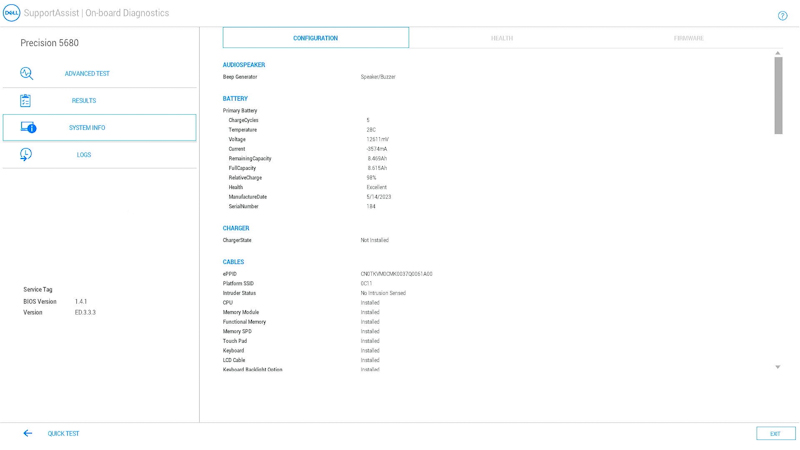
Figure 4: Configuration Tab
Health
NOTE: To access the Health tab, select SYSTEM INFO from the options on the left.

Figure 5: Health Tab
Firmware
NOTE: To access the Firmware tab, select SYSTEM INFO from the options on the left.

Figure 6: Firmware Tab
Logs of Previous Diagnostics Tests
NOTE: To access the logs of the previous diagnostics tests, select LOGS from the options on the left.
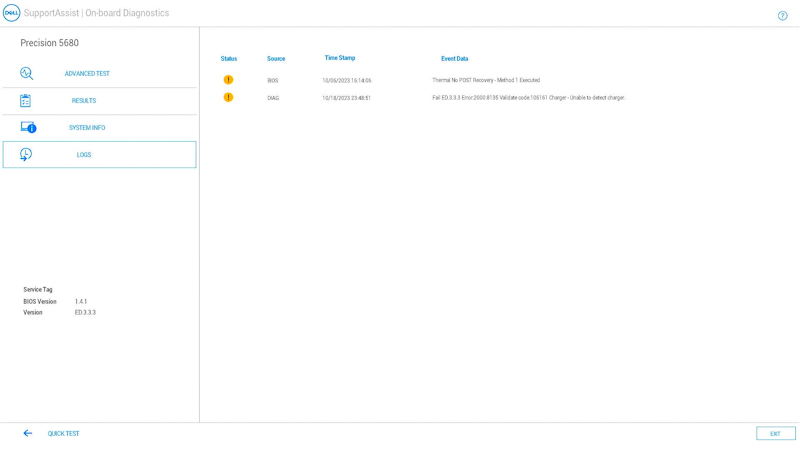
Figure 7: Diagnostics Logs Tab
How to Run a Preboot Diagnostics on a Dell Computer
Watch this video to learn how to use integrated preboot diagnostics to identify hardware issues on your Dell computer.
Duration: 01:34 (mm:ss)
When available, closed caption (subtitles) language settings can be chosen using the Settings or CC icon on this video player.
See these Dell Knowledge Base articles for other diagnostics tests available from Dell:
- How to Run a Diagnostic Test Using SupportAssist.
- How to Run a Dell Online Diagnostic Test.
- How to Run a Diagnostic Test on a Dell Monitor.
- How to Run the LCD Built-in Self-Test on a Dell Laptop.
- How to Run a Power Supply Unit Self Test On a Dell Desktop or All-in-One Computer.
- How to Run Hardware Diagnostics on your PowerEdge Server.
対象製品
Alienware, Dell All-in-One, Dell Pro All-in-One, Dell Pro Max Micro, Dell Pro Max Slim, Dell Pro Max Tower, Dell Pro Micro, Dell Pro Slim, Dell Pro Tower, Dell Slim, Dell Tower, Inspiron, Legacy Desktop Models, OptiPlex, Vostro, XPS, G Series
, G Series, Alienware, Dell Plus, Dell Pro, Dell Pro Max, Dell Pro Plus, Dell Pro Premium, Inspiron, Latitude, Dell Pro Rugged, Vostro, XPS, Legacy Laptop Models, Fixed Workstations, Mobile Workstations, Dell Pro Max Micro XE FCM2250, Dell Pro Max Slim XE FCS1250, Dell Pro Max Tower T2 XE FCT2250, Dell Pro Micro Plus XE QBM1250, Dell Pro Slim Plus XE5 QBS1250, Dell Pro Tower Plus XE5 QBT1250
...
文書のプロパティ
文書番号: 000181163
文書の種類: How To
最終更新: 15 5月 2025
バージョン: 22
質問に対する他のDellユーザーからの回答を見つける
サポート サービス
お使いのデバイスがサポート サービスの対象かどうかを確認してください。