PowerFlex: Nested Virtualization VHV support on VxRack Systems
Summary: Nested virtualization is not supported on VxRack Systems.
Instructions
Question
What is the official support designation for the Nested Virtualization (VHV) on a VxRack system?
Facts
Per VMware Support for running ESXi as a nested virtualization solution Nested Virtualization (VHV) is not supported in production environments.
VxRack best practices do not allow for enablement of VHV in a production environment.
Answer
Due to the inability to ensure production grade reliability of a nested virtualized solution, VHV is not supported in a production environment.
If VxRack system nodes are discovered to have VHV enabled, the recommendation is for the setting to be disabled across all hosts in the VMware cluster. When VHV is configured at the ESXi host level, disabling this setting will require the VMs to be evacuated from the host or shut down. This action should be coordinated with the customer for a maintenance window. See KB How to disable Nested Virtualization for additional details on how to disable VHV.
Additional Information
Disable the global Nested Virtualization (VHV) setting on an ESXi node.
Facts
- The /etc/vmware/config file on an ESXi host contains the entry vhv.enable = "TRUE"
- VMotion from ESXi hosts with this setting enabled to ESXi hosts without this setting does not work
- Affected virtual machines have the "Expose hardware assisted virtualization to the guest" setting enabled
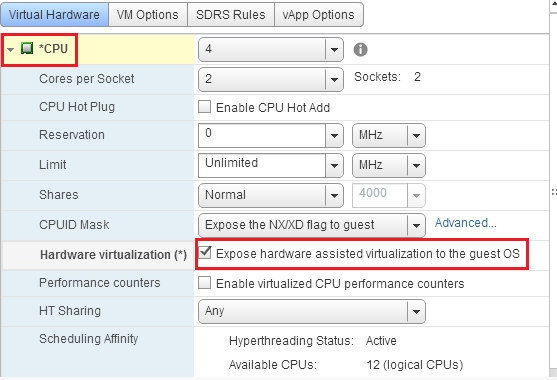
- VHV is not supported in a production environment
Solution
Coordinate a maintenance window with the customer to verify and reconfigure the affected ESXi hosts and to shut down all VMs in the cluster. The VMs can be shut down one host at a time, all VMs at once, or a variation thereof, depending upon customer requirements and capacity constraints. These customer requirements will dictate the length of the outage window. Additional VxFlex OS knowledge of fault-sets and protection domains is required if all VMs in the cluster are to be shut down at one time.
Details
NOTE: Follow Dell EMC VxRack Flex best practices for VxFlex OS virtual machine shutdown and power on procedures. Failure to follow these procedures will potentially result in data corruption. Verify each host is healthy in vCenter with no errors before proceeding.
- SSH to each ESXi host
- Execute the command:
cat /etc/vmware/config | grep vhv - Verify the /etc/vmware/config contains vhv.enable = "TRUE"
- If /etc/vmware/config contains vhv.enable = "TRUE", make a backup copy of the /etc/vmware/config file
- Edit the /etc/vmware/config file using VI, and delete the line containing vhv.enable = "TRUE"
- Save the config file
- Document the current DRS automation property setting for each vCenter cluster and modify each clsuter DRS settings and set to "Manual" (if necessary) to prevent VM VMotion.
NOTE: Do not disable DRS as this can adversely affect other virtualization components that could be running in the environment.
- Beginning with the first affected host in the cluster
- Shutdown all customer VMs on target host
NOTE: Validate that the "Expose hardware assisted virtualization to the guest" setting should no longer be enabled after shutting down the first customer VM. The "Expose hardware assisted virtualization to the guest" setting on the virtual machine is inherited from the ESXi host based on the hosts vhv.enable configuration. Removal of the vhv.enable setting from the config file removes the setting from the VM upon the next VM power shut down.
- Shutdown all customer VMs on target host
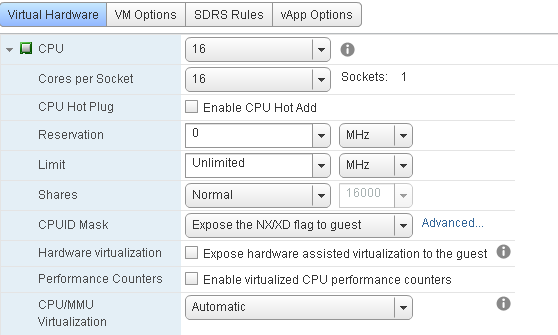
- From the VxFLex OS GUI, place the VxFlex OS SDS in maintenance mode
- Shutdown the SVM
NOTE: The "Expose hardware assisted virtualization to the guest" setting should no longer be enabled.
- Power on the SVM
- From the VxFlex OS GUI, exit VxFlex OS maintenance mode for SDS, waiting for rebuild\rebalance to complete
- Power on customer VMs on Host
- Proceed to next ESXi host and repeat these steps
- Modify the vCenter cluster DRS properties to the original setting
- Verify VMotion works as expected