PowerStore: System Health Checks Detects Lack of Space in cyc_node
Summary: The System Health Checks detected less than 200 MB in /cyc_node. If left unresolved, this may result in unexpected node reboot events, or the nodes entering service mode.
This article applies to
This article does not apply to
This article is not tied to any specific product.
Not all product versions are identified in this article.
Symptoms
The system health check may display messages similar to:
/cyc_node free space is less than 200 MB. (KB#000198173)
Or:
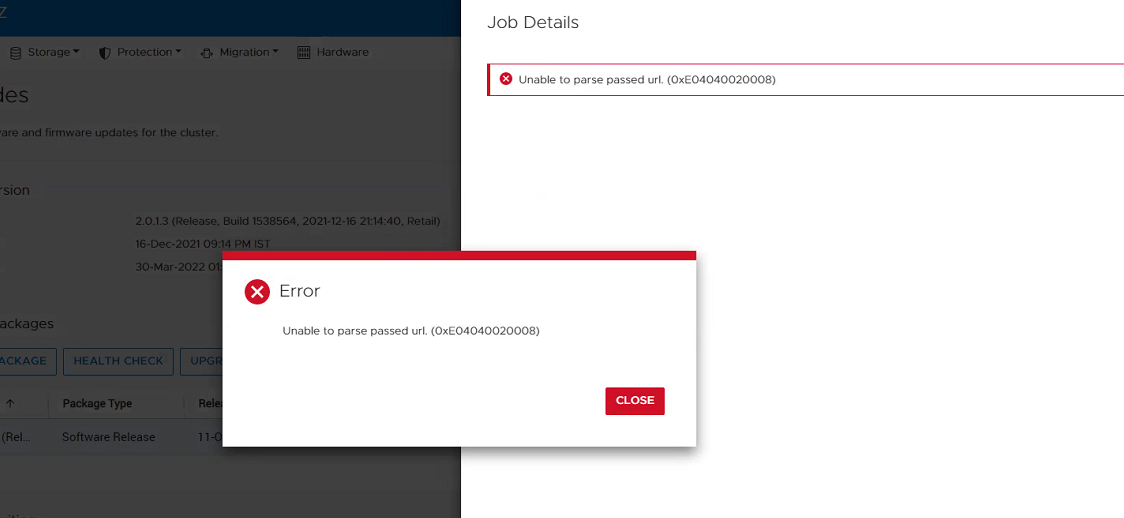
Unable to parse passed url (0xE04040020008)
The system may display a normal alert like:
Root partition usage of node x has exceeded xx% on mount /cyc_node.
Note:
- This alert or issue should not be ignored and must be resolved as soon as possible.
- If the system health checks detect this condition, PowerStoreOS upgrades may fail, and there is a risk of unexpected reboots.
- If the partition reaches 100%, SupportAssist may fail, and the node may enter Service Mode.
In the following examples, both nodes of an appliance have insufficient space in /cyc_node.
- Running a System Check using PowerStore Manager with the Run Upgrade Extensions option:
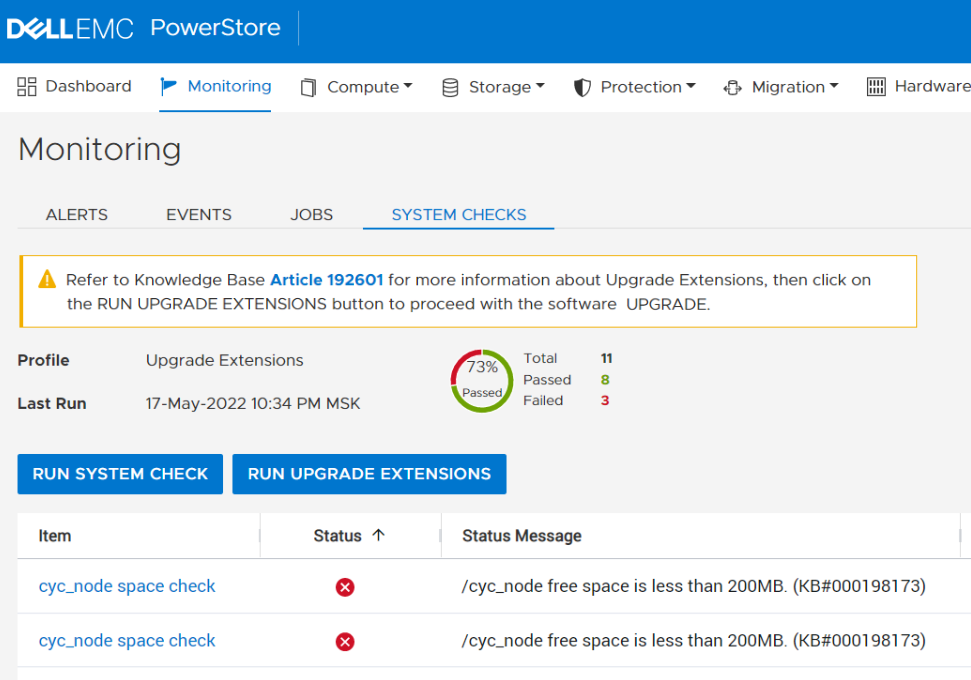
Tip: The Profile field displays Upgrade Extensions when the Run Upgrade Extensions option is used to perform a System Check.
- Running a System Check using PowerStore Manager (UI) with the Run System Check option:
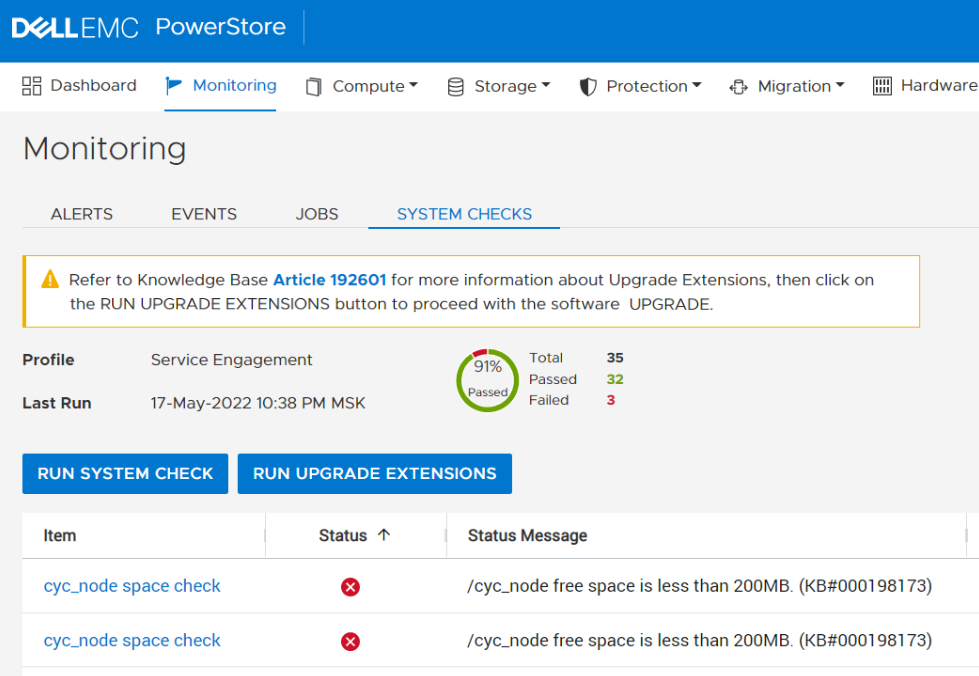
Tip: The Profile field displays Service Engagement when the Run System Check option is used to perform a System Check.
- Running the System Health Service Script (svc_health_check) using an
SSHconnection:
$ svc_health_check run -rhc cyc_node_space_check
Name                          Location Status     Description
cyc_node space check          node_a   FAILED     /cyc_node free space is less than 200MB. (KB#000198173)
cyc_node space check          node_b   FAILED     /cyc_node free space is less than 200MB. (KB#000198173)
Example of the error:
"Unable to parse passed url"
Cause
Common scenarios linked to this alert are as follows and are addressable with the svc_partition_cleanup service script:
- Article # 000202707 PowerStore: Pre-Upgrade Health Check fails due to lack of space in /cyc_cfs
- Article # 000193605 PowerStore: Data Collection Fails, and the PowerStore Manager User Interface Reports Abnormal Information
- Article # 000324110 PowerStore Alerts: Root partition usage of node X has exceeded 91 percent on mount /.
- Article # 000202949 PowerStore: Dell SupportAssist database may fill up and lead /cyc_node/ (an internal partition) to be full, causing either NDU failure or Node reboot
- Article # 000223342 PowerStore: Intermittent alert codes 0x00400601 and 0x00400602 for mount /cyc_node
- Article # 000328471 PowerStore: Root Partition usage increasing rapidly
Resolution
Most causes leading to partition full conditions have been resolved in PowerStoreOS LTS-v4.1.x. After resolving the current condition, update the PowerStore Appliance to PowerStoreOS LTS-v4.1.x or later.
Workaround
With earlier versions, if both nodes are in normal mode, you may attempt to temporarily disable SupportAssist. Usually, this clears out the SupportAssist files under "/cyc_node.
Note: Upon reenabling SupportAssist, the automatic download feature is enabled. If required, this feature can be disabled on the Settings > Upgrades page of the PowerStore UI.
Before attempting to disable SupportAssist, verify that the PowerStore is not exposed to PowerStore: Data Collection Fails, and the PowerStore Manager User Interface Reports Abnormal Information. If you suspect that the PowerStore may be experiencing this issue, resolve this first before proceeding to the next steps.
Steps to disable SupportAssist from the PowerStore Manager user interface (UI)
-
Settings > Support Connectivity > Connection Type > toggle to Disable and click Apply.
Verify that SupportAssist did disable. Once the job appears to have finished, refresh the UI page and see if it shows disabled or enabled.- If it shows enabled after a couple of attempts, then disabling SupportAssist from the UI did not work, go to step 5.
- If it does show disabled after a refresh of the UI page, continue to step 2.
- Wait at least 15 minutes.
- Reenable SupportAssist.
Note: Even is enabling SupportAssist fails, it should be enough to reset this partition and clear the space. If SupportAssist fails to enable, normal troubleshooting should be carried out.
- Check
/cyc_nodepartition on both nodes overSSHusing the command:
df -h
- If the issue persists, a further self-service action is to install and use the
svc_partion_cleanupservice script to clean up the root partitions.
- General Installation Instructions: Article # 000371058 PowerStore: How To Install svc_injectable service scripts (Log in as a registered Dell Support user may be required to view this article.)
- svc_partition_cleanup Procedure: Article # 000214954 PowerStore: How to run the injectable service script svc_partition_cleanup to clean up the partitions /cyc_node, /cyc_var and /cyc_cfs (Log in as a registered Dell Support user may be required to view this article.)
- Retry the System Health Checks or Pre-Upgrade Health Checks to ensure that the issue is resolved.
- If this does not resolve the issue, contact Dell Technical Support or your Authorized Service Representative, and reference this article ID.
Note: This is only a temporary fix, and any underlying connectivity issues (firewall) must be fixed as well.
Additional Information
Affected Products
PowerStoreArticle Properties
Article Number: 000198173
Article Type: Solution
Last Modified: 19 Nov 2025
Version: 25
Find answers to your questions from other Dell users
Support Services
Check if your device is covered by Support Services.