Frequently Asked Questions for Dell Keyboard and Mice
Summary: This article provides general information about Dell keyboards and mouses.
Instructions
Question: Where can I find more information about Dell Peripheral Manager?
Answer: See the Dell Knowledge Base article Dell Display and Peripheral Manager for Windows for information about downloading and using the Dell Peripheral Manager.
Question: Does Dell Peripheral Manager support Mac?
Answer: No, the Dell Peripheral Manager software does not support macOS. Check back with this article for updates.
Question: Do Dell keyboard and mouse work on Mac?
Answer: Yes. A Dell keyboard and mouse do work on a Mac computer. However, the Dell Peripheral Manager software is not supported on macOS. Check back to this article for updates.
Question: My wireless keyboards or mouse are not working or not detected by the computer; what should I do?
Answer: Follow these basic steps below:
- Verify that you are using fresh batteries.
- Ensure the batteries are installed correctly.
- Turn on the keyboard or mouse.
Note: Most keyboards and mouses have an LED indicating the product is turned on. - Ensure that the USB receiver is directly plugged into the computer's USB port (Figure 1).
NOTE: Connecting the USB receiver to a USB hub, switch box, port replicator, or extension cable may cause detection issues.
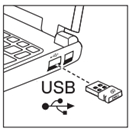
Figure 1: Insert USB Receiver
- If the prior step did not fix the issue, then try a different USB port.
If the basic steps did not resolve the issue, then the keyboard and mouse may be encountering USB RF interference. Below are some additional suggestions:
- Reorient or relocate the USB receiver away from the USB peripheral. (As examples: A Dell monitor with USB ports, the top or bottom USB ports on a desktop.)
- Increase the separation between the USB peripheral and the USB receiver.
- Try another I/O connection on the other equipment away from the USB receiver.
- Consult Dell Tech Support for help.
Question: My keyboard and mouse are experiencing delays in key presses or mouse clicks, the mouse is lagging, and/or the mouse becomes erratic.
Answer: Computers, monitors, docking stations, and other nearby equipment or computers in use can radiate radio frequency (RF) noise and interfere with the proper keyboard and mouse operation. If the keyboard and/or mouse has delays, lagging, or erratic, the RF interference can be corrected by one or more of the following measures:
- Reorient or relocate the USB receiver away from the nearby equipment.
- Increase the separation between the nearby equipment and the USB receiver.
- Try another I/O connection on the other equipment away from the USB receiver.
- Consult Dell Tech Support for help.
Question: The prior suggestions to correct the USB RF interference did not work. Is there another option?
Answer: Another option is to use a short USB extension cable which is available from many retailers.
Question: Can you tell me more about the USB RF interference?
Answer: Intel has published a USB 3.0 RF interference document. See Intel Whitepaper USB 3.0* Radio Frequency Interference Impact on 2.4 GHz Wireless Devices. 
Question: The keyboard or mouse has been unpaired from the host and not functioning. How can I re-pair / re-connect the keyboard or mouse back to the host?
Answer: Use Dell Peripheral Manager to re-pair / re-connect back keyboard or mouse.
- If Dell Peripheral Manager is not installed on your computer, see Dell Knowledge Base article Dell Display and Peripheral Manager for Windows for information about downloading and installing Dell Peripheral Manager.
- Launch Dell Peripheral Manager.
- Press the (+) to add a new device (Figure 2).
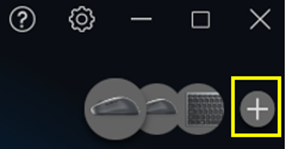
Figure 2: Add a Device
- Follow the on-screen directions.
Question: How can I perform a firmware update for the keyboard or mouse? How can I update my keyboard or mouse to the latest firmware?
Answer: Use the Dell Peripheral Manager software to update the keyboard or mouse firmware. Follow these below:
- If Dell Peripheral Manager is not installed on your computer, see Dell Knowledge Base article Dell Display and Peripheral Manager for Windows for information about downloading and installing Dell Peripheral Manager. Launch Dell Peripheral Manager software.
- If the keyboard and/or mouse is using the USB receiver, make sure the receiver is plugged-in to the host, the keyboard and/or muse turned on and working (Figure 3).
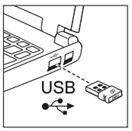
Figure 3: Insert USB Receiver
- Click the update available option and follow the on-screen instructions (Figure 4).
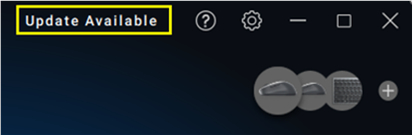
Figure 4: Update Available
Question: Where is the keyboard and mouse USB receiver; I cannot find it.
Answer: The USB receiver is in the mouse receiver holder or in the product packaging (Figures 5 and 6).
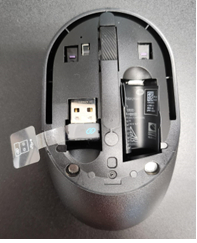
Figure 5: Open Mouse Top Cover to Locate USB Receiver
Figure 6: USB Receiver in the Product box
Question: I purchased a keyboard and mouse combo. How many USB receivers do I need?
Answer: A single USB receiver is required to use the keyboard and the mouse simultaneously. See the Dell Knowledge Base article How to Use the USB Wireless Receiver with a Dell Wireless Keyboard and Mouse Combo for more information.
Question: I purchased a keyboard and a mouse separately. Each device has its own USB receiver. Can I use one receiver to operate both the keyboard and mouse?
Answer: That depends. There are three different versions of the USB receivers and each USB receiver has a different compatibility list. If the dongles have the same symbol, then you can use one receiver. See the Same Dongles section.
When the dongles are different, perform the following steps:
- See Dell Knowledge Base article Dell Display and Peripheral Manager for Windows.
- See the How do I Know Which Products I have and What Software to use? section to determine which software is compatible with your dongle.
If the separately purchased keyboard and mouse have dongles with the same symbol on them, then use Dell Peripheral Manager to add the second peripheral to the same dongle.
Perform the following steps:
- If Dell Peripheral Manager is not installed on your computer, see Dell Knowledge Base article Dell Display and Peripheral Manager for Windows for information about downloading and installing Dell Peripheral Manager.
- Launch Dell Peripheral Manager.
- Install the USB receiver, turn on the original peripheral, and ensure sure it is working.
- Confirm Dell Peripheral Manager lists the original peripheral.
- Press the (+) to add a new device (Figure 7).

Figure 7: Add a Device - Follow the on-screen directions.
Question: How do I use the multimedia and [F1 and F12] Function Keys on my Dell External Multimedia Keyboards.
Answer: See the Dell Knowledge Base article How To Use The Multimedia and Function Keys On Dell External Multimedia Keyboards for the full explanation of how to use the multimedia and Functions keys.
Question: What is the range of the wireless keyboard and mouse?
Answer: Depending on the placement of the USB receiver and any interference nearby. The range is up to 30 feet (or 10 meters).
Question: Why is battery life shorter than expected?
Answer: Based on Dell's analysis of battery life usage model calculations. Results vary depending on product use, operating conditions, and other factors. Rechargeable batteries may reduce the battery life. Dell Technologies recommends using a top-quality brand of batteries.
Question: How do I know the status of my batteries?
Answer: Go to Dell Peripheral Manager to check the battery status (Figure 8).

Figure 8: Battery Status
Question: When I turn on Caps Lock or Num Lock, the Caps Lock or Num Lock LED does not stay on. Why?
Answer: To preserve the keyboard battery life, the Caps Lock and Num Lock LEDs stays "On" for 5 seconds once pressed and then turns "Off" even if a user continues to type under the current state. LED stays "On" for 5 seconds again if a user presses the Num Lock/ Caps Lock keys again.
The lock state is reflected in the Win 10/11 On-Screen Display if the Dell Peripheral Manager is installed on a user’s computer (Figures 9 and 10).

Figure 9: On-Screen Display - Caps Lock On

Figure 10: Windows On-Screen Display - Num Lock On
Question: How do I clean my keyboards and mouse?
Answer: See the Dell Knowledge Base article Guidance for Keeping Your Dell Technologies Equipment Clean for information about how to clean your keyboards and mouses safely.
Before you clean your keyboard or mouse, remember to:
- Unplug it from your computer and ensure it is turned off.
- Remove the batteries.
- Keep liquids away from your peripherals.
- Do not use solvents or abrasives.
Question: Does the Dell keyboard and mouse ship with software?
Answer: No, the Dell keyboard and mouse do not require any software. It should function correctly using the USB drivers that are provided by the Operating System. Plug it in and go.
Question: Is there a Dell Service Tag for the keyboard and mouse? Where do I find it on my devices?
Answer: There is no Dell Service Tag on the keyboard and mouse. The Dell Service Tag is a seven-character identifier that is uniquely available on Dell computers and Monitors.
Question: If the keyboard and mouse do not have a Service Tag, then what is the unique identifier? Is it the PPID, and where do I find it on my devices?
Answer: Yes, Piece Part Identification (PPID) is the unique string identifier for the Dell keyboard and mouse.
PPID can be found on the backside of the product, on the battery cover, or on the label in the battery compartment.
Dell PPID consists of twenty characters, plus a 3-character revision. The 20-Digit PPID is unique regardless of the 3-digit revision (Figure 11).

Figure 11: Example of PPID (English Only)