PowerEdge: Resolving NIC connectivity Issue with Broadcom NICs BCM57414 and Cisco Switches for Windows Server
Summary: This article documents the steps taken to resolve an issue with Broadcom Network Interface Cards (NICs) and Cisco switches. The issue was found to be related to the configuration of Link Speed and Forward Error Correction (FEC) settings. The solution involves configuring these settings within the Windows operating system, rather than the BIOS. ...
This article applies to
This article does not apply to
This article is not tied to any specific product.
Not all product versions are identified in this article.
Symptoms
The issue was initially reported when two Broadcom NICs were used with a Cisco switch. Further testing revealed that the problem was not present when using a single NIC, but occurred when two NICs were used. Work through the troubleshoot steps to Isolate the issue, including updating the server's firmware and documenting the physical link and switch configuration.
Cause
Troubleshooting:
- Update the server's firmware BIOS, iDRAC, NIC, and Driver for NIC to the latest version.
- Verify the physical link and switch configuration in detail.
- Navigate to the BIOS and confirm that Link Speed and Forward Error Correction are set to default (Auto-Negotiation and FEC Off).
- Verify if the issue is being present when using a single Broadcom card (Slot 1 Port 1 & Slot 1 Port 2)
- Verify if the issue is being present when using two Broadcom cards (
Int Port 1 & Slot 1 Port 1). - Configure the BIOS to use 25GBe and FEC with
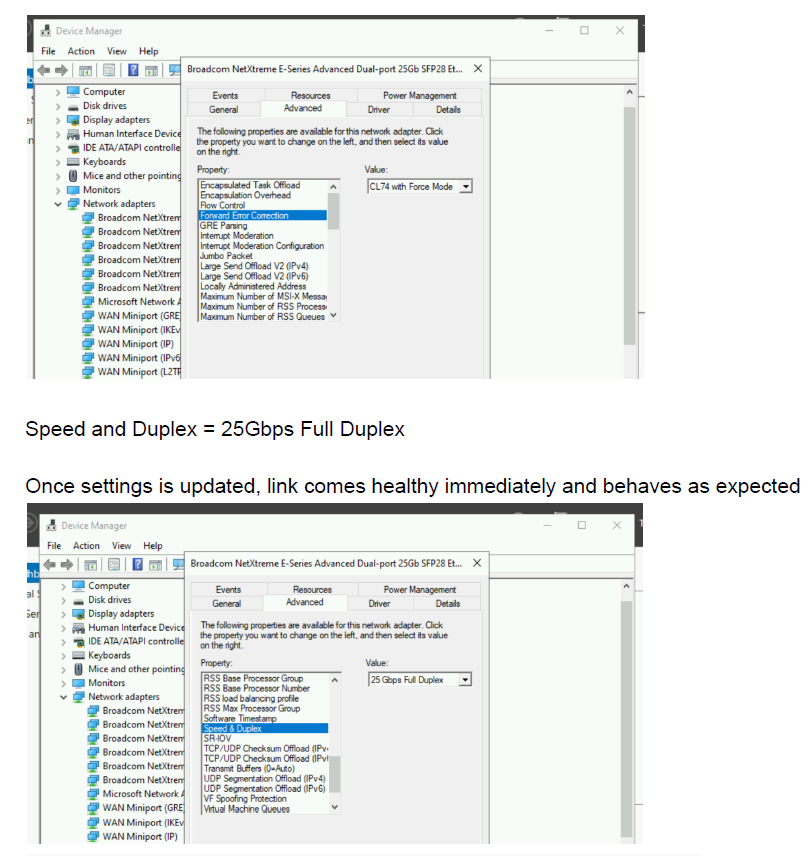
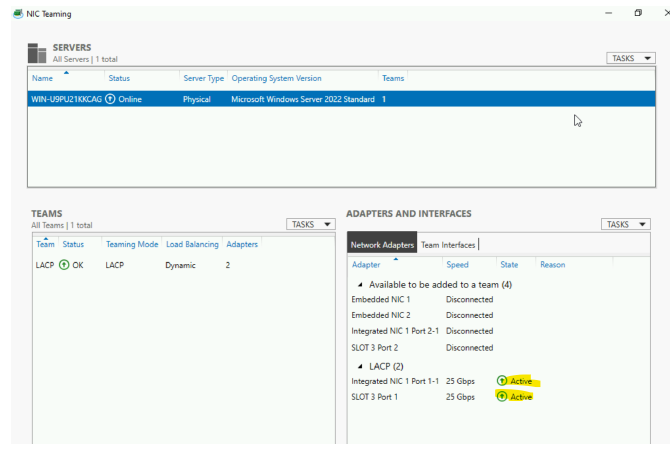
CL74-FC-FECand confirm whether the behavior changes. - Configure the Windows driver settings to use 25GBe and FEC and confirm whether the behavior changes. Refer to Resolution for screenshots.
Resolution
Conclusion: The issue was resolved by configuring the Link Speed and FEC settings within the Windows operating system. It was found that the operating system overwrites any changes made in the BIOS, which meant that changes made in the BIOS were not resulting in any change of behavior. The solution is valid for both Windows and Linux operating systems.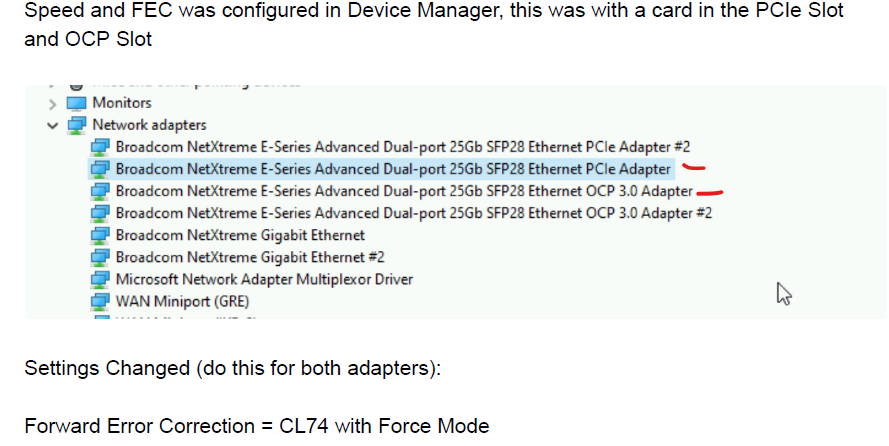
Key Takeaways:
- Configuring Link Speed and FEC settings within the operating system resolves the connectivity issue with Broadcom NICs and Cisco switches.
- The operating system overwrites changes made in the BIOS, which can affect the behavior of the system.
- The solution is valid for both Windows and Linux operating systems.
Additional Information
FAQs:
Why do Speed and FEC need to be configured once there is a second NIC involved?
When you introduce a second Network Interface Card (NIC) to a network link, it is essential to configure the Speed and Forward Error Correction (FEC) settings to ensure proper communication and data integrity. Here is why:
Speed configuration: When you add a second NIC, you must configure the speed settings to match the capabilities of both interfaces. This is because each NIC may have different speed capabilities, such as 1 Gbps, 10 Gbps, or 25 Gbps. If the speeds are not matched, the link may not function correctly or may not reach its maximum potential.
FEC configuration: Forward Error Correction (FEC) is a mechanism to detect and correct errors that may occur during data transmission. With a second NIC, you must configure FEC because the error detection and correction capabilities of each NIC may differ. If FEC is not configured correctly, errors may occur, leading to data corruption or packet loss.
Why do Speed and FEC need to be configured once an LACP is involved, but not when it is not configured?
In contrast, when LACP (Link Aggregation Control Protocol) is involved, configuring Speed and FEC becomes more complex because LACP creates a single logical link from multiple physical links. LACP bundles multiple NICs together to increase bandwidth, improve redundancy, and provide load balancing. To ensure proper operation, you must configure the Speed and FEC settings for the LACP channel, considering the capabilities of all participating NICs.
In summary:
When adding a second NIC, you must configure Speed and FEC to ensure compatibility and optimize data transmission between the two interfaces.
When using LACP, you must configure Speed and FEC for the aggregated channel, considering the capabilities of all participating NICs, to ensure proper operation and optimal performance.
Why do Speed and FEC need to be configured once there is a second NIC involved?
When you introduce a second Network Interface Card (NIC) to a network link, it is essential to configure the Speed and Forward Error Correction (FEC) settings to ensure proper communication and data integrity. Here is why:
Speed configuration: When you add a second NIC, you must configure the speed settings to match the capabilities of both interfaces. This is because each NIC may have different speed capabilities, such as 1 Gbps, 10 Gbps, or 25 Gbps. If the speeds are not matched, the link may not function correctly or may not reach its maximum potential.
FEC configuration: Forward Error Correction (FEC) is a mechanism to detect and correct errors that may occur during data transmission. With a second NIC, you must configure FEC because the error detection and correction capabilities of each NIC may differ. If FEC is not configured correctly, errors may occur, leading to data corruption or packet loss.
Why do Speed and FEC need to be configured once an LACP is involved, but not when it is not configured?
In contrast, when LACP (Link Aggregation Control Protocol) is involved, configuring Speed and FEC becomes more complex because LACP creates a single logical link from multiple physical links. LACP bundles multiple NICs together to increase bandwidth, improve redundancy, and provide load balancing. To ensure proper operation, you must configure the Speed and FEC settings for the LACP channel, considering the capabilities of all participating NICs.
In summary:
When adding a second NIC, you must configure Speed and FEC to ensure compatibility and optimize data transmission between the two interfaces.
When using LACP, you must configure Speed and FEC for the aggregated channel, considering the capabilities of all participating NICs, to ensure proper operation and optimal performance.
Affected Products
Microsoft Windows Server 2022Products
PowerEdge FC640, PowerEdge M640, PowerEdge M640 (for PE VRTX), PowerEdge MX740C, PowerEdge MX750c, PowerEdge MX760c, PowerEdge MX840C, PowerEdge R240, PowerEdge R250, PowerEdge R260, PowerEdge R340, PowerEdge R350, PowerEdge R360, PowerEdge R440
, PowerEdge R450, PowerEdge R540, PowerEdge R550, PowerEdge R640, PowerEdge R6415, PowerEdge R650, PowerEdge R650xs, PowerEdge R6515, PowerEdge R6525, PowerEdge R660, PowerEdge R660xs, PowerEdge R6615, PowerEdge R6625, PowerEdge R740, PowerEdge R740XD, PowerEdge R740XD2, PowerEdge R7415, PowerEdge R7425, PowerEdge R750, PowerEdge R750XA, PowerEdge R750xs, PowerEdge R7515, PowerEdge R7525, PowerEdge R760, PowerEdge R760XA, PowerEdge R760xd2, PowerEdge R760xs, PowerEdge R7615, PowerEdge R7625, PowerEdge R840, PowerEdge R860, PowerEdge R940, PowerEdge R940xa, PowerEdge R960, PowerEdge T140, PowerEdge T150, PowerEdge T160, PowerEdge T340, PowerEdge T350, PowerEdge T360, PowerEdge T440, PowerEdge T550, PowerEdge T560, PowerEdge T640
...
Article Properties
Article Number: 000230522
Article Type: Solution
Last Modified: 05 Dec 2024
Version: 2
Find answers to your questions from other Dell users
Support Services
Check if your device is covered by Support Services.