Dell EMC Unity: How to manually renew a Unity Management SSL certificate. (User correctable.)
Summary: How to manually renew a Unity Management SSL certificate.
This article applies to
This article does not apply to
This article is not tied to any specific product.
Not all product versions are identified in this article.
Instructions
How to manually renew a Unity Management SSL certificate
The Unity array Management SSL Certificate is automatically created on first initialization and automatically renewed before it reaches its expired date.
To Manually renew the SSL Certificate the Unity Unisphere GUI or CLI can be used
To renew using the Unity Unisphere GUI
Unity Unisphere GUI >> Settings >> Management >> Unisphere IP Address
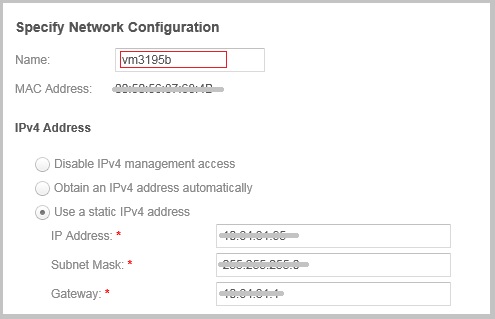
Example: Showing hostname field
Action
[1] Modify the name value (hostname) to a temporary name and click apply, this will take a few minutes to execute and when it completes a new SSL Certificate will have been generated. After the Unity Unisphere GUI is available again proceed to step #2
[2] Open again the Unisphere IP Address settings and reset the name to the system's original name and click apply, this will take a few minutes to execute and when it completes a new SSL Certificate will have been generated with the original name but for a new valid from and valid to date.
To renew using the Unity CLI using SSH
Make a note of the Array management IP Address settings and system name from from the Unity Unisphere GUI before proceeding.
To renew the SSL certificate and keep the original (Unity Management) IP Address in use, it is necessary to specify a temporary different hostname when running the command the 1st time and the 2nd time the command is run the correct original hostname is specified.
Login over SSH to the service account
[1] Temporary Hostname specified
spa > svc_initial_config -4 "IP_ADDRESS SUBNET_MASK IP_GATEWAY" -f hostnameA
[2] Correct Hostname specified
spa > svc_initial_config -4 "IP_ADDRESS SUBNET_MASK IP_GATEWAY" -f hostname
Please note the IP Values are enclosed in double quotes " "
Example:
09:28:47 service@VSA-spa spa:~> svc_initial_config -4 "IP_ADDRESS SUBNET_MASK IP_GATEWAY" -f vm3195
Attempting to set friendly name to <vm3195>
Successfully set friendly name to <vm3195>
Validating address IP.xxx.xx.xxx format ... Pass
Validating address GW.xxx.xx.xxx format ... Pass
Validating address Subnet.xxx.xx.xxx format ... Pass
Validating IP and Gateway subnet with Mask ... Pass
Successfully configured network with parameters <static IP_ADDRESS SUBNET_MASK IP_GATEWAY>
09:30:05 service@VSA-spa spa:~>
The Unity array Management SSL Certificate is automatically created on first initialization and automatically renewed before it reaches its expired date.
To Manually renew the SSL Certificate the Unity Unisphere GUI or CLI can be used
To renew using the Unity Unisphere GUI
Unity Unisphere GUI >> Settings >> Management >> Unisphere IP Address
Example: Showing hostname field
Action
[1] Modify the name value (hostname) to a temporary name and click apply, this will take a few minutes to execute and when it completes a new SSL Certificate will have been generated. After the Unity Unisphere GUI is available again proceed to step #2
[2] Open again the Unisphere IP Address settings and reset the name to the system's original name and click apply, this will take a few minutes to execute and when it completes a new SSL Certificate will have been generated with the original name but for a new valid from and valid to date.
To renew using the Unity CLI using SSH
Make a note of the Array management IP Address settings and system name from from the Unity Unisphere GUI before proceeding.
To renew the SSL certificate and keep the original (Unity Management) IP Address in use, it is necessary to specify a temporary different hostname when running the command the 1st time and the 2nd time the command is run the correct original hostname is specified.
Login over SSH to the service account
[1] Temporary Hostname specified
spa > svc_initial_config -4 "IP_ADDRESS SUBNET_MASK IP_GATEWAY" -f hostnameA
[2] Correct Hostname specified
spa > svc_initial_config -4 "IP_ADDRESS SUBNET_MASK IP_GATEWAY" -f hostname
Please note the IP Values are enclosed in double quotes " "
Example:
09:28:47 service@VSA-spa spa:~> svc_initial_config -4 "IP_ADDRESS SUBNET_MASK IP_GATEWAY" -f vm3195
Attempting to set friendly name to <vm3195>
Successfully set friendly name to <vm3195>
Validating address IP.xxx.xx.xxx format ... Pass
Validating address GW.xxx.xx.xxx format ... Pass
Validating address Subnet.xxx.xx.xxx format ... Pass
Validating IP and Gateway subnet with Mask ... Pass
Successfully configured network with parameters <static IP_ADDRESS SUBNET_MASK IP_GATEWAY>
09:30:05 service@VSA-spa spa:~>
Additional Information
EMC Unity All Flash, EMC Unity Hybrid, EMC UnityVSA 4.0 Security Configuration Guide [PDF]
Extract
Storage system certificate
The storage system automatically generates a self-signed certificate during its first
initialization.The certificate is preserved both in NVRAM and on the backend LUN. Later,
the storage system presents it to a client when the client attempts to connect to the
storage system through the management port.
The certificate is set to expire after 3 years; however, the storage system will regenerate
the certificate one month before its expiration date. Also, you can upload a new
certificate by using the svc_custom_cert service command. This command installs a
specified SSL certificate in PEM format for use with the Unisphere management interface.
For more information about this service command, see the Service Commands Technical
Notes document. You cannot view the certificate through Unisphere or the Unisphere CLI;
however, you can view the certificate through a browser client or a web tool that tries to
connect to the management port.
[How to check Certificate Expire date]
- Certificate Expire date can be checked by following command
uemcli -u <Unisphere login ID> -p <Unisphere login PW> /sys/cert show
=> Check "Valid to" date. It shows expire date of SSL Certificate
- We can check same date also onWeb brouser.
1. Google Chrome > Access Unisphere UI
2. Open Google Chrome menu > More tools >Developer Tools
3. Click "View certificate" in "Security" tab
4. Check "Valid until" date
Extract
Storage system certificate
The storage system automatically generates a self-signed certificate during its first
initialization.The certificate is preserved both in NVRAM and on the backend LUN. Later,
the storage system presents it to a client when the client attempts to connect to the
storage system through the management port.
The certificate is set to expire after 3 years; however, the storage system will regenerate
the certificate one month before its expiration date. Also, you can upload a new
certificate by using the svc_custom_cert service command. This command installs a
specified SSL certificate in PEM format for use with the Unisphere management interface.
For more information about this service command, see the Service Commands Technical
Notes document. You cannot view the certificate through Unisphere or the Unisphere CLI;
however, you can view the certificate through a browser client or a web tool that tries to
connect to the management port.
[How to check Certificate Expire date]
- Certificate Expire date can be checked by following command
uemcli -u <Unisphere login ID> -p <Unisphere login PW> /sys/cert show
=> Check "Valid to" date. It shows expire date of SSL Certificate
- We can check same date also onWeb brouser.
1. Google Chrome > Access Unisphere UI
2. Open Google Chrome menu > More tools >Developer Tools
3. Click "View certificate" in "Security" tab
4. Check "Valid until" date
Affected Products
Dell Unity 300, Dell EMC Unity 300F, Dell EMC Unity 400, Dell EMC Unity 400F, Dell EMC Unity 500, Dell EMC Unity 500F, Dell EMC Unity 600, Dell EMC Unity 600F, Dell EMC Unity FamilyProducts
Dell EMC UnityVSA Professional Edition/Unity Cloud EditionArticle Properties
Article Number: 000022509
Article Type: How To
Last Modified: 21 Mar 2023
Version: 6
Find answers to your questions from other Dell users
Support Services
Check if your device is covered by Support Services.