How to gather Diagnostics on Dell EqualLogic FluidFS 7500・76x0 version3.x
Summary: This article introduces how to collect EqualLogic FluidFS Diagnostics through EqualLogic Group Manager.
This article applies to
This article does not apply to
This article is not tied to any specific product.
Not all product versions are identified in this article.
Instructions
Article Summary
This article provides information on how to gather General Diagnostics using GUI in the environment of FluidFS 7500/76X0 Version 3.X.
Gathering Diagnostics
-
Log in to the Group Manager.
-
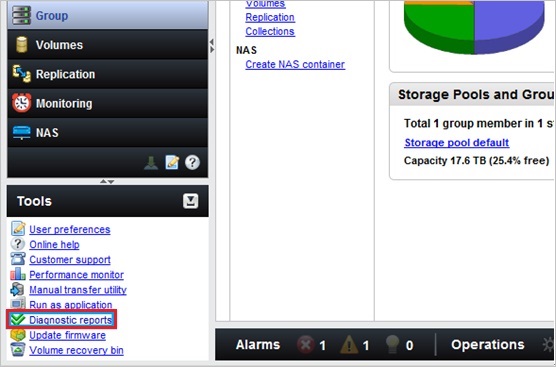
Expand Tools menu on the left bottom and select Diagnostics reports.
-
On the Welcome screen click Next.
-
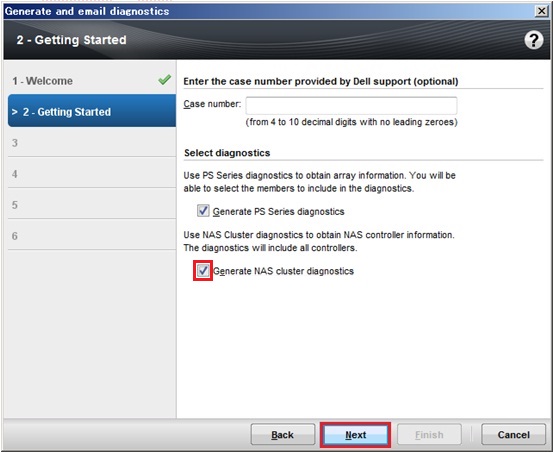
On the Getting Started screen, check if Generate NAS cluster diagnostics is selected and click Next.
 Enter the inquiry number issued by technical support in the Case number field or leave it blank.
If the EqualLogic Diagnostics need to be gathered at the same time, select Generate PS Series diagnostics as well.
-
If Generate PS Series diagnostics is selected in step 4, Selected Members screen is displayed.
Confirm the target members that Diagnostics is gathered and click Next.
If this option is not selected in step 4, go to step 7. -
On the PS Results Output screen click Next.
If Generate PS Series diagnostics is selected in step 4 and send results by email, details can be set up on this screen. -
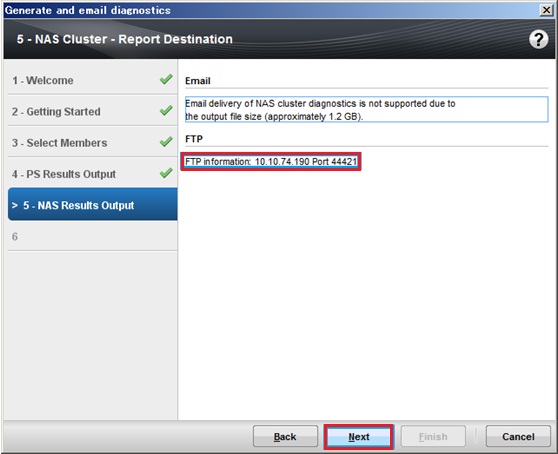
On the NAS Results Output screen, take a note of gathered NAS Diagnostics destination information and click Next.
-
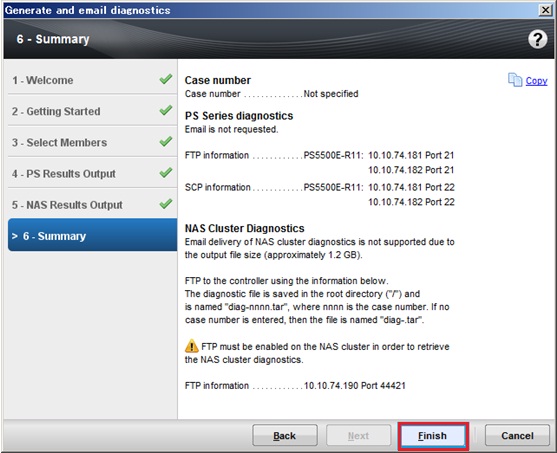
On the Summary screen, confirm the information and click Finish.
 It may take, depends on the system configuration, about 10~20 minutes to gather Diagnostics.
-
Access to the following address by FTP with grpadmin account.
- Host name: IP address confirmed in step 7
- Port number: 44421
-
"diags-date.tar" file is output in the directory logged in.
Example: diags-02_May_2019-15_14_59-0000.tar
Confirm the date and time of Diagnostics gathering is the same as those of Diagnostics execution and save the file in any location in local.
"diags-date.tar" is the following files are consolidated by tar.- Summary.xxxxxxx.date.tar.gz:NAS appliance log
- Logs.xxxxxxx.date.tar.gz:archive log
 To export each report to your local system please FTP to storage then navigate to diagnostics→archive→GeneralSystemDiagnostic, here is where you will locate the diagnostic reports confirm the date and time and copy them to your local system.
If the file does not exist but only "inprogress" file exists please contact Dell technical support.
Video
Affected Products
Servers, Legacy Storage ModelsArticle Properties
Article Number: 000109125
Article Type: How To
Last Modified: 29 Jul 2025
Version: 5
Find answers to your questions from other Dell users
Support Services
Check if your device is covered by Support Services.