Dell Security Management Server Virtual Fails to Upgrade with an Error Specifying an Unauthenticated Postgresql Package
Summary: This article describes how to resolve the error message stating that the postgresql-contrib-9.5 package could not be authenticated during an upgrade of the Dell Security Management Server Virtual. ...
This article applies to
This article does not apply to
This article is not tied to any specific product.
Not all product versions are identified in this article.
Symptoms
Affected Products:
- Dell Security Management Server Virtual
Affected Versions:
- v10.1.0 and Later
Cause
When performing an upgrade to the Dell Security Management Server Virtual, a warning or an error may appear indicating that the postgresql-contrib-9.5, postgresql-client-9.5 and, postgresql-9.5 packages could not be properly authenticated.

Figure 1: (English Only) This warning and error are shown in the updated user interface
Resolution
This failure is happening because the key used to sign the packages for postgresql has been updated and is not in the default repository for Ubuntu. The key that is used for authentication must be manually updated on the Dell Security Management Server Virtual, to resolve the error. To update the key, perform the following steps.
- Log in to the console with the
delluseraccount (Default password:delluser).

Figure 2: (English Only) Log in to the console
- Go to the option Launch Shell.

Figure 3: (English Only) Select Launch Shell
- Switch user to
dellsupportwith the commandsu dellsupport(Default Password:dellsupport).

Figure 4: (English Only) Switch user
- Run the command
sudo apt-get update && sudo apt-key update.

Figure 5: (English Only) Run the command sudo apt-get update && sudo apt-key updat

Figure 6: (English Only) Example of output from command on screen
Note: Running this command requires internet access on the Dell Security Management Server Virtual. This process may take several seconds to run.
- Run the command:
sudo apt-get install curl ca-certificates gnupgand accept the prompt asking if it is OK to us additional disk space.
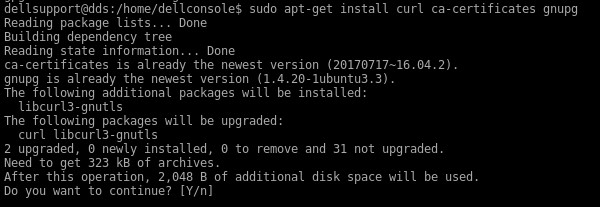
Figure 7: (English Only) Run sudo apt-get install curl ca-certificates gnupg
Note: Running this command requires internet access on the Dell Security Management Server Virtual. This process may take several seconds to run.
- Run the command:
curl https://www.postgresql.org/media/keys/ACCC4CF8.asc | sudo apt-key add -.

Figure 8: (English Only) Run curl https://www.postgresql.org/media/keys/ACCC4CF8.asc | sudo apt-key add -
Note: Running this command requires internet access on the Dell Security Management Server Virtual. This process may take several seconds to run.
If these commands fail, see Appendix A below.
If these commands fail, see Appendix A below.
- Exit the
dellsupportuser context by typingexit. - Return to the console by typing
exitagain. - Rerun the update by going to Basic Configuration, then to Update Dell Security Management Server Virtual….
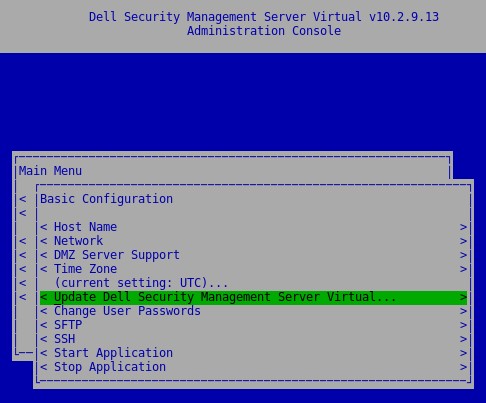
Figure 9: (English Only) Rerun the update
Appendix A
If updating the key for PostgreSQL fails, a method can be invoked to download the keys directly from the Ubuntu keyservers, though this method bypasses the validation of the key.
Within the shell, and logged in as dellsupport run the command below. This command is case insensitive.
sudo apt-key adv --keyserver keyserver.ubuntu.com --recv-keys 7FCC7D46ACCC4CF8

Figure 10: (English Only) Run sudo apt-key adv --keyserver keyserver.ubuntu.com --recv-keys 7FCC7D46ACCC4CF8
This should result in the key being updated within the local keystore and allow updates involving PostgreSQL to proceed. The example below is an example of the PostgreSQL key already being imported. On successful import, multiple keys are imported.

Figure 11: (English Only) Example of the PostgreSQL key already being imported
To contact support, reference Dell Data Security International Support Phone Numbers.
Go to TechDirect to generate a technical support request online.
For additional insights and resources, join the Dell Security Community Forum.
Affected Products
Dell EncryptionArticle Properties
Article Number: 000130901
Article Type: Solution
Last Modified: 16 Jan 2024
Version: 9
Find answers to your questions from other Dell users
Support Services
Check if your device is covered by Support Services.