How to Resolve Tray 1 Empty/Load Tray 1 Errors on the B2360d/B2360dn Dell Laser Printer
Summary: This article provides information and steps on how to resolve Tray 1 Empty/Load Tray 1 Errors on your B2360d/B2360dn Dell Laser Printer.
This article applies to
This article does not apply to
This article is not tied to any specific product.
Not all product versions are identified in this article.
Instructions
- Check that there is no damage to the paper and that the guides are adjusted to fit the paper. If a new ream of paper is available, try swapping out the paper.
- Check that the paper size in the tray matches the paper size set in the Print Driver.
- Check that the newest firmware is being used. If not, install the latest firmware for this model.
Caution: Power off the printer and unplug the printer from the wall outlet before completing the following steps.
- Remove the paper tray.

- Locate the pick arm in the center above where the paper tray was.
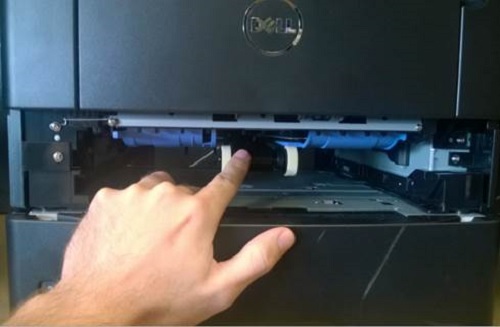
- Roll the pick tire off of the pick arm (this has a rubber band feel).
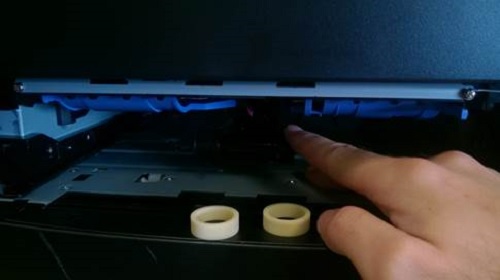
- Clean the rollers with an Alcohol-based cleaner (Isopropyl alcohol preferred).

- Reinstall the Feed tires (2) onto the pick arm, then reinstall the paper tray.
- Plug the printer back in and turn the power on. Print a test page.
If these steps do not correct the problem, contact Dell Technical Support.
Affected Products
Dell B2360d Mono Laser Printer, Dell B2360dn Mono Laser PrinterArticle Properties
Article Number: 000135058
Article Type: How To
Last Modified: 11 Jul 2025
Version: 3
Find answers to your questions from other Dell users
Support Services
Check if your device is covered by Support Services.