Deployment KB: AppSync: Failed to add VMAX/PowerMAX storage in AppSync console.
Summary: SMI-S provider must be installed properly in order to add VMAX storage to AppSync.
This article applies to
This article does not apply to
This article is not tied to any specific product.
Not all product versions are identified in this article.
Symptoms
Failed to add VMAX/PowerMAX storage in AppSync console.
Error message:
When adding VMAX/PowerMax storage in AppSync console, AppSync tries to connect to the SMI-S provider and fails with the above error message.
Error message:
Error: 500 Unable to connect to SMI-S Provider on host xx.xx.xx.xx. Failed with error: Unable to connect.
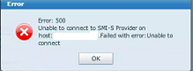
When adding VMAX/PowerMax storage in AppSync console, AppSync tries to connect to the SMI-S provider and fails with the above error message.
Cause
SMI-S provider was not installed on the management server, or Solutions Enabler was installed but the user did not complete the SMI-S provider installation by running TestSmiprovider.exe.
Resolution
The above error occurs if SMI-S Provider is not installed and configured.
To address this:
To address this:
- Download required SMI-S/SE Version and install on the Management server.
- Open command prompt and go to C:\Program Files\emc\ecim\ecom\bin
- Run TestSmiprovider.exe
- Select all defaults.
- Open AppSync console and add storage.
Article Properties
Article Number: 000168564
Article Type: Solution
Last Modified: 10 Sep 2025
Version: 4
Find answers to your questions from other Dell users
Support Services
Check if your device is covered by Support Services.