Data Domain - Unable to SSO PowerProtect DD System Manager from DPC Console "System Management."
Summary: Unable to SSO PowerProtect DD System Manager UI from Data Protection Central (DPC) Console Every time when tried to open the DD System Manager from DPC Console - "System Management," it gave the following Error "You do not have any roles assigned in DD System Manager. Contact your DD administrator." ...
This article applies to
This article does not apply to
This article is not tied to any specific product.
Not all product versions are identified in this article.
Symptoms
Unable to SSO PowerProtect DD System Manager UI from Data Protection Central (DPC) Console
When trying to open the DD System Manager from DPC Console - "System Management," it gave the following Error:
"You do not have any roles assigned in DD System Manager. Please contact your DD administrator." Cause
The User Groups created on PowerProtect DD System Manager UI under Administration - Access - Authentication - Single Sign-On (SSO) were the below two User Groups.
DPC Group Domain Role
------------- --------- -----
admin dpc.local admin
administrator dpc.local admin
------------- --------- -----
With the above User Groups having names - "admin" and "administrator," DPC is unable to SSO to the Data Domain.
This is causing the error: "You do not have any roles assigned in DD System Manager. Contact your DD administrator." The naming is not correct for the User Groups.
Resolution
To fix this issue, the User Groups "Admin and "Administrator" must be deleted and a new User Group with name "dp-admin" must be created on the PowerProtect DD System Manager UI under - Administration - Access - Authentication - Single Sign-On (SSO) with Domain Name as "dpc.local" and Management Role as "Admin." Please see the screenshot below for this setting done when creating the new User Group under SSO. And then Click OK.
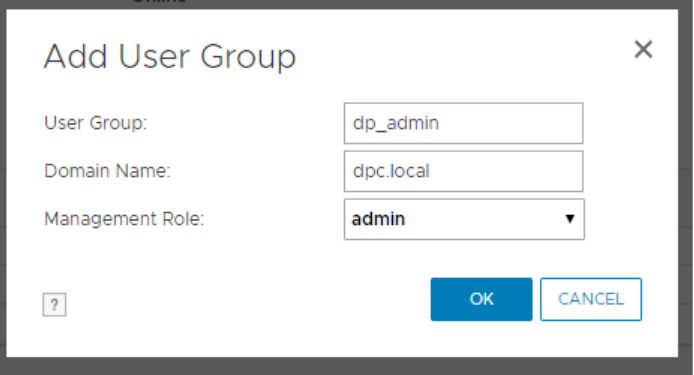
NOTE: If you are on an IDPA/PowerProtect DP appliance using the internal LDAP (ipdauser account), you have to add a second group with the following:
User Group:       dp_admin
Domain Name:      idpa.local
Management Role:  admin
Then try to SSO from the DPC Console, and you should be able to open DD UI System Manager from the DPC Console without any errors and without entering login credentials.
Affected Products
Data DomainProducts
Data Domain, Data Protection Central, DD OSArticle Properties
Article Number: 000173331
Article Type: Solution
Last Modified: 05 May 2026
Version: 5
Find answers to your questions from other Dell users
Support Services
Check if your device is covered by Support Services.