VPLEX: Management Server is Not Accessible over SSH or Browser
Summary: This article talks to the issue where the SSH access to the VPLEX management server fails. This article provides the workaround steps to resolve this issue.
This article applies to
This article does not apply to
This article is not tied to any specific product.
Not all product versions are identified in this article.
Symptoms
Affected Hardware:
VPLEX VS2
Issue:
Trying to access the VPLEX Management server over SSH fails with a connection timeout error:
[root@zzz ~]# ssh xx.x.xxx.xx
ssh: connect to host port 22: connection timed out
However, the ping to the VPLEX Management server is successful:
[root@zzz ~]# ping xx.x.xxx.xx
PING xx.x.xxx.xx (xx.x.xxx.xx) 56(84) bytes of data.
64 bytes from xx.x.xxx.xx: icmp_seq=1 ttl=64 time=0.788 ms
64 bytes from xx.x.xxx.xx: icmp_seq=2 ttl=64 time=0.148 ms3
Cause
This issue could be due to a process stop responding or that the free space to accept the connection buffer was full, and it was Rejecting the connection. The kernel was excessively low on memory, and the network driver was unable to allocate a page for a received packet. The packet is dropped, and everything should recover in short. The kernel cannot clean the cache. It is found that SSD went bad based on the high counts for attributes such as Raw_Read_Error_Rate, Seek_Error_Rate, so on.
Resolution
Workaround:
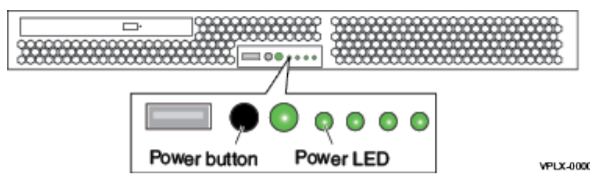
A hard reboot for the management server is required to resolve this issue and get the SSH connection back.
To hard reboot the management server:
- Hold down the power button until the power turns off (LEDs turn off).
- Press the power button again to power on.
Allow couple of minutes for the server to boot up then try to connect to it again.
Affected Products
VPLEX VS2Products
VPLEX, VPLEX for All Flash, VPLEX GeoSynchronyArticle Properties
Article Number: 000173992
Article Type: Solution
Last Modified: 05 May 2026
Version: 8
Find answers to your questions from other Dell users
Support Services
Check if your device is covered by Support Services.