How To Configure Netskope On-Premises Detection
Summary: Enabling this option, you can detect the location of an endpoint and if the endpoint is on-premises then the Netskope client tunnels all traffic.
This article applies to
This article does not apply to
This article is not tied to any specific product.
Not all product versions are identified in this article.
Instructions
Affected Products:
- Netskope
Affected Versions:
- v72 and Later
The following type of bypass traffic is tunneled when the client is on-premises.
- Cert-pinned apps
- Exception domains
- Exception categories
- In a web browser, go to the Netskope web console:
- United States Datacenter: https://[TENANT].goskope.com/
- European Union Datacenter: https://[TENANT].eu.goskope.com/
- Frankfurt Datacenter: https://[TENANT].de.goskope.com/
Note: [TENANT] = The tenant name in your environment
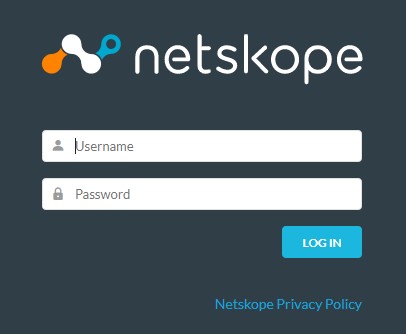
- Log in to the Netskope web console.
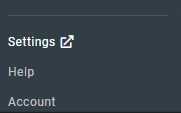
- Click Settings.
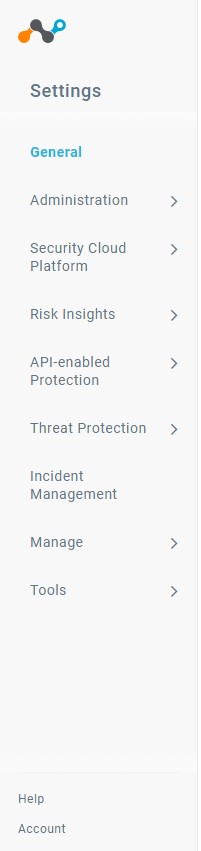
- Click Security Cloud Platform.
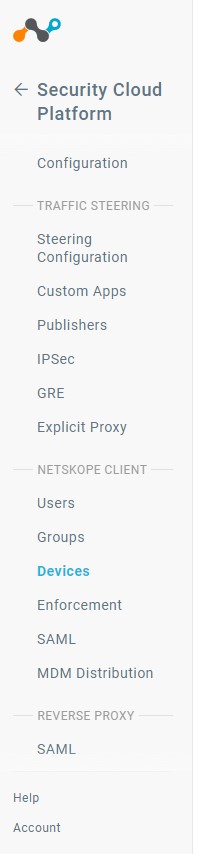
- Click Devices.
- Click Client Configurations.

- In Client Configuration, click Default tenant config.
 Note: The default tenant config is a global change that propagates to all deployed Netskope Clients. For a more targeted change, click New Client Configuration and pick an Organizational Unit or User Group to target.
 - In Client Configuration, click the On-Premises Detection checkbox to enable On-Premises Detection.
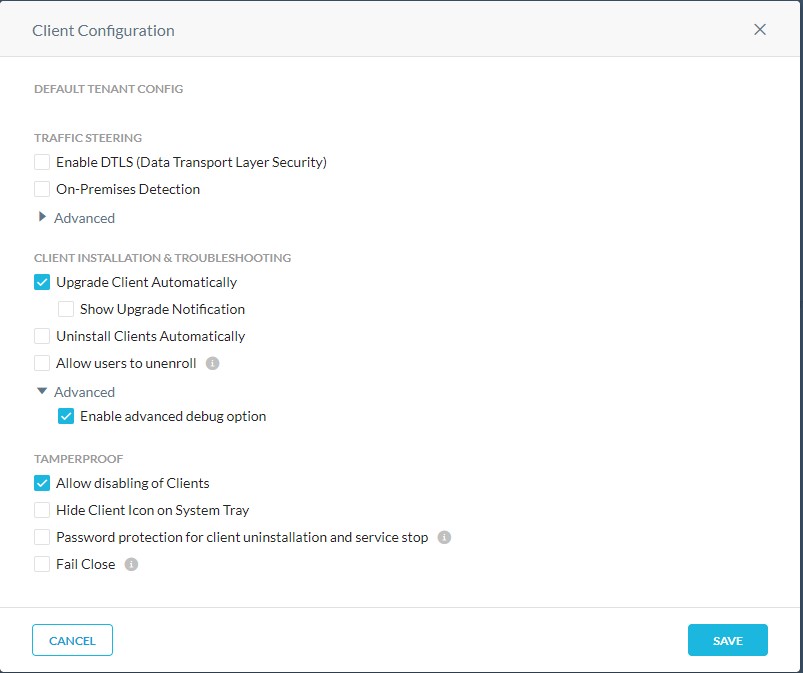
- With On-Premises Detection enabled, you can now configure either a DNS name or an HTTP address that the Netskope Client attempts to connect to and verify if it is On or Off Premises.
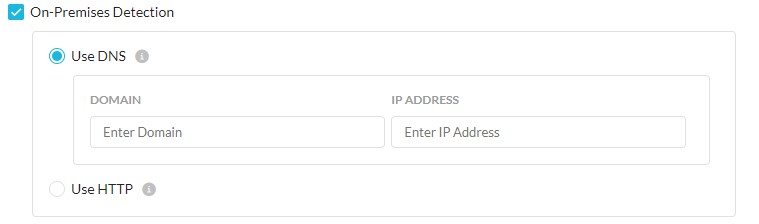
For DNS, enter a domain name and the corresponding IP address it responds to.
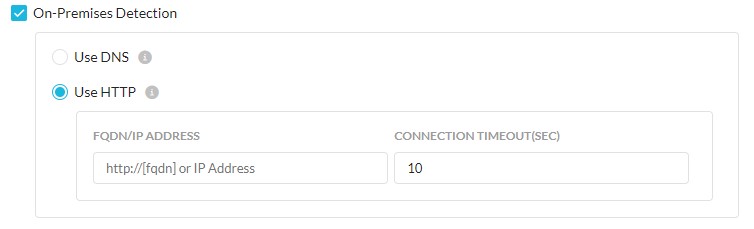
For HTTP, the Client looks for the HTTP response code 200, and if successful, the device is deemed to be on-premises. - Once you have populated either your DNS or HTTP values, click Save.
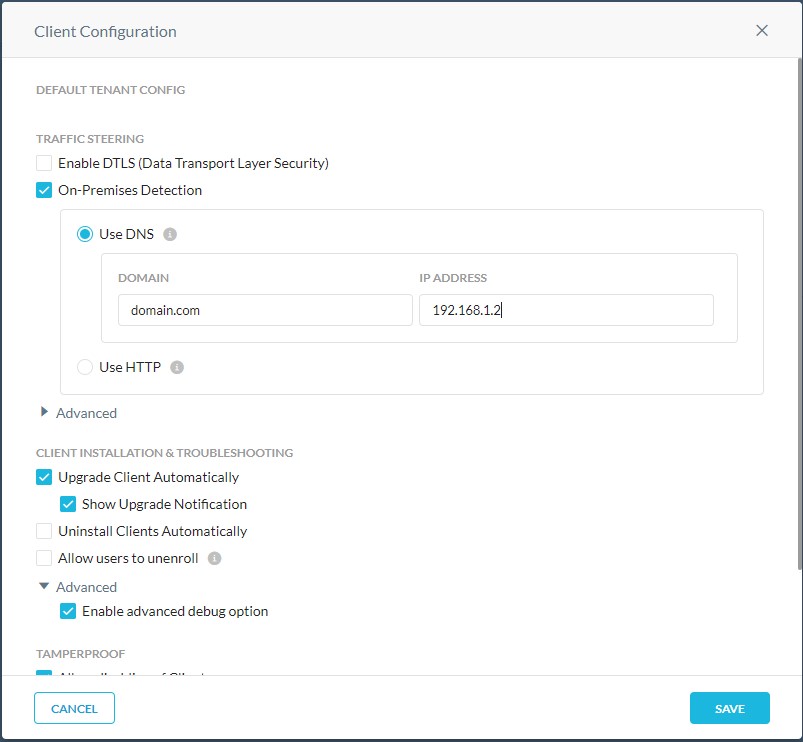
- You have now configured the Netskope Client to detect when it is On or Off premises.
To contact support, reference Dell Data Security International Support Phone Numbers.
Go to TechDirect to generate a technical support request online.
For additional insights and resources, join the Dell Security Community Forum.
Affected Products
NetskopeArticle Properties
Article Number: 000180639
Article Type: How To
Last Modified: 09 Dec 2024
Version: 9
Find answers to your questions from other Dell users
Support Services
Check if your device is covered by Support Services.