PowerProtect DP4400: Deployment Fails at 10 Percent
Summary: DP4400 deployment fails at 10%, and PowerProtect Integration and Validation fail at 15%.
This article applies to
This article does not apply to
This article is not tied to any specific product.
Not all product versions are identified in this article.
Symptoms
DP4400 deployment fails at 10%.
PowerProtect Integration and Validation stopped at 15%.
Click the Diagnostic Report in the ACM deployment UI to verify the failure matches the below error:
FAILED: Started Hypervisor Manager Server configuration
Error: Failed to add Hypervisor host to datacenter
Cause
Ping or SSH to the ESXi server to confirm if you can connect. If you cannot connect, it is possible that the ESXi IP address is not assigned.
Incorrect IPv4 address, subnet mask, gateway, or DNS Server
Resolution
- Log in to the iDRAC
- Click the Virtual Console.
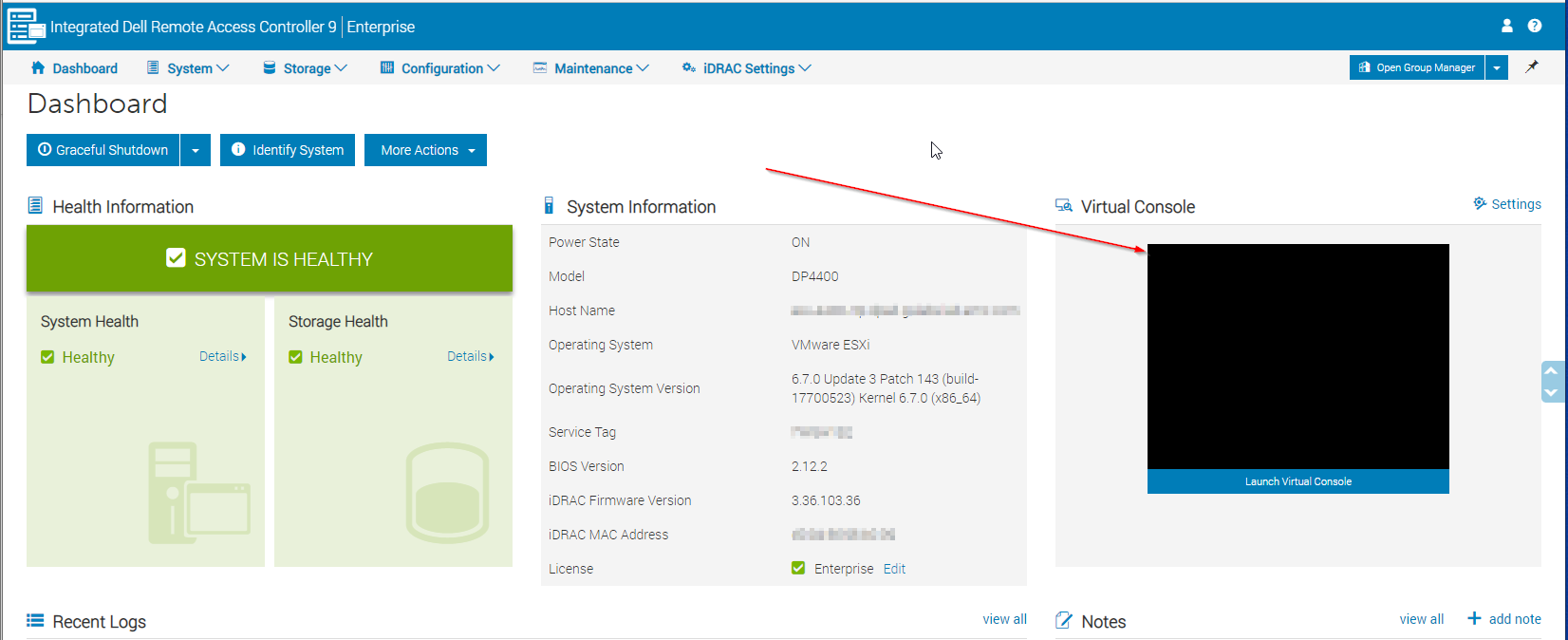
Figure 1: Screenshot of Virtual Console from iDRAC
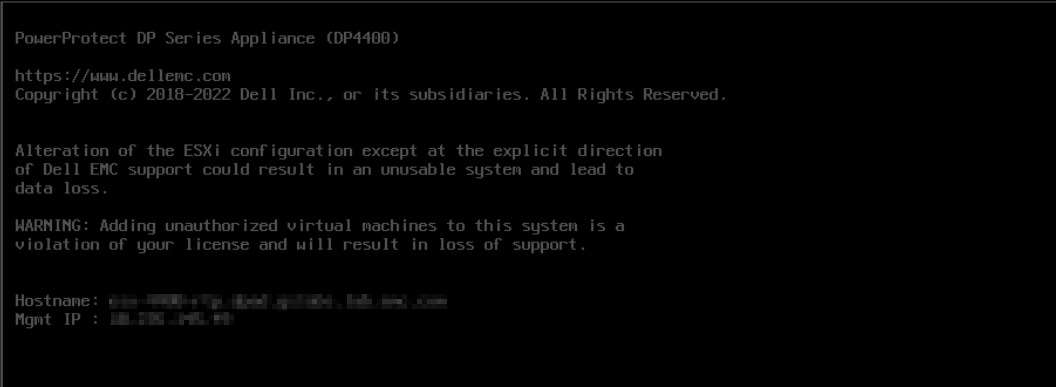
Figure 2: Screenshot of PowerProtect Data Protection Appliance model
- Press
F2orALT+F2to log in to the ESXi DCUI - Enter default password
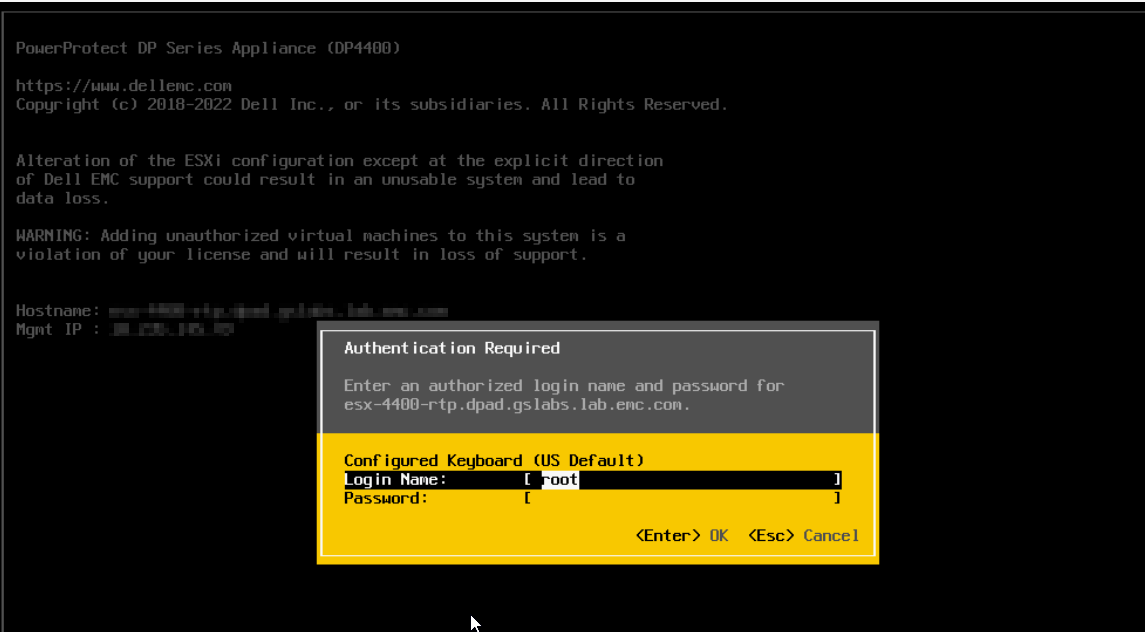
Figure 3: Enter default password to the PowerProtect Data Protection Appliance model.
- Go to Configure Management Network
- Verify the IPv4 address is assigned.
- If an IP is assigned and the hostname is correct, it may be a different issue.
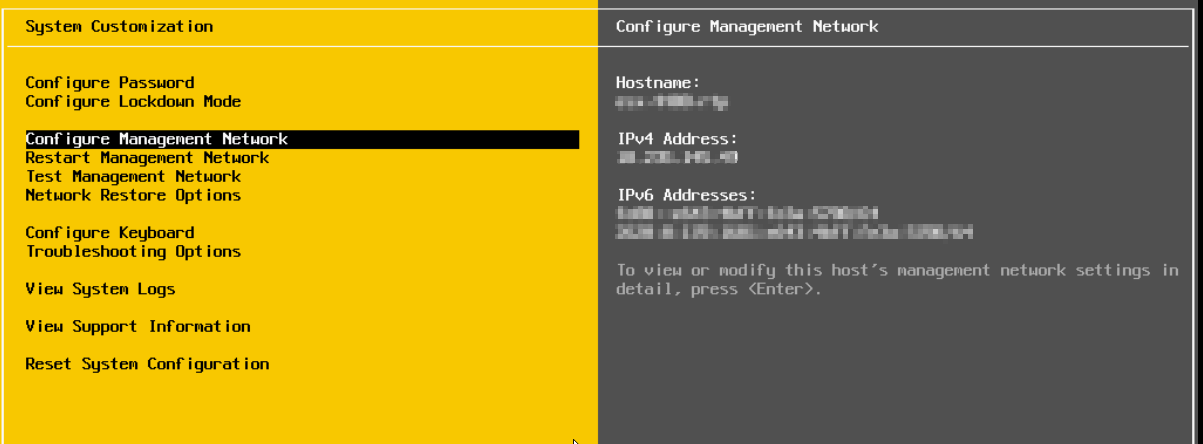
Figure 4: Confirmation that IP is assigned, and the hostname is correct.
- If the IP address is not assigned or requires further verification, press Enter, then go to IPv4 Configuration, and press Enter
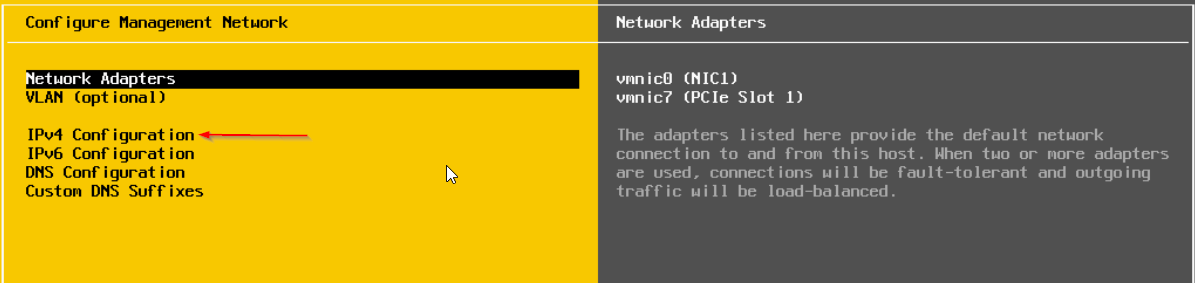
Figure 5: IP address is not assigned or requires further verification.
-
Go to Set a Static IPv4 address and network configuration. Press Space Bar to go to the required selection
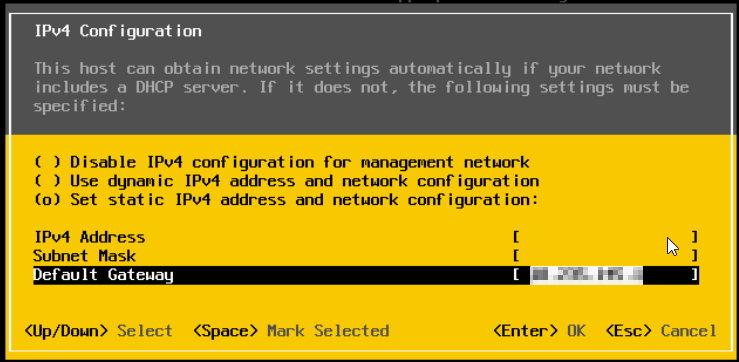
Figure 6: Set the required IP address and network configuration. - Enter the correct IPv4 address, subnet mask, and gateway. Use the arrow keys to move to each selection.
- Once the selections are added, press Enter and then Escape key to exit
- Ping and SSH login to the ESXi should now work
- Log in to the ESXi UI and verify that the correct DNS servers are configured.
- Press retry in the IDPA deployment UI to continue deployment.
Affected Products
PowerProtect DP4400Article Properties
Article Number: 000210793
Article Type: Solution
Last Modified: 14 Aug 2025
Version: 5
Find answers to your questions from other Dell users
Support Services
Check if your device is covered by Support Services.