NVP: vProxy registration does not complete with the message "HTTP Error 500: Failed to find virtual machine with IP address"
Summary: vProxy registration fails with message "HTTP Error 500: Failed to find a virtual machine with IP address "vPROXY_IP_ADDRESs" when configuring a new environment for vProxy backups. The NMC VMware View and the new vProxy Wizard show no VMware resources. ...
This article applies to
This article does not apply to
This article is not tied to any specific product.
Not all product versions are identified in this article.
Symptoms
- A new NetWorker VMware Protection (NVP) vProxy appliance registration does not complete with the error code:
Unable to register NSR VMware proxy 'vPROXY_NAME': Received an HTTP code: 500, libCURL message: "", vProxy message: "Error received from vProxy ="500: Failed to find virtual machine with IP address "vPROXY_IP_ADDRESS".".
- This error is seen in the NetWorker server's /nsr/logs/daemon.raw file and in the NetWorker Management Console (NMC) Alerts window.
- See Dell article 22793, NetWorker: How to use nsr_render_log.
- The new vProxy Wizard does not show any VMware resources.
- The NMC's VMware View tab does not show anything, even after performing a VMware View Refresh:

Figure 1: NMC's VMware View tab does not show anything.
Cause
The vCenter was added to NetWorker using a customized role. The VMware user is assigned Global Permissions at the vCenter level but Propagate is set to False.
Resolution
- Confirm which user account is used to add a vCenter to NetWorker. This is done using nsradmin command on the NetWorker server:
nsradmin
print type: nsr hypervisor
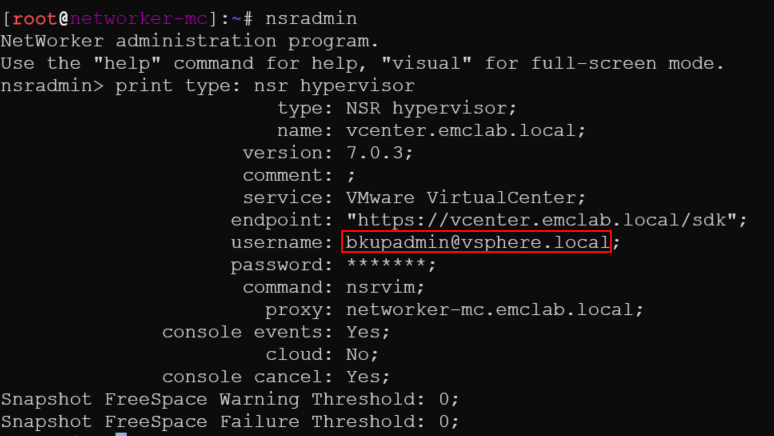
Figure 2: Result of nsradmin command to find username.
NOTE: A VMware administrator or team, or VMware user account with Administrative rights must complete the following actions.
- Log in to the vCenter vSphere web client and log in using the administrator@vsphere.local account (or another administrator level account).
- Go to Administration > Access Control > Global Permissions and find the user account from step 1.

Figure 3: Administration > Access Control > Global Permissions > User account from step 1
- Ensure Propagate checked and identify the Role:
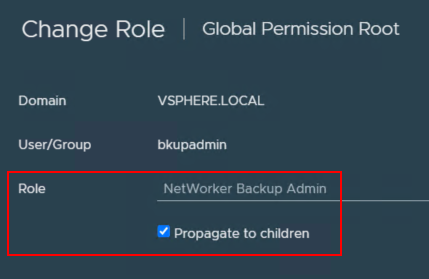
Figure 4: Ensure that Propagate is checked off for the Role.
- Go to Administration > Access Control > Roles and ensure that it shows the correct VMware user account with Propagate set to True.

Figure 5: Administration > Access Control > Roles > User account with Propagate set to True.
NOTE: This field should only show true. If it has two entries showing "False" and "True," then the issue persists.
- Return to the NMC and ensure that VMware View loads and is showing VMware resources.

Figure 6: NMC showing that VMware View loads and has VMware resources.
- If VMware View loads correctly, return to Devices > VMware Proxies and register the vProxy.
Affected Products
NetWorkerProducts
NetWorker SeriesArticle Properties
Article Number: 000215265
Article Type: Solution
Last Modified: 27 Mar 2025
Version: 4
Find answers to your questions from other Dell users
Support Services
Check if your device is covered by Support Services.