OpenManage Enterprise: Troubleshoot Section
Summary: Overview of the troubleshoot tab in OpenManage Enterprise with use case examples.
This article applies to
This article does not apply to
This article is not tied to any specific product.
Not all product versions are identified in this article.
Instructions
NOTE: To use the troubleshooting tool, the OpenManage Enterprise appliance must be at version 3.9 and above. Earlier versions do not have the same functionality.
To check which version of OpenManage Enterprise is deployed.
- Click on the information icon on the upper right corner.
- Verify the version.
The purpose of the Troubleshoot section:
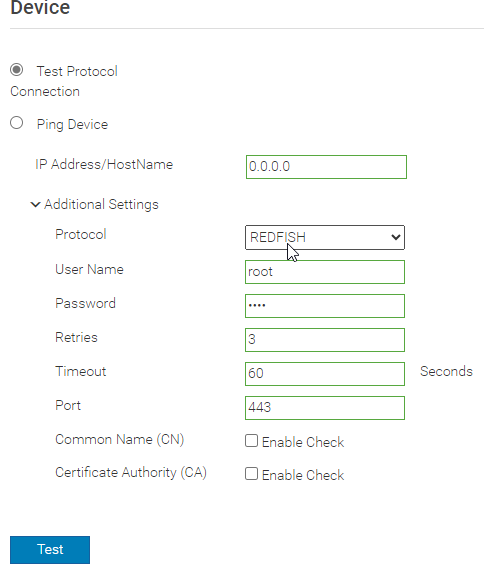
- Test Protocols for device Connectivity
- Test Internet connectivity from the appliance to the Dell website
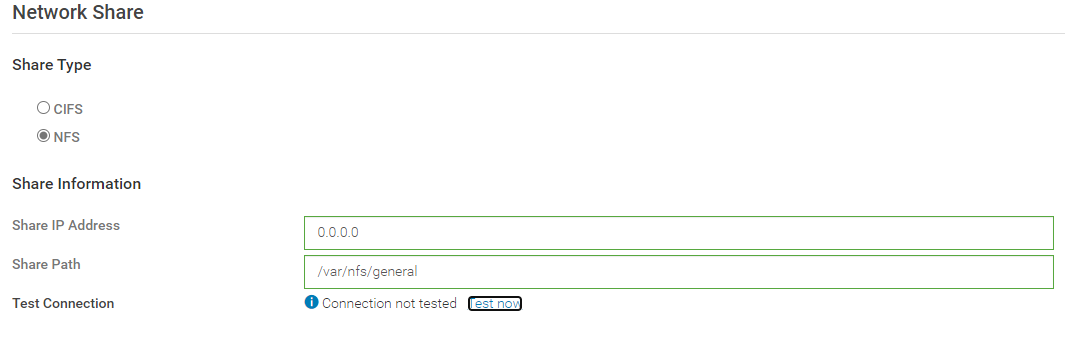
- Test connection to remote shares (CIF or NFS)
- Capture logs
- Enable FSD access for troubleshooting with Dell Support
The usage of this tool is in the context of the protocols OpenManage Enterprise uses to connect to the devices in the environment.
For example:
- SNMP is used to connect to Dell switches.
- WSMAN and REDFISH are used to connect to PowerEdge Servers.
- Type in the IP Address
- Select Ping Device from the options shown on the screen.
- Press the test button.
- Results are shown on the bottom.

To test connectivity by protocol:
- Select a protocol to connect to.
- Type in the relevant credentials for the selected protocol
- Press the Test button.
- Results are shown on the bottom.
NOTE: Internet connectivity is required for downloading update catalogs, firmware updates, warranty information, connectivity to CloudIQ or Services plug-ins.
Test OpenManage Enterprise Internet Connectivity by clicking on Appliance on the left context menu:
- Select Test Appliance connection.
- From the Sites drop down menu, select the relevant Site or All sites.
- Press the Test button.
- Results are shown on the bottom.
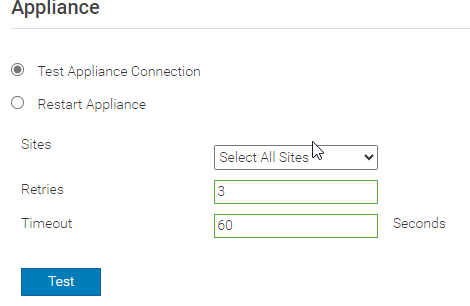
The Dell OpenManage Enterprise appliance can also be restarted from this section:
- Select Restart Appliance
- Press the Restart Appliance button.
- The appliance restarts.
Test OpenManage enterprise connections to shares:
- Select Network Share from the left context menu.
- Select CIFS or NFS and then put in the relevant share information.
- Press the Test Now button.
- Results are shown on the bottom.
NOTE: Logs can be gathered from the Logs section on this Troubleshoot section. The OpenManage Enterprise log bundle includes logs from any installed plugins, such as Services, OMEVV, and CloudIQ.
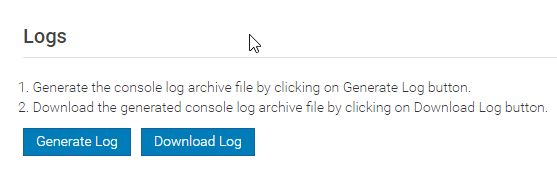
Collect Logs:
Select Logs from the left context menu.
- Click On Generate Log. This process may take several minutes.
- Once logs are generated, click on Download. This process may take several minutes.
- The log bundle downloads using your browser. This process may take several minutes.
NOTE: Debug logging can be enabled by accessing the OpenManage Enterprise Appliance Guest VM on your hypervisor.
Enable debug logging:
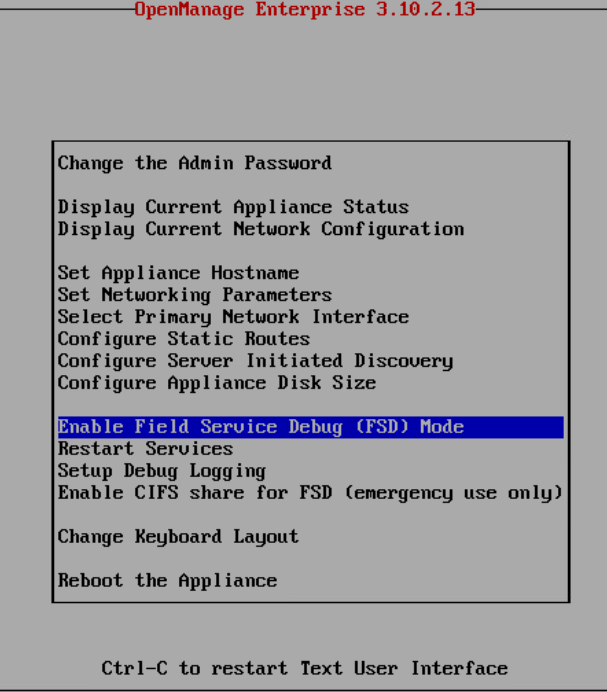
- Scroll down to Setup Debug Logging and press Enter.
- Select Enable All Debug Logs and press Enter.
- Debug logs are now enabled, and this can be confirmed by going to the Home Section in OpenManage Enterprise.
- Reproduce the behavior to be captured.
- Browse to Monitor > Troubleshoot > Log. Generate and download the logs.

NOTE: FSD can be enabled by accessing the OpenManage Enterprise Appliance Guest VM on your hypervisor.
Enable FSD Mode:
- To (FSD), scroll down to Enable Field Service Debug (FSD) and press Enter.
- Press Enter on Unblock FSD capabilities.
- By default, FSD can only be enabled for one month. Press Tab to select Generate and Press Enter
- FSD Mode is now enabled, and this can be confirmed by going to the Home Section in OpenManage Enterprise.
- Browse to Monitor > Troubleshoot > FSD.
- There is a file labeled dat.ini that must be downloaded and provided to Dell technical support.
- Wait for Dell Support to provide further instructions.
Additional Information
Affected Products
C Series, HS Series, Modular Infrastructure, Rack Servers, Tower Servers, XE Servers, XR Servers, Dell OpenManage Enterprise, Dell EMC OpenManage Enterprise, PowerEdge XR2, Poweredge C4140, PowerEdge C6400, PowerEdge C6420, PowerEdge C6520
, PowerEdge C6525, PowerEdge C6600, PowerEdge C6615, PowerEdge C6620, PowerEdge FC640, PowerEdge HS5610, PowerEdge HS5620, PowerEdge M640, PowerEdge M640 (for PE VRTX), PowerEdge M7701, PowerEdge M7725, PowerEdge MX5016s, PowerEdge MX7000, PowerEdge MX740C, PowerEdge MX750c, PowerEdge MX760c, PowerEdge MX840C, PowerEdge R240, PowerEdge R250, PowerEdge R260, PowerEdge R350, PowerEdge R360, PowerEdge R450, PowerEdge R470, PowerEdge R540, PowerEdge R550, PowerEdge R570, PowerEdge R640, PowerEdge R6415, PowerEdge R650, PowerEdge R650xs, PowerEdge R6515, PowerEdge R6525, PowerEdge R660, PowerEdge R660xs, PowerEdge R6615, PowerEdge R6625, PowerEdge R670, PowerEdge R740, PowerEdge R740XD, PowerEdge R740XD2, PowerEdge R7415, PowerEdge R7425, PowerEdge R750, PowerEdge R750XA, PowerEdge R750xs, PowerEdge R7515, PowerEdge R7525, PowerEdge R760, PowerEdge R760XA, PowerEdge R760xd2, PowerEdge R760xs, PowerEdge R7615, PowerEdge R7625, PowerEdge R770, PowerEdge R7715, PowerEdge R7725, PowerEdge R840, PowerEdge R860, PowerEdge R940, PowerEdge R940xa, PowerEdge R960, PowerEdge T140, PowerEdge T150, PowerEdge T160, PowerEdge T340, PowerEdge T350, PowerEdge T360, PowerEdge T40, PowerEdge T440, PowerEdge T550, PowerEdge T560, PowerEdge T640, PowerEdge XE2420, PowerEdge XE7100, PowerEdge XE7420, PowerEdge XE7440, PowerEdge XE7745, PowerEdge XE8545, PowerEdge XE8640, PowerEdge XE9640, PowerEdge XE9680, PowerEdge XR11, PowerEdge XR12, PowerEdge XR4000r, PowerEdge XR4000w, PowerEdge XR4000z, PowerEdge XR4510c, PowerEdge XR4520c, PowerEdge XR5610, PowerEdge XR7620, PowerEdge XR8000r, PowerEdge XR8610t, PowerEdge XR8620t
...
Article Properties
Article Number: 000217966
Article Type: How To
Last Modified: 09 Apr 2025
Version: 3
Find answers to your questions from other Dell users
Support Services
Check if your device is covered by Support Services.