Dell Pro Wireless Headset WL3024 Usage and Troubleshooting Guide
Summary: The following article provides information about the Dell Pro Wireless Headset WL3024. You can reference each section to learn more about the features of the Dell Pro Wireless Headset WL3024 and how to use it. ...
This article applies to
This article does not apply to
This article is not tied to any specific product.
Not all product versions are identified in this article.
Instructions
Table of Contents:
- What is in the Dell Pro Wireless Headset WL3024 box
- Dell Pro Wireless Headset WL3024 Features
- Setting up your Dell Pro Wireless Headset WL3024
- Troubleshooting
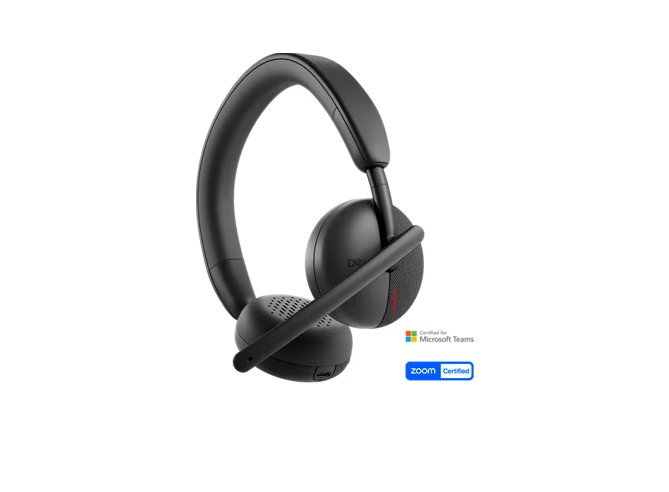
(Figure.1 Work faster and smarter with the Dell Pro Wireless Headset WL3024)
What is in the Dell Pro Wireless Headset WL3024 box
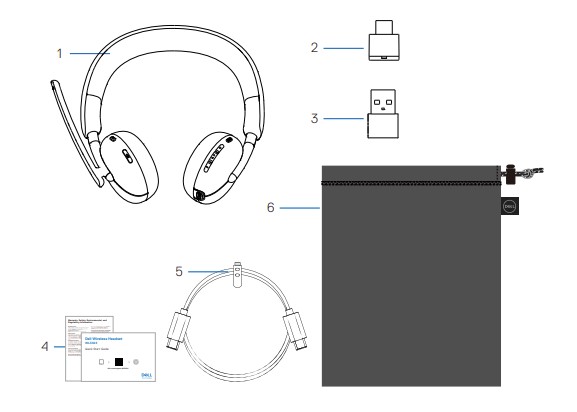
(Figure.2 Dell Wireless Headset WL3024 Box Contents)
| 1 | Dell Pro Wireless Headset WL3024 | 2 | USB-C Wireless Audio Receiver |
| 3 | USB-A Adapter | 4 | User Documentations |
| 5 | Type -C Charging Cable | 6 | Soft Carrying pouch |
Dell Pro Wireless Headset WL3024 Features
Features
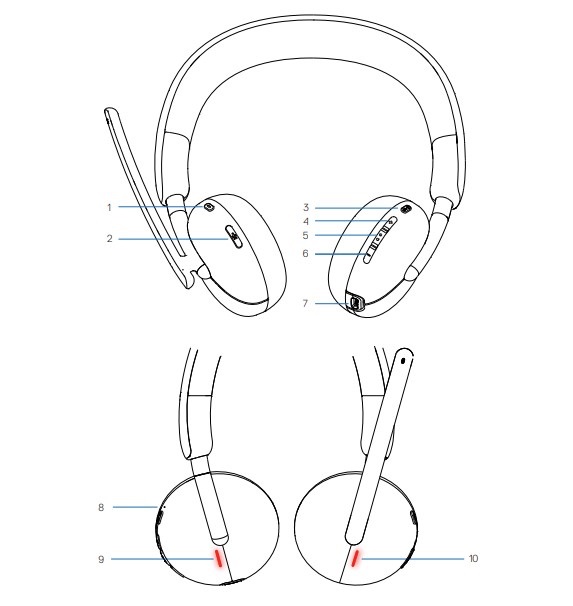
(Figure.3 Dell Wireless Headset WL3024 Product Features)
| 1 | Teams Button | 2 | Mute button |
| 3 | Power button (On/Off/BT pairing) | 4 | Volume up button |
| 5 | Multimedia | 6 | Volume down button |
| 7 | USB-C charging port | 8 | Power LED |
| 9 | Busy Light LED | 10 | Busy Light LED |
Accessories
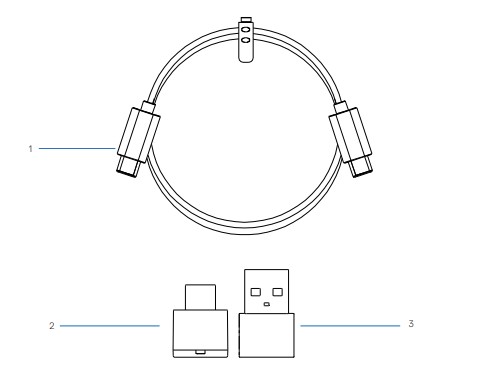
(Figure.4 Dell Wireless Headset WL3024 Product Accessories)
| 1 | Type-C Charging Cable | 2 | USB-C Wireless Audio Receiver |
| 3 | USB-A Adapter |
Setting up your Dell Pro Wireless Headset WL3024
Turning on or off the headset
You must charge the headset before using it. Press the power button to switch on or off the headset.
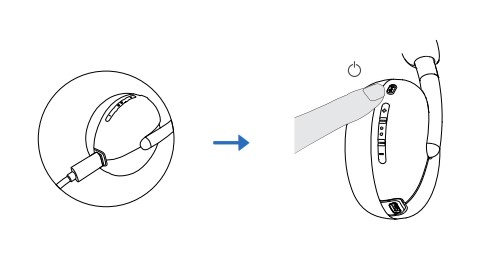
(Figure.5 Turning on or off the headset)
Charging the headset
To charge the headset, connect the USB-C charging cable to the USB-C port on your headset, then connect the other end of the USB-C port to the computer.
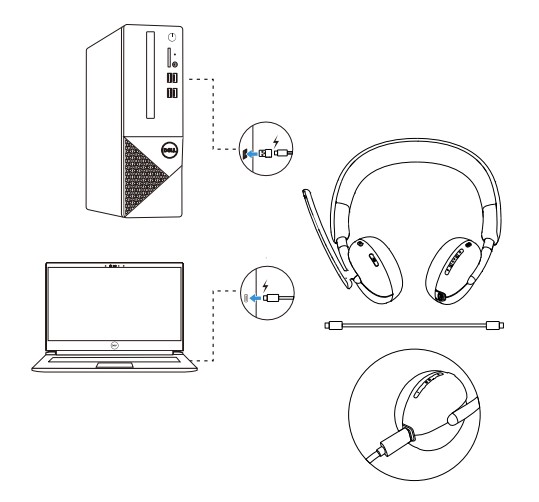
(Figure.6 Charging the headset)
Adjusting the headset
Adjust the headband and ear cushions to find the optimal fit for your head. The ear cups can be rotated both forward and backward by 90 degrees.
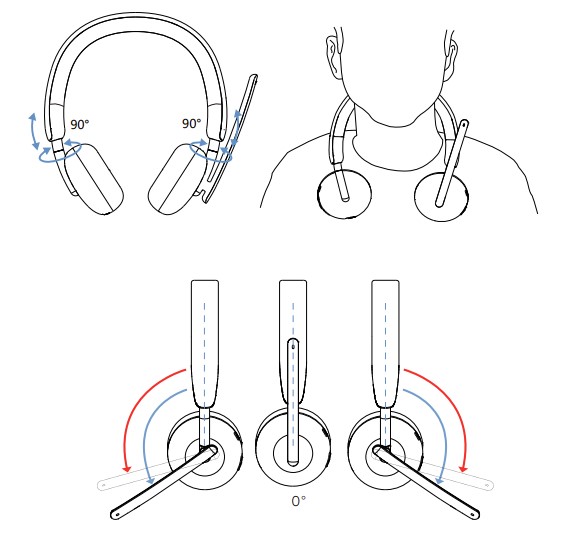
(Figure.7 Adjusting the headset)
The boom microphone can be rotated up to 260°.
The guides are located on our support site:
Troubleshooting
| Problems | Possible solutions |
|---|---|
| Dell Pair notification does not open when a Bluetooth device turned on for the first time. |
|
| Dell Pair reports a pairing error |
|
| Headset has no sound. |
|
| The audio is not working. |
|
| Abnormal sound is coming out of the headset. |
|
| Unbalanced sound in the headset | Check that the computer volume balance is set correctly.
|
| Headset lights do not light up |
|
| Wireless range is too short. |
|
| Media key or volume control not working. |
|
| Headset buttons not working |
|
| Imbalance or mono sound during the channel testing |
|
| The mute button is not synced between the system and the headset. |
|
| Multiple devices found when connecting manually through Bluetooth |
|
Affected Products
Dell Pro Wireless Headset WL3024Article Properties
Article Number: 000220746
Article Type: How To
Last Modified: 11 Apr 2025
Version: 2
Find answers to your questions from other Dell users
Support Services
Check if your device is covered by Support Services.