Avamar: How to Change the Root Password of a Proxy if it is Lost
Summary: This article outlines the procedure for changing the root password of an Avamar proxy if it is lost.
This article applies to
This article does not apply to
This article is not tied to any specific product.
Not all product versions are identified in this article.
Symptoms
The Avamar proxy is operational. However, root login is inaccessible due to an unknown password for the root account.
Cause
Human error or security breach
Resolution
To change the password using single-mode boot on the Avamar proxy, follow these steps:
- Check if any backups are running and using the proxy. If so, wait for their completion as the proxy must be rebooted.
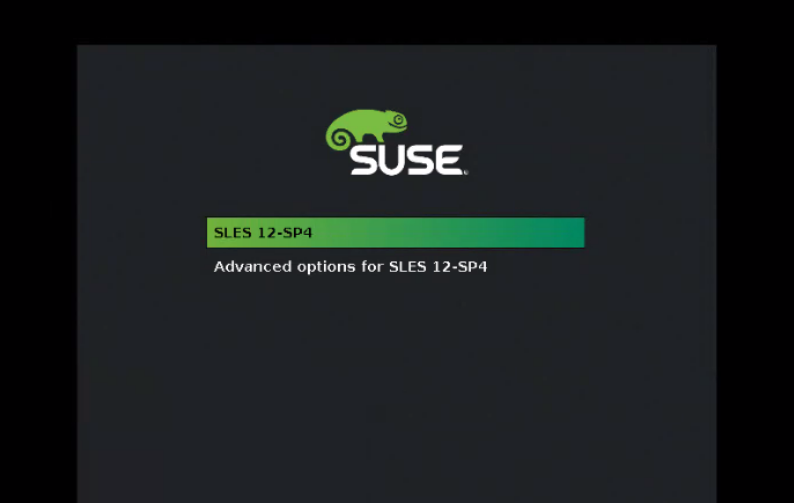
- Reboot the virtual machine (VM) when the proxy is idle. Open the VM console to see a screen similar to the following:
Press ESC to stop the countdown and edit the boot options entries.
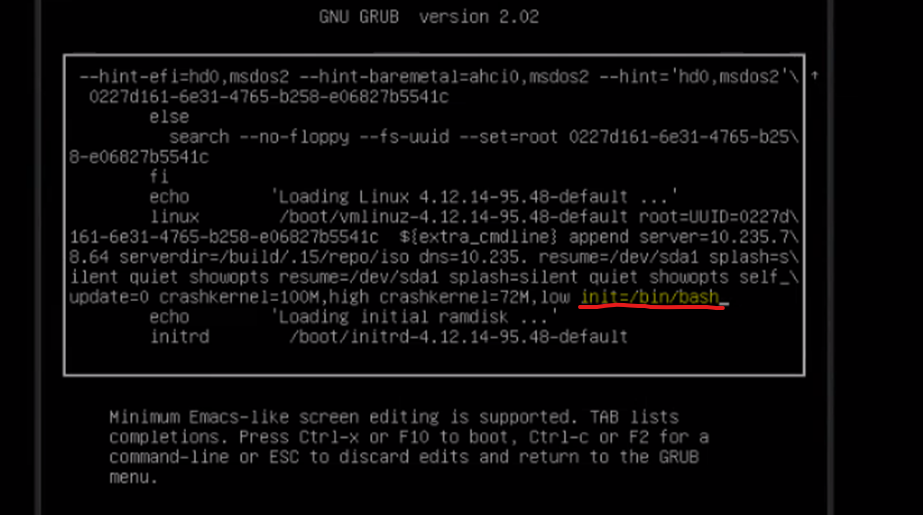
- Press the 'e' key for editing and at the end of the below line:
linux /boot/vmlinuz-xxx
Add the following:
init=/bin/bash
See screenshot below:
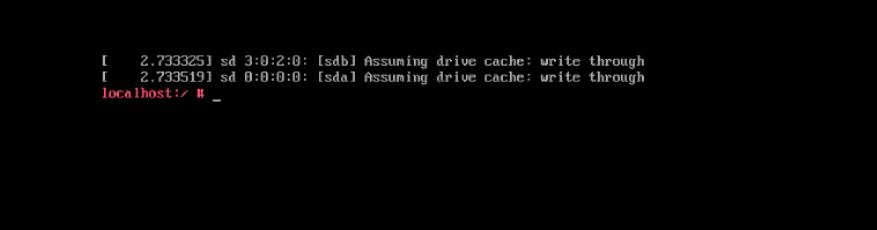
- Press F-10 or Ctrl-x to boot up the console using the new settings entry. A bash command line is presented:
- Mount the root partition using following command:
mount -o remount.rw /
- Change the password for root:
passwd root
- Reboot the proxy.
Affected Products
Avamar Client for VMwareArticle Properties
Article Number: 000222356
Article Type: Solution
Last Modified: 08 May 2024
Version: 2
Find answers to your questions from other Dell users
Support Services
Check if your device is covered by Support Services.