Dell Unity: Support contract expired, or support credentials are unable to validate
Summary: When trying to validate support credentials, refreshing the support contract manually, or the autorefresh is polling an incorrect contract from Dell Backend. (User Correctable)
This article applies to
This article does not apply to
This article is not tied to any specific product.
Not all product versions are identified in this article.
Symptoms
Symptom 1
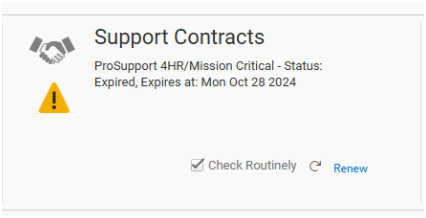
When the Unity support contract is renewed, Unisphere still shows that the contract is expired. When manually refreshing the contract, it is unable to pull in the updated contract information.
Symptom 2
Entering the support credentials in Unisphere fails to validate.
Cause
For security purposes, the Application Programming Interface (API) which allows the contract and support account widget to authenticate into the Dell.com backend has been discontinued.
Resolution
Fix:
A fix for both of these widgets has been developed and deployed in Unity OE code 5.5.1.
Work around to check contract status:
To verify contract status immediately, go to https://www.dell.com/support/ and search for the serial number of the array. This shows the current support contracts.
If there is not a current active support contract, contact your Dell Unity Sales Representative to update your contract information.
Work around to configure Secure Remote Services (SRS) or SupportAssist:
Entering and validating support credentials is no longer required to configure centralized SRS (OE 5.2.2 and below) or integrated/centralized SupportAssist (OE 5.3 and above).
Integrated SRS on OE 5.2 and lower is no longer supported.
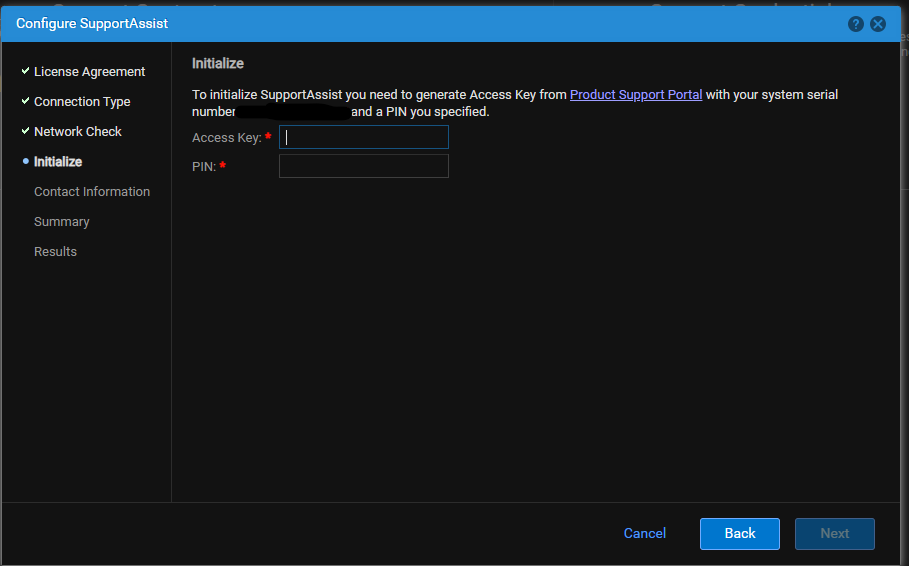
Support credentials are used for validation when the access code and pin are entered during configuration:
(For SupportAssist configurations ONLY - Key and Pin are required for Direct(Integrated) or Gateway Server(Centralized) configurations)
Additional Information
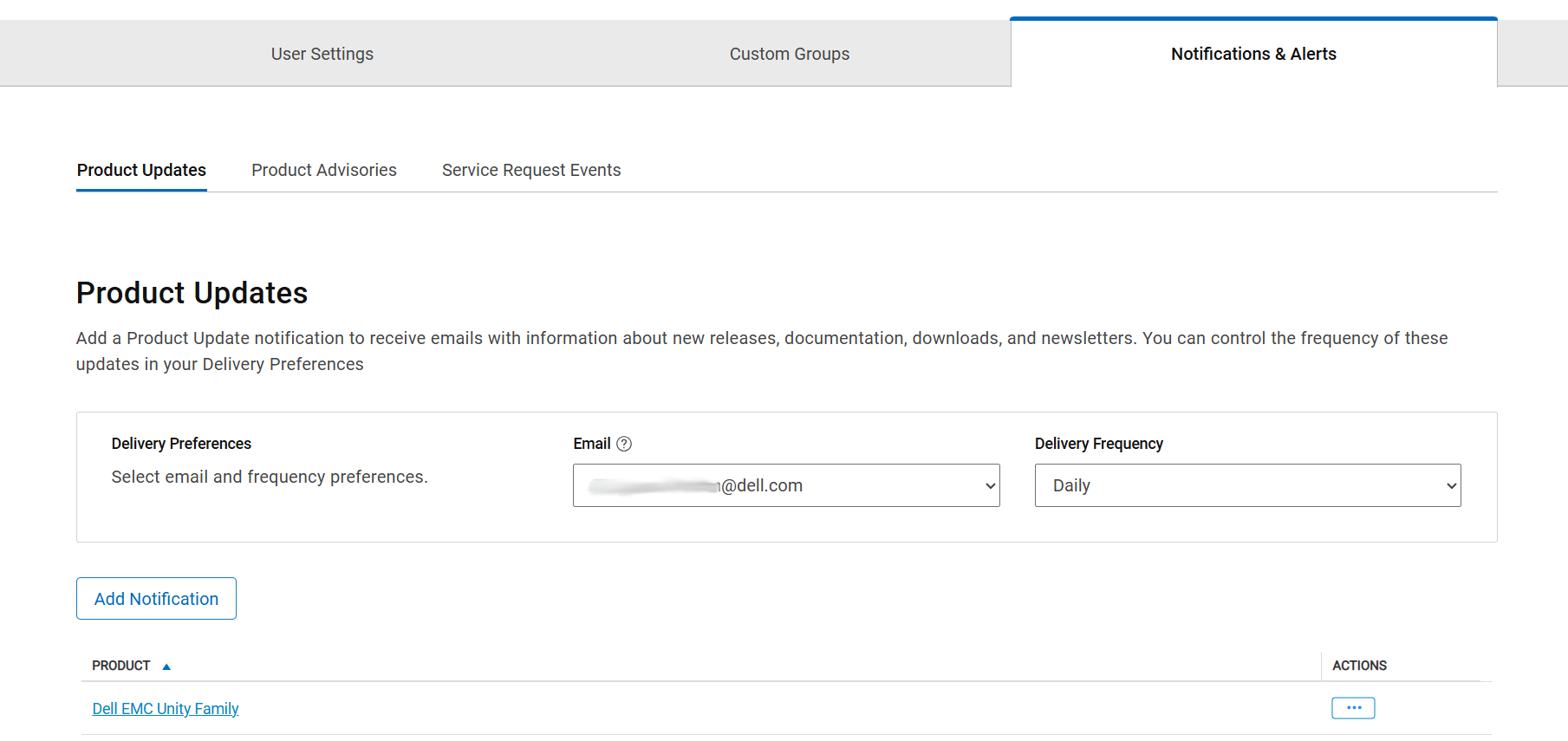
Notifications can be enabled for product updates on dell.com, and will be notified when a new version of Unity OE is available.
- Log in link https://www.dell.com/support/
- Click the drop-down option next to your name in the upper right corner of the screen.
- Choose "Preferences"
- Choose "User Setting & Preferences"
- Choose the "Notifications & Alerts" tab.
- Under "Product Updates," verify your email address and how frequently to receive the updates. If you do not have any products listed in the "Product" section, then you must add "Dell EMC Unity Family" to your list.
Affected Products
Dell EMC Unity, Dell Unity 450F DC, Dell Unity 300, Dell Unity 300 DC, Dell EMC Unity 300F, Dell EMC Unity 350F, Dell Unity 350F DC, Dell EMC Unity XT 380, Dell EMC Unity XT 380F, Dell EMC Unity 400, Dell Unity 400 DC, Dell EMC Unity 400F
, Dell EMC Unity 450F, Dell EMC Unity XT 480, Dell EMC Unity XT 480F, Dell EMC Unity 500, Dell EMC Unity 500F, Dell EMC Unity 550F, Dell EMC Unity 600, Dell EMC Unity 600F, Dell EMC Unity 650F, Dell EMC Unity XT 680, Dell EMC Unity XT 680F, Dell EMC Unity XT 880, Dell EMC Unity XT 880F, Dell EMC Unity Family |Dell EMC Unity All Flash, Dell EMC Unity Hybrid
...
Article Properties
Article Number: 000269568
Article Type: Solution
Last Modified: 07 Aug 2025
Version: 7
Find answers to your questions from other Dell users
Support Services
Check if your device is covered by Support Services.