Dell Unity: How to create a snapshot schedule with more than two rules
Summary: This article explains how to create a snapshot schedule with more than two rules using CLI which cannot be done using UI (User Correctable)
This article applies to
This article does not apply to
This article is not tied to any specific product.
Not all product versions are identified in this article.
Instructions
You may have to create a snapshot schedule with multiple rules, for example:
- An hourly checkpoint that we retain for 24 hours
- A nightly checkpoint that we retain for 7 days
- A weekly checkpoint that we retain for 4 weeks
However, you cannot perform that using UI, which allows a maximum of two rules per schedule.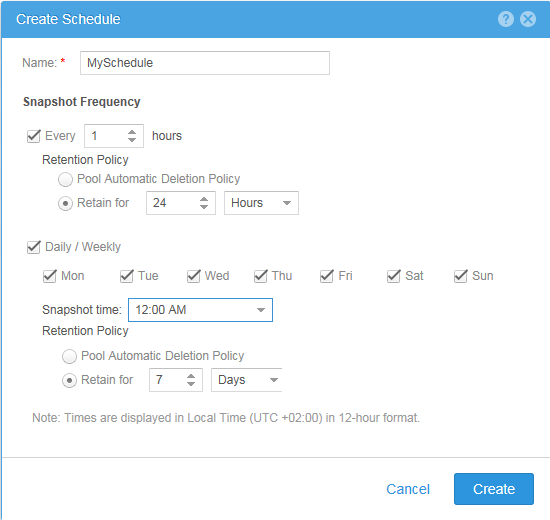
#> uemcli -no /sys/task/sched -id snapSch_19 show
1:    ID    = snapSch_19
      Name  = MySchedule
      Type  = User
      Rules = SchedRule_93, SchedRule_94

#> uemcli -no /sys/task/rule -id SchedRule_93 show
1:    ID                = SchedRule_93
      Type              = HoursInterval
      Frequency         = Every 1h
      Keep for          = 1d
      Allow auto-delete = no
      Access            = Checkpoint

#> uemcli -no /sys/task/rule -id SchedRule_94 show
1:    ID                = SchedRule_94
      Type              = WeekDaysList
      Frequency         = Every Mon, Tue, Wed, Thu, Fri, Sat, Sun at 00:00
      Keep for          = 7d
      Allow auto-delete = no
      Access            = Checkpoint
And a LUN can have a maximum of one schedule assigned for it, so you cannot satisfy the requirements.
However, you can meet the requirements using CLI, so in our example we have created the snapshot schedule (snapSch_19) with the first two rules using UI, and then added the third rule to the schedule using CLI by the following command:
#> uemcli -no -u <username> -p <password> /sys/task/rule create -schedId snapSch_19 -type weekdayslist -days sat -at 12:00 -keepFor 31d -access ckpt
And the result would be as following, which meets our requirements:
#> uemcli -no /sys/task/sched -id snapSch_19 show
1:    ID    = snapSch_19
      Name  = MySchedule
      Type  = User
      Rules = SchedRule_93, SchedRule_94, SchedRule_95

#> uemcli -no /sys/task/rule -id SchedRule_93 show
1:    ID                = SchedRule_93
      Type              = HoursInterval
      Frequency         = Every 1h
      Keep for          = 1d
      Allow auto-delete = no
      Access            = Checkpoint

#> uemcli -no /sys/task/rule -id SchedRule_94 show
1:    ID                = SchedRule_94
      Type              = WeekDaysList
      Frequency         = Every Mon, Tue, Wed, Thu, Fri, Sat, Sun at 00:00
      Keep for          = 7d
      Allow auto-delete = no
      Access            = Checkpoint

#> uemcli -no /sys/task/rule -id SchedRule_95 show
1:    ID                = SchedRule_95
      Type              = WeekDaysList
      Frequency         = Every Sat at 12:00
      Keep for          = 31d
      Allow auto-delete = no
      Access            = Checkpoint
I have also been able to add even more rules to the same schedule, still the UI can only show the initial two rules only!
Affected Products
Dell EMC Unity FamilyProducts
Dell EMC Unity 300F, Dell EMC Unity 400, Dell EMC Unity 400F, Dell EMC Unity 500, Dell EMC Unity 500F, Dell EMC Unity 600, Dell EMC Unity 600F, Dell EMC Unity Family |Dell EMC Unity All Flash, Dell EMC Unity Family, Dell EMC Unity Hybrid
, Dell EMC UnityVSA Professional Edition/Unity Cloud Edition
...
Article Properties
Article Number: 000022496
Article Type: How To
Last Modified: 02 Dec 2025
Version: 4
Find answers to your questions from other Dell users
Support Services
Check if your device is covered by Support Services.