How to Install McAfee Business Protection
Summary: This article discusses how to install McAfee Business Protection purchased from Dell.
This article applies to
This article does not apply to
This article is not tied to any specific product.
Not all product versions are identified in this article.
Instructions
Affected Products:
- McAfee Business Protection
A McAfee Business Protection subscription can be purchased with a Dell commercial computer.
Note: For more information about changing your McAfee subscription, reference How to Cancel or Renew your McAfee Subscription Purchased at Dell.
OptiPlex, Latitude, Precision, Dell Pro, and Dell Pro Max Initial Setup
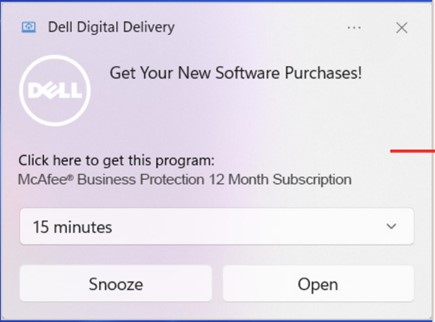
- After the Windows one-hour quiet period, there is a Dell Digital Delivery message. Click Open. If this message is not displayed, go to Windows Search and Search for Dell Digital Delivery.
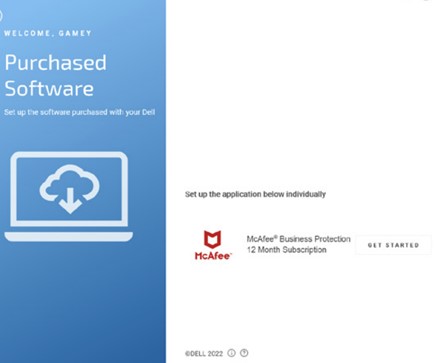
- The Dell Digital Delivery Application opens. Click Get Started.
 Note:
Note:- It may take up to fifteen minutes for McAfee software to be populated in Dell Digital Delivery.
- If unable to see software, try restarting your computer to implement updates.
- If still unable to see the software, go to McAfee Business Protection.
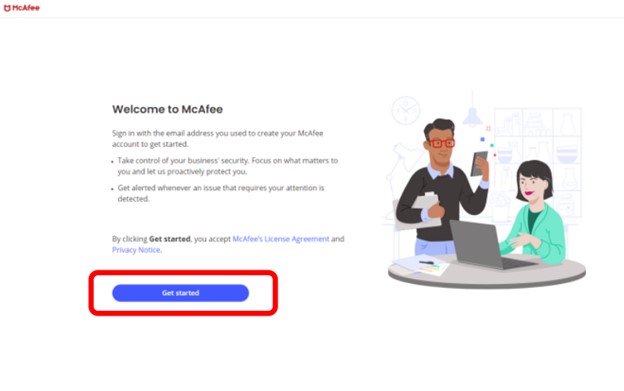
- Sign in to your account:
- Sign in with the email address that you used when you activated your subscription.
Note: For first-time users, create an account through the sign in page.
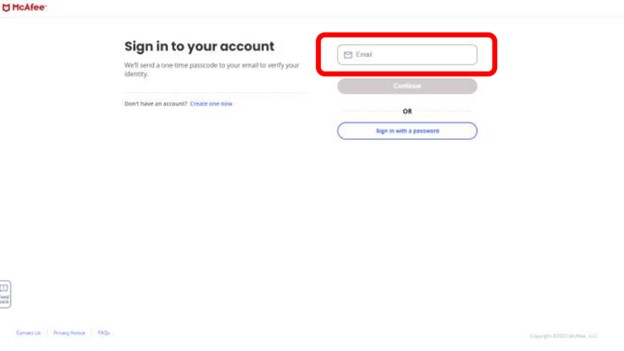
- After you have entered an email address, a one-time pass code will be sent to your email address to verify your identity.
Note: You can also sign in with a password. Add a password in the two fields to set up your password, then Click Confirm password.
- After you have entered an email address, a one-time pass code will be sent to your email address to verify your identity.
- Or, the user can sign in with a password.
- Add a password in the two fields to set up your password
- Click Confirm the password
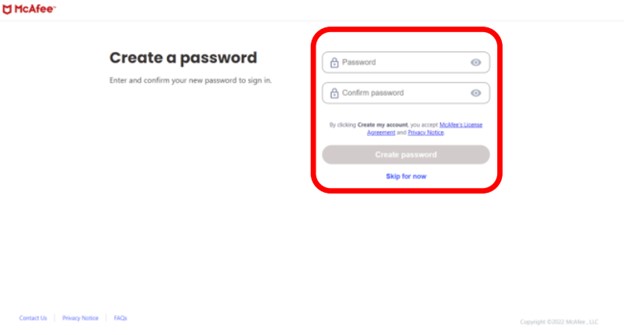
- Sign in with the email address that you used when you activated your subscription.
- The user is presented with an onboarding wizard where you can configure your name as administrator and enter your company’s name.
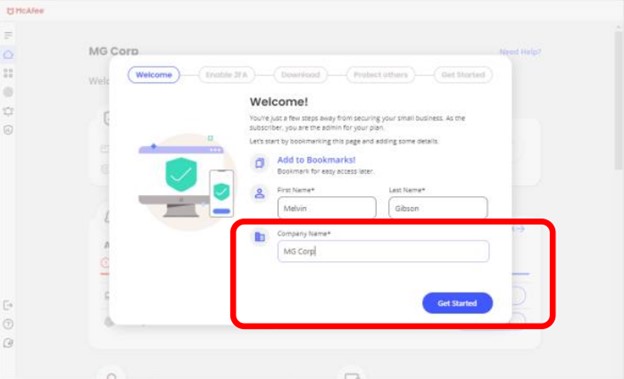
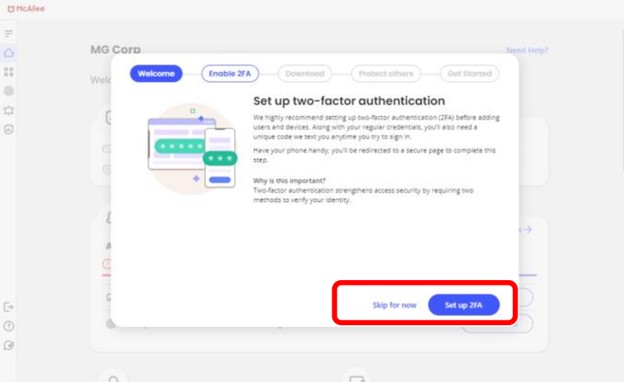
- Set up two-factor authentication (2FA), two-factor authentication strengthens access security by requiring two methods to verify your identity:
- Your password
- One-time-passcode
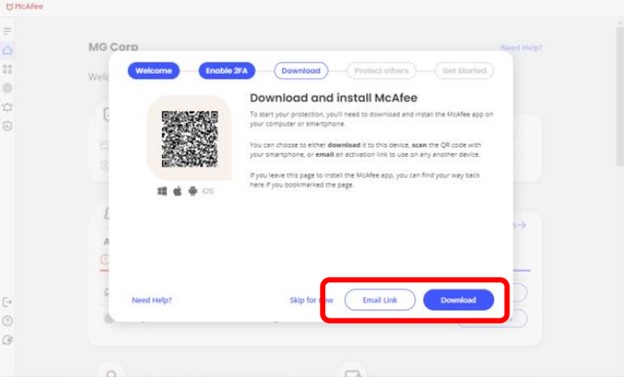
- Download and install the McAfee app on your computer or smartphone. You can choose:
- Click Download and install on the device you are on.
- Scan the QR code with your smartphone.
- Send an email with a download link to your other devices by Clicking Email link button.
- Add one or more employees to your subscription by sending them an invitation email with which provides instructions to set up their accounts.
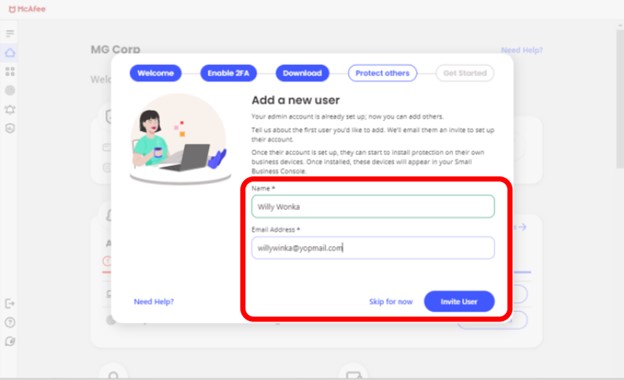
- Once your employees have set up their accounts, they can install protection on their own business devices. These devices show up in your Security Console:
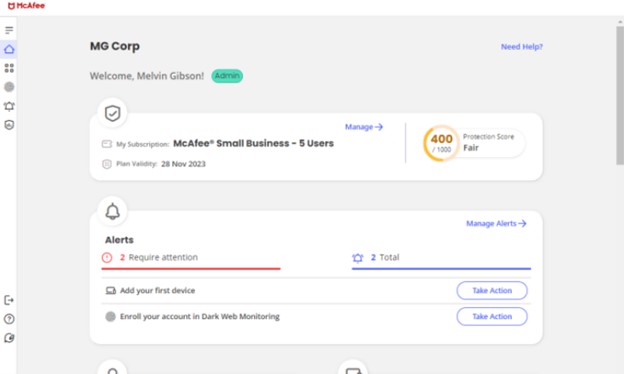
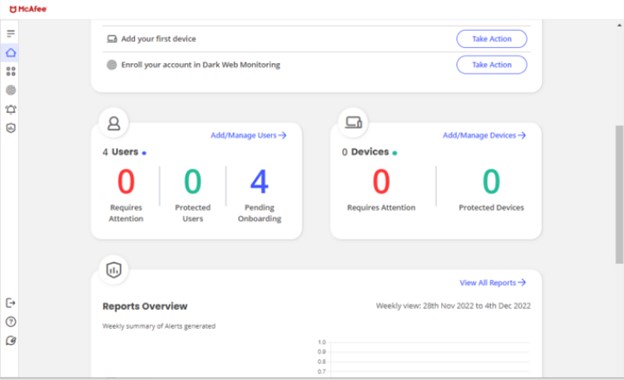
Note: For additional information about installation and activation, go to McAfee Customer Service. 
Warning: Dell Technologies recommends doing this before you add other users and devices to your subscription.
Dell, XPS, and Vostro Initial Setup
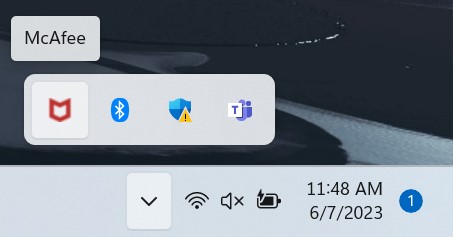
- Click the system tray hidden icon button in the lower right corner of the desktop.
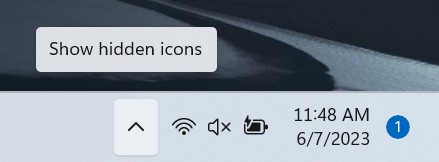
- Click the McAfee icon.
 Note:
Note:- It may take up to eight hours for McAfee software to be accessible.
- If unable to see software, try restarting your computer to implement updates.
- If still unable to see the software, go to McAfee Business Protection.
- Click Get started.
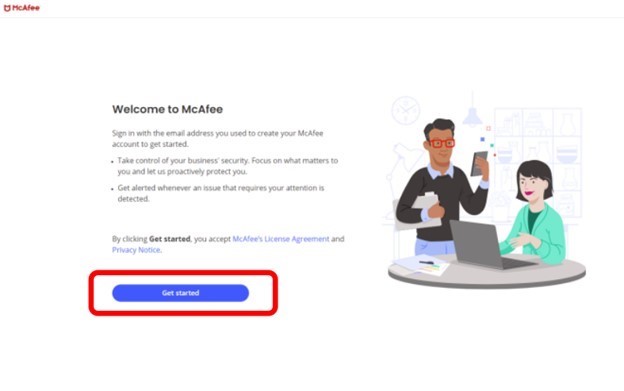
- Sign in to your account:
- Sign in with the email address that you used when you activated your subscription.
Note: For first-time users, create an account through the sign in page.
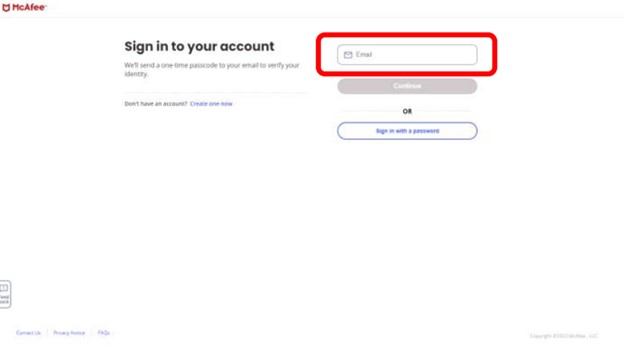
- After you have entered an email address, a one-time pass code will be sent to your email address to verify your identity.
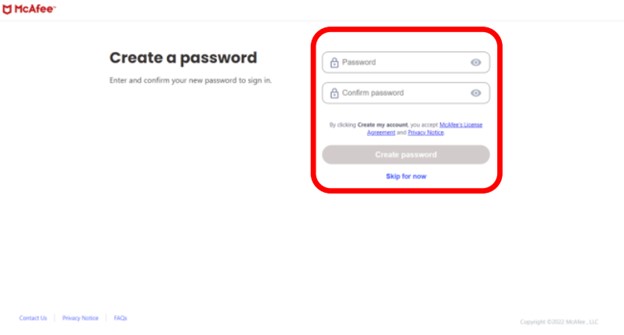
Note: You can also sign in with a password. Add a password in the two fields to set up your password, then Click Confirm password.
- After you have entered an email address, a one-time pass code will be sent to your email address to verify your identity.
- Or, the user can sign in with a password.
- Add a password in the two fields to set up your password
- Click Confirm the password
- Sign in with the email address that you used when you activated your subscription.
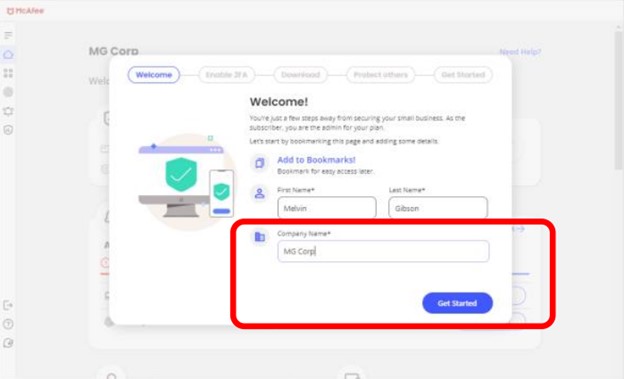
- The user is presented with an onboarding wizard where you can configure your name as administrator and enter your company’s name.
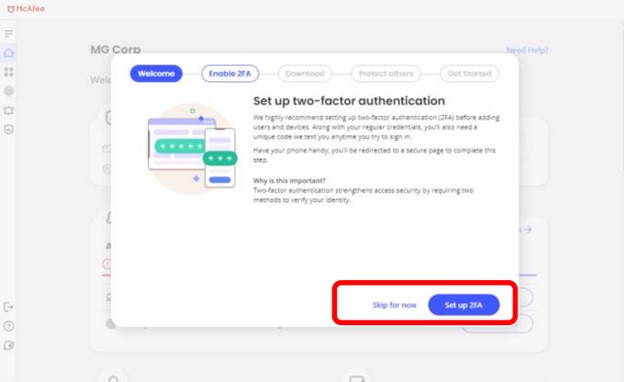
- Set up two-factor authentication (2FA), two-factor authentication strengthens access security by requiring two methods to verify your identity:
- Your password
- One-time-passcode
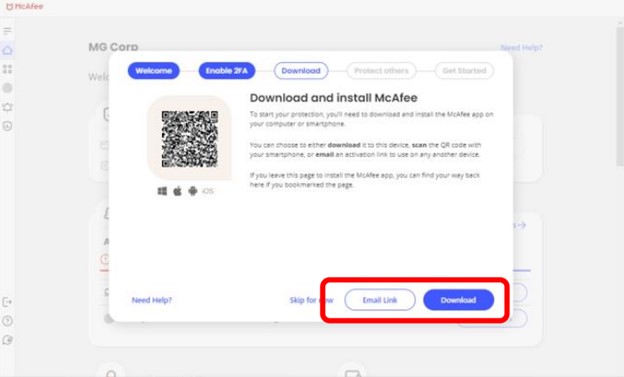
- Download and install the McAfee app on your computer or smartphone. You can choose:
- Click Download and install on the device you are on.
- Scan the QR code with your smartphone.
- Send an email with a download link to your other devices by Clicking Email link button.
- Add one or more employees to your subscription by sending them an invitation email with which provides instructions to set up their accounts.
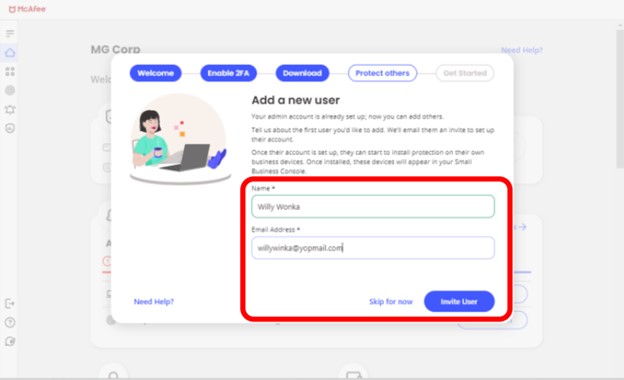
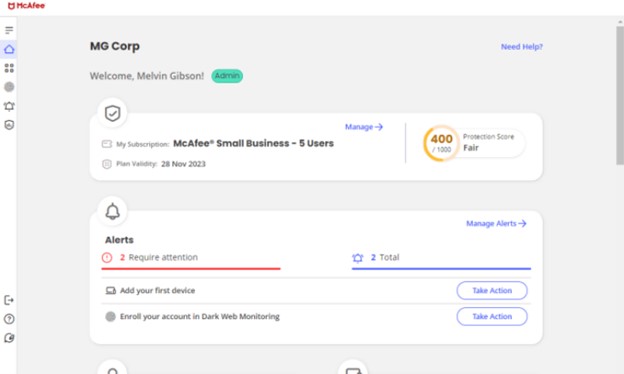
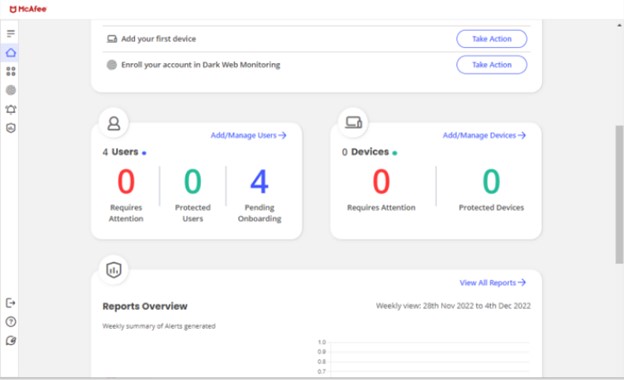
- Once your employees have set up their accounts, they can install protection on their own business devices. These devices show up in your Security Console:
McAfee Business Protection Reinstall
- Go to McAfee.
- In the upper right, click Login.
- Sign in using your McAfee account.
 Note:
Note:- A McAfee account is generated during the initial setup of a McAfee subscription.
- For issues accessing your McAfee account:
- Validate the email used is tied to a McAfee subscription.
- To protect your privacy, Dell technical support is unable to validate the email used to setup the McAfee subscription. Contact the vendor directly for assistance at McAfee Customer Service.
- Click Go to My Protection.
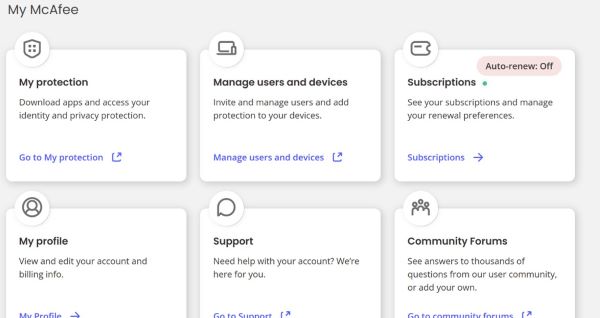
- Click View My Details.
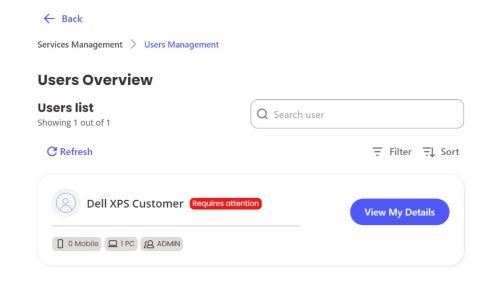
- Click Send Link.
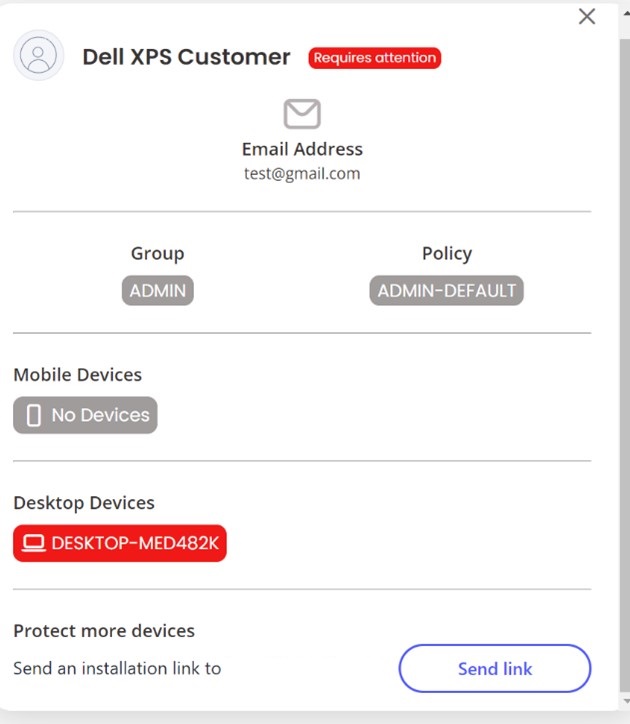 Note: An email is sent to the email account associated with the McAfee Account.
 - Locate email and Click Download Protection.
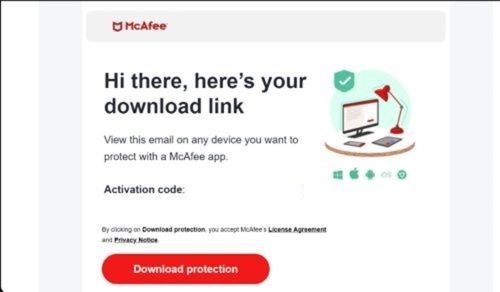
- Go to the downloaded file location and proceed with the prompts to reinstall McAfee.
Note: For additional information about installation and activation, go to McAfee Customer Service.
Affected Products
Dell Pro Max Micro, Dell Pro Max Slim, Dell Pro Max Tower, Dell Pro Micro, Dell Pro Slim, Dell Pro Tower, OptiPlex, Vostro, XPS, Dell Laptops, Dell Pro, Dell Pro Max, Dell Pro Plus, Dell Pro Premium, Latitude, Dell Pro Rugged, Vostro, XPS
, Fixed Workstations, Mobile Workstations, Dell Pro Max Micro XE FCM2250
...
Article Properties
Article Number: 000214375
Article Type: How To
Last Modified: 15 Oct 2025
Version: 10
Find answers to your questions from other Dell users
Support Services
Check if your device is covered by Support Services.