How to Place Images in the OS Image Repository of Wyse Management Suite
Summary: Learn how to place images for Windows Embedded Standard, ThinLinux, ThinOS, and Teradici in the OS image repository of Wyse Management Suite.
This article applies to
This article does not apply to
This article is not tied to any specific product.
Not all product versions are identified in this article.
Instructions
Uploading images to the OS image repository of Wyse Management Suite is the first step to performing upgrades and more.
Affected Products:
- Wyse Management Suite
Affected Versions:
- v1.0 and Later
Wyse Management Suite has different steps for uploading images for Windows Embedded Standard (WES) or ThinLinux, ThinOS, and Teradici. Click the appropriate method for more information.
Note: For information about downloading the images, reference How to Download Firmware for Dell Wyse Thin Clients.
Windows Embedded Standard (WES) or ThinLinux
- Sign in to Wyse Management Suite.
 Note: For information about accessing the Wyse Management Suite administration console, reference How to Access the Wyse Management Suite Administration Console.
 - Click Apps & Data.

- Under OS Image Repository, click WES/ThinLinux.
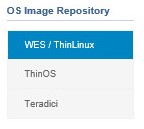
- From Windows Explorer, move the zipped image to
C:\WMS\LocalRepo\repository\osImages\zipped.
 Note: This path may differ if Wyse Management Suite has been installed to a custom directory.
 - The zipped image is extracted to
C:\WMS\LocalRepo\repository\osImages\valid.
 Note: This path may differ if Wyse Management Suite has been installed to a custom directory.
ThinOS
The method to upload the firmware for ThinOS varies based on the version of Wyse Management Suite. For more information, reference How to Identify the Version of Wyse Management Suite.
- Sign in to Wyse Management Suite.
 Note: For information about accessing the Wyse Management Suite administration console, reference How to Access the Wyse Management Suite Administration Console.
 - Click Apps & Data.

- Under OS Image Repository, click ThinOS.
 Note: Do not upload a firmware image to ThinOS 9.x.
 - Click Add Firmware file.

- From the Add File menu:
- Click Browse.
- Go to the file to upload and then double-click it.
- Populate a Description.
- Optionally, select Override existing file.
- Click Upload.
 Note: If the file is over 100 MB, extract the .zip of the image and browse to the file with
wnosin the filename instead.
- Sign in to Wyse Management Suite.
 Note: For information about accessing the Wyse Management Suite administration console, reference How to Access the Wyse Management Suite Administration Console.
 - Click Apps & Data.

- Under OS Image Repository, click ThinOS.

- Click Add Firmware file.

- From the Add File menu:
- Click Browse.
- Go to the file to upload and then double-click it.
- Populate a Description.
- Optionally, select Override existing file.
- Click Upload.
 Note: If the file is over 100 MB, extract the .zip of the image and browse to the file with
wnosin the filename instead.
Teradici
Note: Only Wyse Management Suite Private Cloud can manage Teradici. The Teradici End-User Management Software Development Kit (EM SDK) must be installed for this option to be available. For more information, reference How to Install Wyse Management Suite (Private Cloud).
- Sign in to Wyse Management Suite.
 Note: For information about accessing the Wyse Management Suite administration console, reference How to Access the Wyse Management Suite Administration Console.
 - Click Apps & Data.

- Under OS Image Repository, click Teradici.
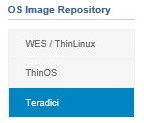
- Click Add Firmware file.

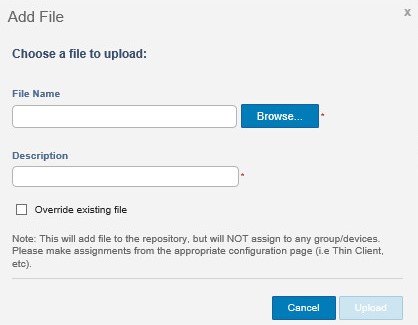
- From the Add File menu:
- Click Browse.
- Go to the file to upload and then double-click it.
- Populate a Description.
- Optionally, select Override existing file.
- Click Upload.
Affected Products
Wyse Management SuiteArticle Properties
Article Number: 000126020
Article Type: How To
Last Modified: 29 Jul 2024
Version: 6
Find answers to your questions from other Dell users
Support Services
Check if your device is covered by Support Services.