How to Manage Users in Wyse Management Suite
Summary: Learn how to add, edit, deactivate, activate, and delete users in Wyse Management Suite by following these step-by-step instructions.
This article applies to
This article does not apply to
This article is not tied to any specific product.
Not all product versions are identified in this article.
Instructions
Managing users in Wyse Management Suite is how an administrator performs routine changes to users in the environment.
Affected Products:
- Wyse Management Suite
Affected Versions:
- v1.3 and Later
Wyse Management Suite has different steps for functions involving Administrator accounts and User accounts. Click the appropriate account type for more information.
Administrator
An administrator may Add, Edit, Deactivate, Activate, and Delete an administrator account. Click the appropriate process for more information.
- Sign in to Wyse Management Suite.
 Note: For information about accessing the Wyse Management Suite Administration Console, reference How to Access the Wyse Management Suite Administration Console.
 - Click Users.

- Click Administrators.
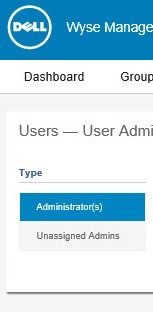
- Click Add Admin.

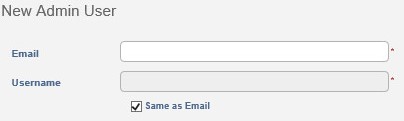
- From the New Admin User menu:
- Populate an Email.
- Populate a Username or select Same as Email.
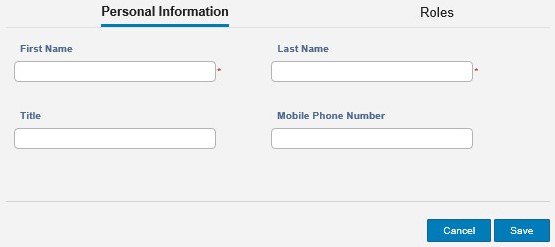
- Within Personal Information:
- Populate a First Name.
- Populate a Last Name.
- Optionally, populate a Title.
- Optionally, populate a Mobile Phone Number.
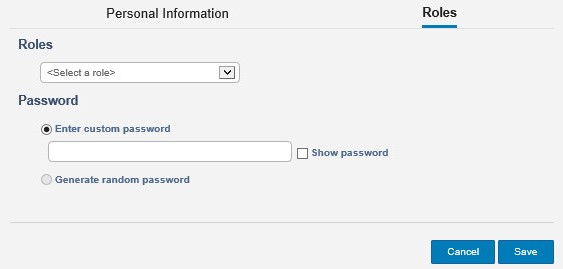
- Within Roles:
- Optionally, select from the available Roles.
- Populate a Custom password or Generate random password.
- Optionally, select Show password.
- Click Save.
- Sign in to Wyse Management Suite.
 Note: For information about accessing the Wyse Management Suite Administration Console, reference How to Access the Wyse Management Suite Administration Console.
 - Click Users.

- Click Administrators.
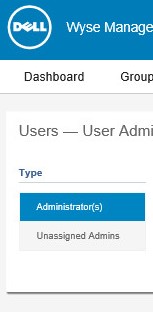
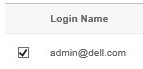
- Select an account checkbox.
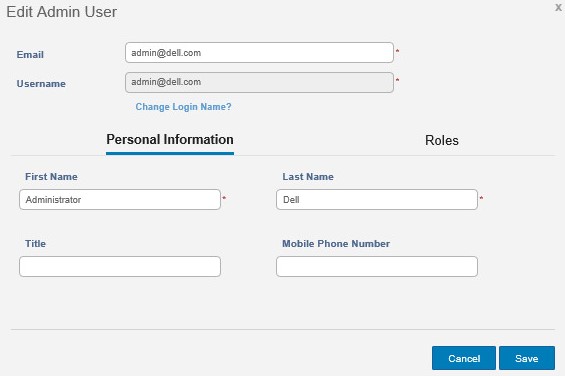
- Click Edit Admin.

- Change the appropriate settings and then click Save.
- Sign in to Wyse Management Suite.
 Note: For information about accessing the Wyse Management Suite Administration Console, reference How to Access the Wyse Management Suite Administration Console.
 - Click Users.

- Click Administrators.
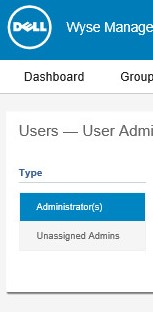
- Select a check box for one or more accounts marked active.

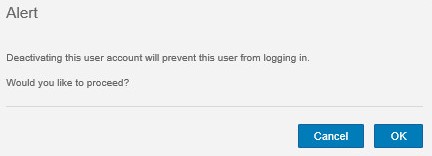
- Click Deactivate Admin(s).

- Click OK.
- Sign in to Wyse Management Suite.
 Note: For information about accessing the Wyse Management Suite Administration Console, reference How to Access the Wyse Management Suite Administration Console.
 - Click Users.

- Click Administrators.
- Select an account checkbox for one or more accounts marked as deactivated.

- Click Activate Admin(s).

- Sign in to Wyse Management Suite.
 Note: For information about accessing the Wyse Management Suite Administration Console, reference How to Access the Wyse Management Suite Administration Console.
 - Click Users.

- Click Administrators.
- Select an account checkbox for one or more accounts marked as deactivated.

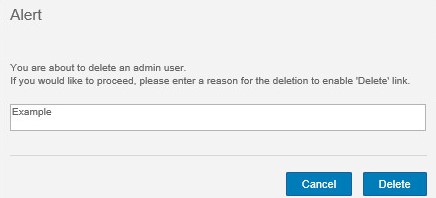
- Click Delete Admin(s).

- Populate a reason for deletion and then click Delete.
User
An administrator may Bulk Import, Edit, Deactivate, Activate, and Delete users. Click the appropriate process for more information.
- Sign in to Wyse Management Suite.
 Note: For information about accessing the Wyse Management Suite Administration Console, reference How to Access the Wyse Management Suite Administration Console.
 - Click Users.

- Click Unassigned Admins.
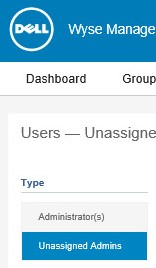
- Click Bulk Import.

- From the Bulk Import menu:
- Browse to the CSV file to import.
- Optionally, select CSV file has header line.
- Click Import.
 Note: For information about creating the CSV to import into Wyse Management Suite, reference How to Prepare a CSV of Users to Import to Wyse Management Suite.
- Sign in to Wyse Management Suite.
 Note: For information about accessing the Wyse Management Suite Administration Console, reference How to Access the Wyse Management Suite Administration Console.
 - Click Users.

- Click Unassigned Admins.
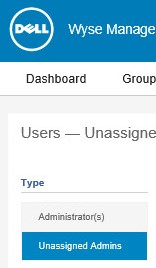
- Select a check box for an account to edit.
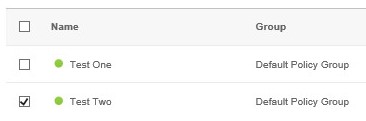
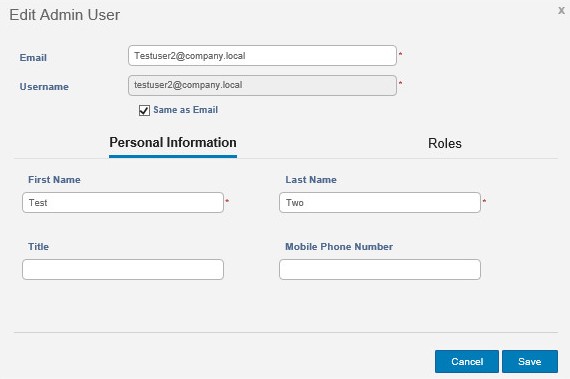
- Click Edit User.

- Change the appropriate settings and then click Save.
- Sign in to Wyse Management Suite.
 Note: For information about accessing the Wyse Management Suite Administration Console, reference How to Access the Wyse Management Suite Administration Console.
 - Click Users.

- Click Unassigned Admins.
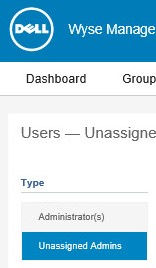
- Select a check box for one or more accounts to deactivate.
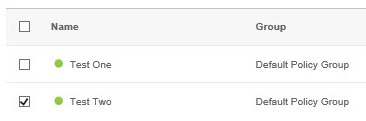
- Click Deactivate User(s).

- Click Yes.
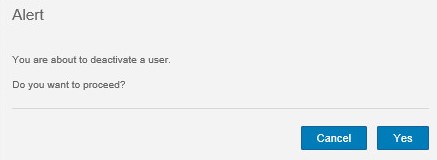
- Sign in to Wyse Management Suite.
 Note: For information about accessing the Wyse Management Suite Administration Console, reference How to Access the Wyse Management Suite Administration Console.
 - Click Users.

- Click Unassigned Admins.
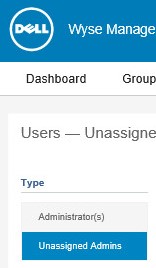
- Select a check box for one or more accounts marked as deactivated.
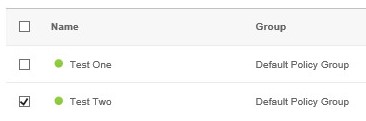
- Click Activate User(s).

- Sign in to Wyse Management Suite.
 Note: For information about accessing the Wyse Management Suite Administration Console, reference How to Access the Wyse Management Suite Administration Console.
 - Click Users.

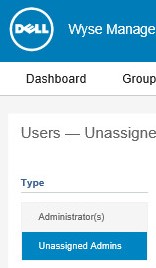
- Click Unassigned Admins.
- Select a check box for one or more accounts marked as deactivated.
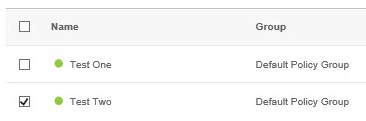
- Click Delete User(s).

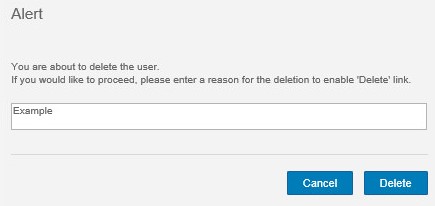
- Populate a reason for deletion and then click Delete.
Affected Products
Wyse Management SuiteArticle Properties
Article Number: 000175229
Article Type: How To
Last Modified: 22 Jul 2024
Version: 6
Find answers to your questions from other Dell users
Support Services
Check if your device is covered by Support Services.