Thunderbolt Device Has Yellow Bang in Device Manager
Summary: When a Thunderbolt device (dock or hard drive) is plugged in to a USB-C port, the device has a yellow bang in device manager.
This article applies to
This article does not apply to
This article is not tied to any specific product.
Not all product versions are identified in this article.
Symptoms
Affected Platforms:
- Latitude Laptop
- Precision Mobile
Affected Products:
- Dell Thunderbolt Dock - WD22TB4
Certain so-called USB4 device in the market may not be correctly detected on Dell laptops. The issue occurs when connecting the device to either the USB4 port on the laptop directly, or the USB4 port on the WD22TB4 dock. The issue is present when Disabled USB4 PCIE Tunneling is set to On, or Thunderbolt Technology Support is Disabled. The issue was noticed with ORICO-MTQ-40G SSD, but can be seen with other devices.
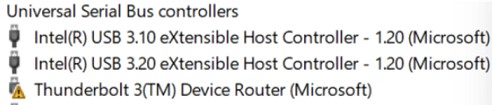
After plugging-in a Thunderbolt device into a USB-C port, the device shows a yellow bang in device manager like the figure below:
Cause
Windows 11 PCIe driver cannot configure a Thunderbolt controller.
Resolution
To resolve, follow these steps:
- Enter BIOS.
- Set Disable USB4 PCIE Tunneling to OFF.
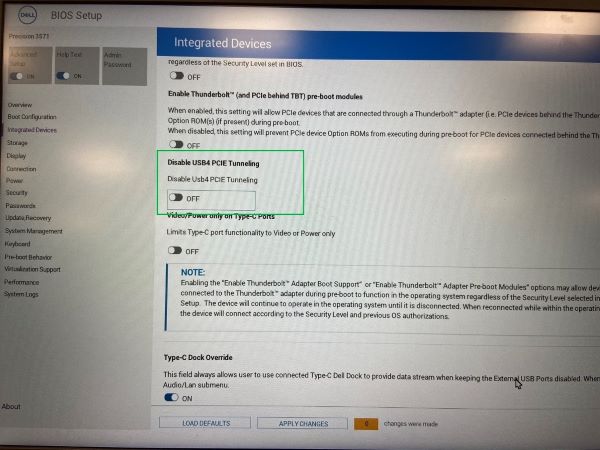 Note: The factory default setting is OFF.
 - Set Thunderbolt Technology Support to Enabled to support more USB or thunderbolt devices.
Affected Products
Dell Pro 13 Premium PA13250, Latitude 5330, Latitude 7330, Latitude 9330, Latitude 5431, Latitude 7430, Latitude 9430, Latitude 5530, Latitude 7530, Latitude 5430, Precision 3570, Dell Thunderbolt Dock – WD22TB4Article Properties
Article Number: 000197714
Article Type: Solution
Last Modified: 18 Apr 2025
Version: 14
Find answers to your questions from other Dell users
Support Services
Check if your device is covered by Support Services.