Fix Touch Function Issues on Dell P2424HT Monitor
Summary: Resolve touch function problems on the Dell P2424HT monitor. Ensure proper cable connections with USB-C, USB-A, DisplayPort (DP), or HDMI to get your touch feature working correctly.
This article applies to
This article does not apply to
This article is not tied to any specific product.
Not all product versions are identified in this article.
Symptoms
Affected Products:
- Dell 2424HT
Cause
The touch function may not be working correctly because of a cabling issue.
Resolution
For the touch function to work properly, the computer and monitor must be connected in one of the three methods below.
Following these steps to use a USB-C to USB-C cable:
- USB-C to USB-C cable connection between the computer and the P2424HT.
Note: The USB-C connector interface must be inserted in place.
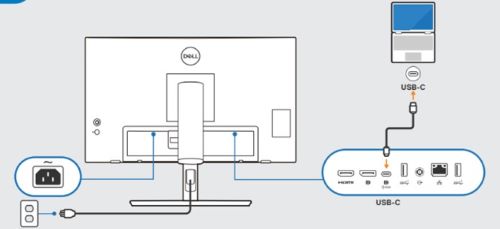
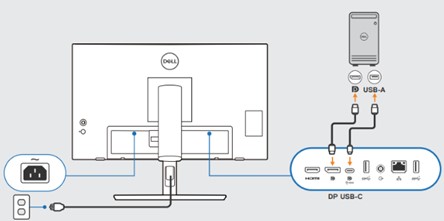
Following these steps to use a USB-A to USB-C cable and a DP cable:
- USB-A connection on the computer to a USB-C connection on the P2424HT
- DP cable connection between the computer and the P2424HT
Note: All cables and connector interface must be inserted in place.
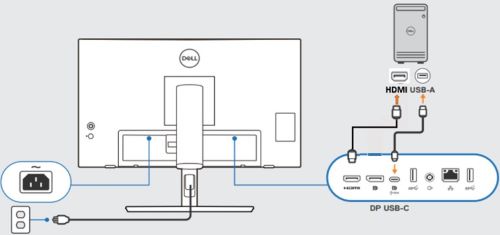
Following these steps to use a USB-A to USB-C cable and an HDMI cable:
- USB-A connection on the computer to a USB-C connection on the P2424HT
- HDMI cable connection between the computer and the P2424HT
Note: All cables and connector interface must be inserted in place.
Affected Products
Dell Pro P 24 Touch USB-C Hub Monitor P2424HTArticle Properties
Article Number: 000225948
Article Type: Solution
Last Modified: 21 May 2026
Version: 5
Find answers to your questions from other Dell users
Support Services
Check if your device is covered by Support Services.