Backup Solutions
Backup solutions are essential for keeping your important files, photos, and documents secure and accessible. Whether you’re working from home, managing a small business, or simply looking to protect your personal data, finding the right backup solutions can help ensure peace of mind. Explore a wide range of options designed to fit your needs and support your digital lifestyle with reliable performance and user-friendly design.
This product is not available
Check out the following recommendations.



Backup Solutions
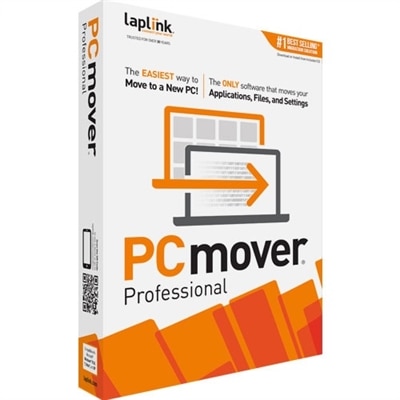
Backup solutions help protect the work, memories, and everyday routines that depend on a laptop or desktop. For a household, that might mean preserving years of family photos, scanned paperwork, and a student’s assignments. For someone working from home, it could mean keeping client documents and project files recoverable when a computer fails or an accidental edit overwrites important work. The term covers two related but distinct needs: file backup helps make information recoverable, while backup power helps connected equipment keep running temporarily during an electrical interruption. Neither replaces the other. A second copy of a document cannot keep a monitor on during an outage, and a battery cannot recover a folder that was deleted last week. File backup software can support automatic schedules, selected-folder protection, and recovery of earlier versions, depending on its capabilities. Some options focus on personal documents and photos; others can capture a broader system image that includes the operating system, applications, and settings. That distinction matters when comparing the convenience of retrieving one missing spreadsheet with the larger task of rebuilding a computer after a failure. Compatibility with the computer’s operating system, the scope of the backup, and the recovery process are more meaningful considerations than a long list of features alone. A college student using one laptop may value a straightforward setup and automatic protection for coursework, while a freelance designer may need frequent copies of active projects and a clear way to retrieve earlier revisions. For a family sharing a desktop, separate user accounts and clear controls can help keep everyone’s files organized. The most useful backup solutions fit these routines without requiring constant attention, while still making it easy to see whether protection is current. Clear status information matters: a backup that stopped running unnoticed can leave a much larger gap than expected when a file is finally needed.
For file protection, the difference between copying, syncing, and backing up deserves attention. A copied folder is a snapshot from the moment it was created, so it will not include later changes unless it is updated. Syncing keeps files consistent across locations, but it may also carry an accidental deletion or unwanted edit from one location to another. Backup software with version history can preserve earlier states, although the number of versions and the length of time they remain recoverable vary. Those details become tangible when a writer needs yesterday’s chapter rather than today’s shortened draft, or when a household discovers that a photo folder disappeared several weeks ago. Automatic scheduling helps reduce reliance on memory, but the schedule should suit how often important files change. A monthly copy may be sufficient for rarely updated reference documents and inadequate for a project revised throughout each workday. Laptop use adds another consideration: protection needs to work around time spent asleep, unplugged, or away from an internet connection. Software that clearly reports missed activity and resumes interrupted tasks can be easier to live with than a process that requires repeated manual restarts. Privacy and access controls also matter when copies contain tax records, personal correspondence, or confidential work. Encryption, account security, and understandable recovery requirements are useful points of comparison, without assuming that every solution includes the same safeguards. Recovery deserves as much attention as the initial backup. Some tools are designed for selecting individual files, while broader recovery options may involve additional preparation or compatible equipment. An occasional check that a sample document opens correctly provides more reassurance than a completion message alone. For anyone replacing an aging laptop or reorganizing a home workspace, knowing what is protected, how recently it was copied, and how it can be recovered makes backup software a practical part of everyday computer ownership rather than an afterthought.
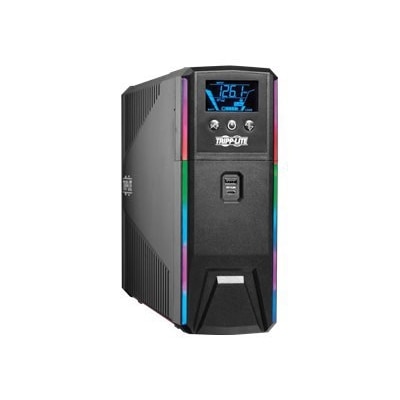
Backup power addresses a different kind of disruption: the sudden silence of a desktop and the dark screen that follow a brief outage. An uninterruptible power supply, commonly called a UPS, uses a battery to provide temporary power to supported equipment when incoming electricity fails. Its primary role in a typical home workspace is to create time to save open work and shut down safely, not to sustain an entire workday. The Battery Backups page is a related category for this side of computer protection. Fit depends on both electrical requirements and the physical workspace. The combined wattage of connected equipment affects whether a unit can support the load, while actual runtime varies with that load, battery condition, and the unit’s design. A desktop with a monitor has different needs from a laptop that already has an internal battery, though an external display may still lose power immediately. Outlet layout matters, too: some units have a mix of battery-supported and surge-protected-only outlets, and bulky adapters can occupy space beside neighboring sockets. Cord length, enclosure dimensions, weight, and ventilation clearance influence placement under a desk or beside a workstation. Sturdy construction and a stable position help protect against everyday bumps, but enclosure material alone does not establish electrical performance or battery longevity. Care generally includes keeping ventilation openings clear, avoiding excessive heat and moisture, and following the manufacturer’s instructions for cleaning and battery replacement. Batteries age even when outages are infrequent, so self-test indicators and replacement guidance are useful ownership details. Depending on the design and software compatibility, a UPS may also support automatic computer shutdown when remaining battery power runs low. That can be helpful when an interruption happens while someone is away from the desk. Together, appropriately matched backup software and power protection address different weak points in a home computing setup. One supports recovery of important information; the other provides a short window to manage an electrical interruption, helping schoolwork, creative projects, and everyday tasks resume with fewer preventable setbacks.
FAQs:
Backup solutions come in various forms, including external hard drives, network-attached storage (NAS), cloud-based services, and dedicated backup software. Each option offers different features to suit personal or professional needs.
It's recommended to back up your data regularly, with frequency depending on how often your files change. For most users, daily or weekly backups are sufficient, while businesses with critical data may require more frequent backups.
A full backup copies all selected data every time. Incremental backups only save changes made since the last backup, while differential backups save changes made since the last full backup. Using a combination can optimize storage and backup times.
Yes, many backup solutions offer automated scheduling features that allow you to set regular intervals for backups without manual intervention, ensuring your data is consistently protected.
Onsite backups provide quick access to your data in case of accidental deletion or hardware failure. Offsite backups, such as cloud storage, protect against disasters like fire or theft that could affect your physical location.