$624.99
A versatile Thunderbolt 5 smart dock delivering up to 300W power with remote management capabilities.
In the ever-evolving landscape of technology, data center equipment plays a crucial role in ensuring seamless operations and robust performance for businesses of all sizes. From servers and storage solutions to networking components and power management systems, the right equipment can significantly enhance efficiency and reliability. Investing in high-quality data center equipment is essential for optimizing workloads, safeguarding data integrity, and supporting scalable growth. Explore our comprehensive selection designed to meet the demands of modern enterprises, delivering the performance and flexibility needed to stay ahead in today's competitive market.
A versatile Thunderbolt 5 smart dock delivering up to 300W power with remote management capabilities.
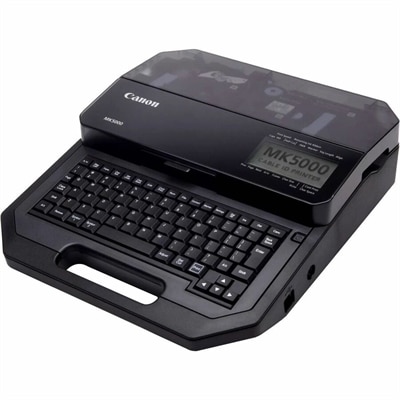
A thermal-transfer marker printer delivering 300-dpi output across tubes, tapes and plastic plates with dual-power flexibility.
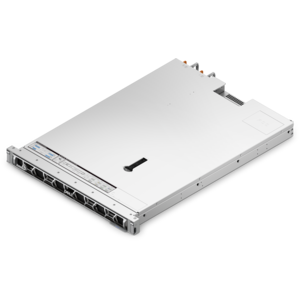
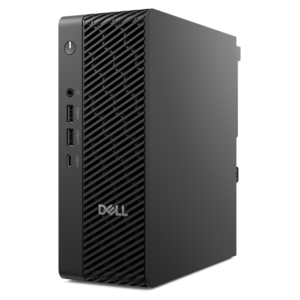
A dense, powerful rack-ready desktop engineered to optimize demanding computing environments.
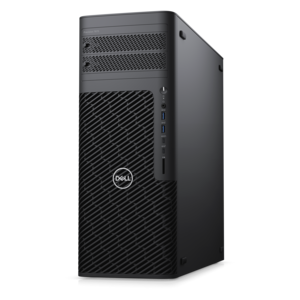
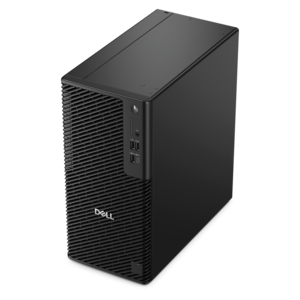
A scalable tower workstation delivering reliable, outstanding performance for demanding multi-threaded applications.
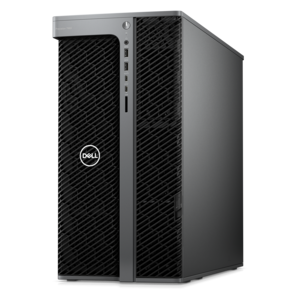
A scalable, secure rack workstation engineered to power demanding professional applications.
A scalable tower workstation with professional graphics and up to a 56-core Intel Xeon processor.
Laptops, desktops, monitors, and accessories shape the part of a technical workplace that people interact with throughout the day. A clear display makes a dense dashboard easier to scan, a responsive computer keeps several business applications moving, and a well-arranged desk helps make long stretches of focused work more comfortable. These categories serve different roles: laptops suit employees who move between rooms or locations, desktops provide a consistent setup for dedicated workspaces, and external monitors give complex information more room to breathe. For organizations connecting employee workspaces with broader Data Center Infrastructure, these everyday tools provide the point of interaction for reviewing information, communicating with colleagues, and completing administrative tasks. The right fit depends on the person using the computer and the work happening on the screen. Someone reviewing status dashboards throughout a shift may prioritize readable text, dependable peripheral connections, and a display that adjusts easily. An analyst comparing spreadsheets may benefit from additional screen space, while a technical specialist moving between offices may place greater value on a manageable carrying weight and comfortable keyboard. Processing capabilities should reflect the applications involved, especially when several demanding programs need to remain open at once. Memory requirements also vary: routine document work places different demands on a computer than large analytical projects or creative applications. Graphics capabilities matter most when software depends on visual processing, rather than simply because a workspace uses multiple screens. Software compatibility, operating system requirements, and organizational security standards deserve attention alongside physical specifications. Features such as supported sign-in methods, camera privacy controls, and device-management compatibility can be relevant, but their presence should be verified rather than assumed. A practical workplace setup brings these considerations together without adding complexity that the user does not need. Its purpose is to make recurring tasks easier to complete, whether that means writing a shift handoff, studying a detailed chart, or joining a remote troubleshooting session.
Physical fit matters as much as computing capability, particularly where desks are shared or space is limited. A desktop computer needs a stable position with clearance around its ventilation openings, not a tightly enclosed corner that traps warm air. A laptop used mainly at a desk benefits from an arrangement that separates screen placement from typing position, allowing an external keyboard and mouse to sit comfortably within reach. When portability is important, consider the combined weight of the computer, its power adapter, and any accessories carried between locations. Exterior materials influence weight, feel, and upkeep, though no single material guarantees durability. Metal housings may feel rigid, while well-designed polymer housings can reduce carrying weight; hinge construction, port placement, and the way a device is handled also affect everyday wear. Displays introduce another set of fit considerations. Screen size should suit the available desk depth and normal viewing distance, while resolution and text scaling work together to determine how much information remains comfortably readable. A high-resolution display is not automatically easier to use if application text appears too small. Height adjustment, tilt, and supported mounting options help accommodate different users, although the monitor’s weight and mounting pattern must match the chosen support. In a brightly lit office, a less reflective screen surface and thoughtful placement can reduce distracting reflections. Two displays can keep a reference document visible beside an active task, but one larger display may suit a compact workspace better. Connections require equally careful attention. A connector’s shape alone does not establish its supported charging, video, or data capabilities, so computer, monitor, cable, and docking requirements should be checked together. The number of supported external displays and their usable resolutions can depend on the entire connection path. Leaving enough cable length for normal adjustments, without creating loops across a walking route, helps keep the finished workspace both usable and orderly.
Accessories often determine how well a workplace setup handles the small, repeated actions that fill a working day. Keyboard layout and key feel influence typing comfort, while mouse size and shape should suit the user’s hand and preferred grip. A compact keyboard leaves more room for a pointing device, whereas a dedicated number pad can be useful for frequent numeric entry. Headsets support calls in shared spaces, but microphone performance, fit, and compatibility with communication software matter more than appearance alone. For people who spend hours in meetings, pressure around the ears and the ease of reaching mute controls can make a noticeable difference. A webcam should sit where it captures a natural viewing angle without forcing the user to look away from the main screen. Shared workstations benefit from straightforward adjustments and connections that are easy to identify, helping the next person settle in without rearranging the entire desk. Care routines should follow the manufacturer’s directions for each device and finish. Powering equipment down before cleaning, using an appropriate soft cloth, and keeping liquids away from openings can help prevent avoidable damage. Screen coatings may be sensitive to household cleaners, and repeated use of an unsuitable chemical can harm a surface even when it initially looks clean. Ventilation openings should remain unobstructed, and cables should be routed so that chairs, drawers, and desk edges do not repeatedly pinch them. Portable computers need protection from impact during transport; a properly fitted sleeve or padded compartment should support the device without pressing hard against the screen. Battery care also deserves attention, particularly for laptops that remain connected to power for much of the day, with supported charging settings used according to manufacturer guidance. Over time, accessible connections, replaceable accessories, and documented service options can simplify upkeep. A thoughtfully matched computer and workspace should remain comfortable during ordinary tasks, from the first sign-in of the morning to the final review before a shift change, while accommodating the habits and physical needs of the person using it.
Add the products you would like to compare, and quickly determine which is best for your needs.