$25.99
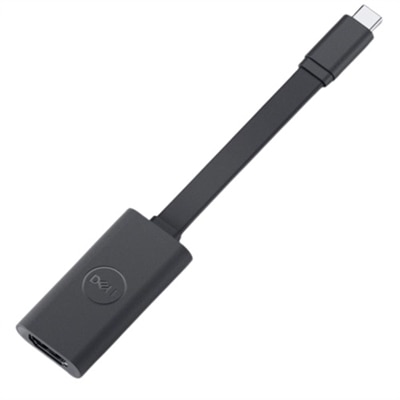
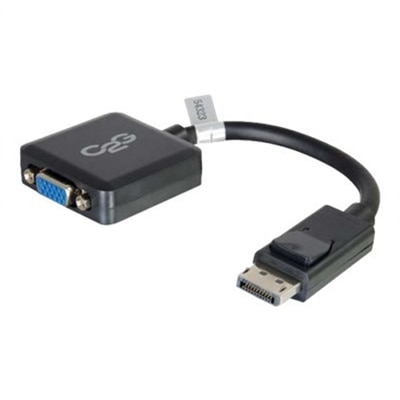
A compact black adapter that converts DisplayPort to VGA, supporting resolutions up to 1920 x 1200.
DisplayPort to VGA adapters offer a reliable way to connect modern devices with DisplayPort outputs to monitors, projectors, or other displays that use VGA inputs. Ideal for both home and office setups, these adapters provide a convenient solution for extending or mirroring your screen across different display technologies. Whether you’re looking to enhance your workspace, deliver impactful presentations, or simply enjoy seamless connectivity between devices, explore a wide selection of DisplayPort to VGA adapters designed to meet your needs.
A compact black adapter that converts DisplayPort to VGA, supporting resolutions up to 1920 x 1200.
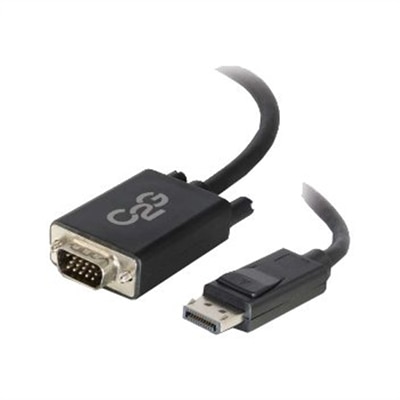
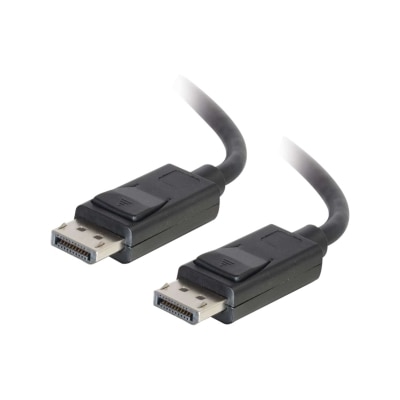
A black 6ft adapter cable connecting DisplayPort output to VGA input, supporting up to 1920x1200 resolution.
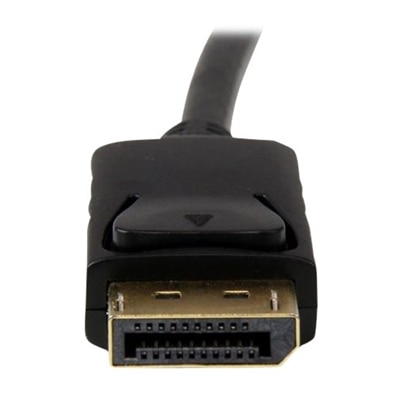
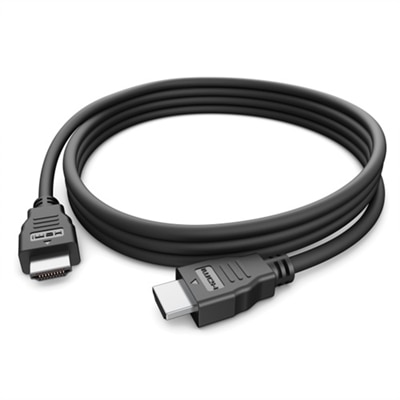
A 6ft black cable that connects DisplayPort devices to VGA monitors, supporting up to 1080p resolution.
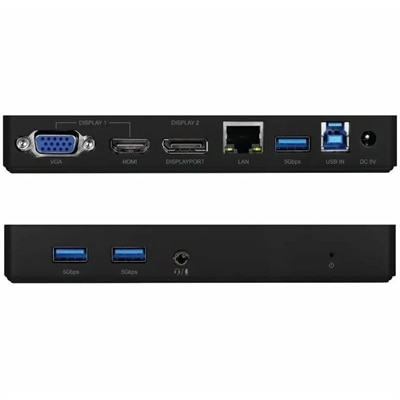
A versatile docking station offering HDMI, DisplayPort, VGA, USB 3.0, Gigabit Ethernet, and audio connectivity.
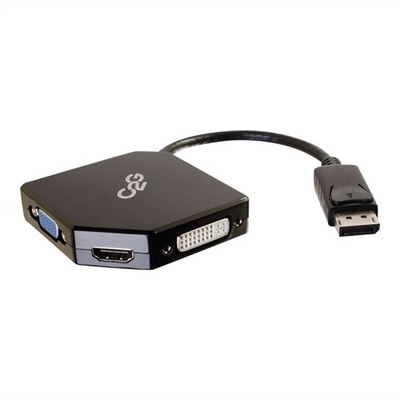
A compact black adapter converter for connecting DisplayPort devices to HDMI, VGA, or DVI inputs.
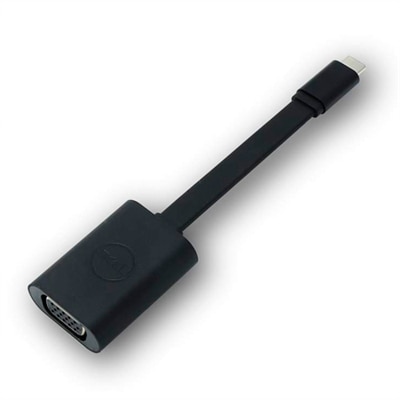
An adapter that connects USB-C devices to VGA displays for seamless content viewing.
DisplayPort To VGA Adapters provide a practical connection between newer computers and older displays that still use the familiar blue, 15-pin VGA port. A DisplayPort output carries a digital video signal, while VGA accepts an analog signal, so a suitable adapter must include active conversion hardware to translate one format into the other. This built-in converter allows a desktop computer, laptop, or compact computer with DisplayPort to connect with a VGA monitor, classroom projector, office display, or conference-room screen. For many everyday setups, the adapter operates without additional software, device drivers, external power supplies, or complicated configuration. Connect the DisplayPort end to the computer and the VGA end to the display, select the appropriate input on the monitor or projector, and the system can typically recognize the connection automatically. These adapters are directional: they convert DisplayPort from the source device to VGA at the display end, but they do not convert VGA into DisplayPort. That distinction is important when checking an existing setup, especially when replacing an older computer or rearranging a workspace. A DisplayPort-to-VGA adapter cannot be used in reverse simply by switching the cable ends. It is also helpful to confirm that the computer has a full-size DisplayPort output rather than another video connector with a similar shape, and to check whether the VGA display has a compatible input before placing an adapter in the connection path. Because VGA carries video only, sound does not travel through this connection; audio must use the computer’s speakers, a separate audio connection, or another compatible arrangement. The result is often a straightforward way to keep a trusted display in service while moving to a newer computer.
Resolution and refresh-rate support are among the most important details to compare when choosing a DisplayPort To VGA Adapter. Many adapters support Full HD output up to 1920 x 1080 at 60Hz, while some support resolutions up to 1920 x 1200 at 60Hz. That range is well suited to email, documents, spreadsheets, web browsing, remote learning, presentations, point-of-sale applications, and general productivity. The maximum resolution is determined by the adapter, the computer’s DisplayPort output, the monitor or projector’s VGA capabilities, and the quality and length of the VGA cable, so the final image may default to a lower setting when any part of the connection has a more limited specification. At higher resolutions, a VGA signal can be more sensitive to cable quality and electrical interference than a digital connection, making a secure fit and a well-made cable especially useful. A latching DisplayPort connector can help keep the adapter firmly attached to a desktop or laptop that is moved around frequently, while a compact, lightweight design is convenient for a work bag, shared classroom cart, or home office drawer. Some computers have multiple DisplayPort outputs, allowing an adapter to be used as part of a multi-display setup, although the computer’s graphics capability and operating system determine how many screens can be active and which resolutions are available. The adapter should be connected to the DisplayPort source and the VGA display in the correct direction, and users should confirm that the monitor or projector is set to its VGA input. For a presentation, it is wise to test the complete arrangement before an audience arrives, since an older projector may take a few moments to lock onto the signal or may display a preferred resolution that differs from the computer’s default setting. Those small checks can make the difference between a smooth presentation and a last-minute search through menus and cables. When a display has a digital input instead of VGA, a different connection may be more suitable; shoppers comparing digital display options can also review DisplayPort To HDMI Converters.
These adapters are useful for a wide range of people and spaces. An employee may need to connect a modern office computer to a dependable older monitor at a desk, while a teacher, trainer, or presenter may use one to connect a DisplayPort-equipped laptop to a VGA projector in a meeting room or classroom. A family member setting up a study area may pair a newer computer with an existing VGA screen rather than replace a display that still provides a comfortable image. They can also be a thoughtful, practical gift for someone building a home office, organizing a remote-learning station, or preparing a portable presentation kit, particularly when the recipient has several older monitors or projectors available. Before choosing, compare the source connector, the display connector, the desired resolution, and the adapter’s stated refresh-rate support. Look for clear specifications describing active digital-to-analog conversion, since a passive cable alone cannot translate a digital DisplayPort signal into analog VGA. Check the connector style as well: a full-size DisplayPort adapter is not automatically compatible with Mini DisplayPort or USB-C, even though those connections may appear in similar computer setups. Consider the physical layout as well. A short adapter is convenient when the computer and VGA cable are close together, whereas a flexible design can reduce strain when the ports sit near a wall, docking area, or crowded desk. If an image appears soft, flickers, or does not fill the screen correctly, reseat both connectors, verify the selected input, inspect the VGA cable, and try a supported resolution such as 1920 x 1080 at 60Hz or a lower setting appropriate to the display. DisplayPort To VGA Adapters are best understood as focused compatibility accessories: they extend the useful life of established VGA equipment and help newer computers work within familiar setups without requiring a complete change of the surrounding workspace.
Add the products you would like to compare, and quickly determine which is best for your needs.