Certain Dell AMD Laptops Do Not Enter Sleep, Hibernate, or Shut Down
Resumen: The following article provides information about an issue with the power options on certain Dell AMD laptops. The laptop does not enter sleep, hibernate, or shut down when pressing the power button. The Out Of Box Experience (OOBE) reboots instead of shutting down. ...
Síntomas
Scenario One: OOBE cannot turn the laptop off when it first runs
The OOBE cannot shut down the laptop after being run at when the laptop is turned on for the first time. The following products reboot back into the operating system instead.
Scenario Two: Pressing the Power Button does not work
There is no response on any of the following products pressing the power button to enter sleep, hibernate, or turn the laptop off.

Affected Platforms:
- Dell 15 DC15255
- Dell Pro 15 Essential PV15255
- Inspiron 15 3535
- Vostro 14 3435
- Vostro 15 3535
Affected Operating System:
- Windows 10
- Windows 11
Causa
There is a new variable update for the Advance Configuration and Power Interface (ACPI) Power Button Method (APBM) in the BIOS.
Scenario One:
However, the first shutdown becomes a reboot because the fixed register does not initialize properly. The shut-down (S5) command is misread as Reset.
Scenario Two:
However, the default value does not initialize the variable so it does not define the power button.
Resolución
Scenario Two Workarounds:
- Configure the 'When I close the lid' power option to enter sleep, hibernate, or shut down instead.

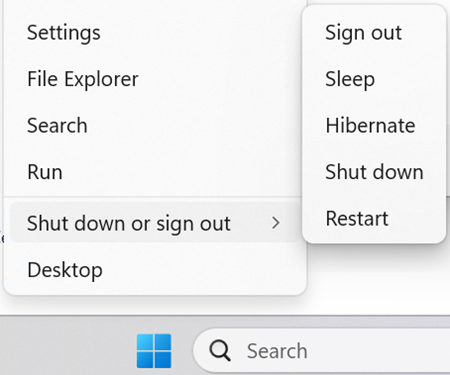
- Use the 'shut down or sign out' option in the start menu to select enter sleep, hibernate, or shut down instead.
Long-Term Resolution:
- Back up all personal data. For more information, refer to: Back Up and Recovery
- Connect the AC adapter.
Update the Dell 15 DC15255 BIOS:
Updating the Dell 15 DC15255 System BIOS version 1.6.1 or later on the laptop resolves the issue. To download and install the Dell_DC15255_1.6.1.exe file, refer to the: BIOS Update Guide
Update the Dell Pro 15 Essential PV15255 BIOS:
Updating the Dell Pro 15 Essential PV15255 System BIOS version 1.5.1 or later on the laptop resolves the issue. To download and install the Dell_Pro_Essential_PV15255_1.5.1.exe file, refer to the: BIOS Update Guide
Update the Inspiron 15 3535, Vostro 14 3435, and Vostro 15 3535 BIOS:
Updating the Dell Inspiron 15 3535, Vostro 14 3435, and Vostro 15 3535 System BIOS version 1.27.0 or later on the laptop resolves the issue. To download and install the Inspiron_3535_1.27.0.exe file, refer to the: BIOS Update Guide