How Do I Look for Dell Reliable Memory Technology (RMT) Errors to Confirm Memory Issues and Locations on Precision Workstations?
Summary: Learn where to find the Dell Reliable Memory Technology (RMT) errors to confirm memory issues and the Dual Inline Memory Module (DIMM) location reported on Precision fixed workstations. ...
This article applies to
This article does not apply to
This article is not tied to any specific product.
Not all product versions are identified in this article.
Instructions
Read the following section if you are seeing one of the following error messages upon booting your Precision Workstation.
-
"Dell Reliable Memory Technology (RMT) has discovered and isolated errors in system memory. You may continue to work. Memory module replacement is recommended. See the RMT event log screen in BIOS setup for specific DIMM information."
-
"Dell Reliable Memory Technology (RMT) has discovered and isolated errors in system memory. You may continue to work. Additional errors are not isolated. Memory module replacement is recommended. See the RMT event log screen in BIOS setup for specific DIMM information.
To continue, press F1 key.
To change the set-up option, press F2 key.
To run onboard diagnostics, press F5 key."
Note: Dell Precision Workstations (depending on the model) can accommodate many DIMMs. The information from the RMT logs can help you quickly identify which memory DIMM or slot to troubleshoot further or replace and is information Dell Technical Support requires to help you take this further.
To identify a memory issue using RMT, start by ensuring that RMT is enabled and then check for the errors in the logs:
- Confirm that the logs are being saved to the BIOS and ensure that RMT is enabled in the system BIOS:
- Enter the BIOS screens by tapping the F2 key at the Dell Splash Screen.
- Click to open the Performance menu.
- Select Dell RMT from the Performance sub-menu.
- Ensure that Dell RMT is enabled in the right pane.
- Identify where the Dell RMT logs are located in the BIOS:
- Click to open the System Logs menu.
- Select Dell Reliable Memory Technology Events from the System Logs sub-menu.
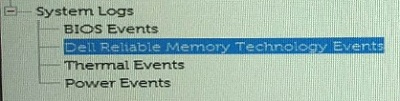
- Read the information in the right pane of the BIOS to identify any memory events logged by your system. It will also identify which DIMM is showing a problem.
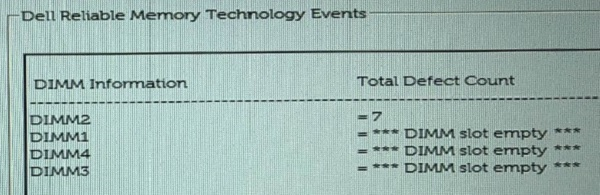
- Use the information to troubleshoot your memory issue further: How to Identify and Resolve memory issues on Precision Desktop Workstations
Affected Products
Precision 3630 Tower, Precision 3930 Rack, Precision 5820 Tower, Precision 7820 Tower, Precision 7920 Tower, Precision 7920 Rack, Dell Precision Tower 3420, Dell Precision Tower 3620Article Properties
Article Number: 000064540
Article Type: How To
Last Modified: 18 Apr 2026
Version: 10
Find answers to your questions from other Dell users
Support Services
Check if your device is covered by Support Services.