Dell Data Security Shield-modi
Summary: In dit artikel worden de schildmodi van Dell Data Security (voorheen Dell Data Protection) beschreven.
This article applies to
This article does not apply to
This article is not tied to any specific product.
Not all product versions are identified in this article.
Symptoms
Betreffende producten:
- Credant Mobile Guardian
- Dell Encryption Enterprise
- Dell Data Protection | Enterprise Edition
- Dell Encryption External Media
- Dell Data Protection | External Media Edition
- Dell Encryption Personal
- Dell Data Protection | Personal Edition
- Dell Data Protection | Security Tools
- Dell Encryption Enterprise voor Server
- Dell Data Protection | Server Edition
Betreffende platforms:
- Windows
Op beleid gebaseerde software van Dell Data Security (voorheen Dell Data Protection) gebruikt een identifier van de shield mode voor productclassificatie.
Cause
Waarschuwing:
- De afschermingsmodus wordt bepaald op het moment van productinstallatie en kan niet handmatig worden gewijzigd.
- De afschermingsmodus wordt alleen gebruikt om problemen met producttypen of -statussen op te lossen.
Resolution
De afschermingsmodi voor Dell Data Security producten zijn:
| ID | Mode (modus) | Product |
|---|---|---|
| 0 | Onbekend/niet geïnitialiseerd | Niet geïnitialiseerd/niet ingericht1 |
| 1 | Enterprise-modus | Dell Encryption Enterprise \ Dell Data Protection Enterprise Edition Shield |
| 2 | Modus alone | Credant Mobile Guardian |
| 3 | Enterprise EME-only modus | Dell Encryption External Media \ Dell Data Protection | Editie externe media |
| 4 | Lokaal beheerde modus | Dell Encryption Personal \ Dell Data Protection | Persoonlijke editie |
| 5 | Essentials-modus | Dell Data Protection | Beveiligingstools2 |
| 6 | Serverversleutelingsmodus | Dell Encryption Enterprise for Server \ Dell Data Protection | Serverversleuteling |
| 7 | Saas-modus | Dell Encryption Enterprise Shield |
1Alle Dell Data Protection producten blijven oningericht totdat ze worden geactiveerd.
2De Essential-modus werkt alleen op installaties van Dell Data Protection | Beveiligingstools.
De schildmodus vinden:
Waarschuwing: Hiermee gaat u naar het Windows-register:
- Het bewerken van het register kan ertoe leiden dat de computer niet meer reageert bij de volgende keer opnieuw opstarten.
- Neem contact op met de telefoonnummers van Dell Data Security International Support voor hulp als u zich zorgen maakt over het uitvoeren van deze stap.
- Klik met de rechtermuisknop op het Windows startmenu en selecteer vervolgens op Uitvoeren.
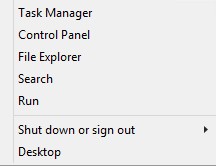
Afbeelding 1: (Alleen In het Engels) Uitvoeren
- Typ regedit in de gebruikersinterface (UI) uitvoeren en druk vervolgens op OK.
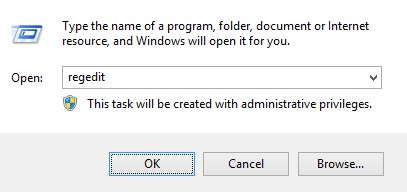
Afbeelding 2: (Alleen In het Engels) Typ regedit
- Ga naar HKEY_LOCAL_MACHINE\SOFTWARE\Credant\CMGShield.
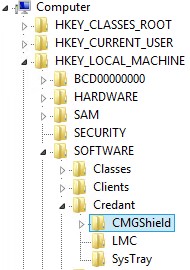
Afbeelding 3: (Alleen Engelstalig) CMGShield
- Zoek de DWORD-toets SM.
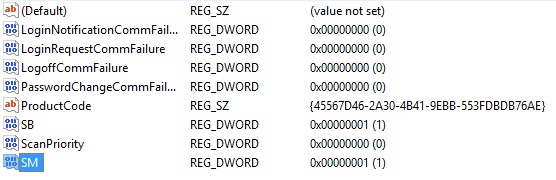
Afbeelding 4: (Alleen In het Engels) SM
Opmerking: In het voorbeeld is de SM-toets ingesteld op 1. Dit identificeert de Shield Mode Enterprise Edition.
Als u contact wilt opnemen met support, raadpleegt u de internationale telefoonnummers voor support van Dell Data Security.
Ga naar TechDirect om online een aanvraag voor technische support te genereren.
Voor meer informatie over inzichten en hulpbronnen kunt u zich aanmelden bij het Dell Security Community Forum.
Additional Information
Videos
Affected Products
Dell EncryptionArticle Properties
Article Number: 000132837
Article Type: Solution
Last Modified: 19 Apr 2026
Version: 11
Find answers to your questions from other Dell users
Support Services
Check if your device is covered by Support Services.