False Multiple Monitors with Intel Graphics
Summary: This article contains information about false monitors appearing in Windows 10 when using Intel HD graphics.
This article applies to
This article does not apply to
This article is not tied to any specific product.
Not all product versions are identified in this article.
Symptoms
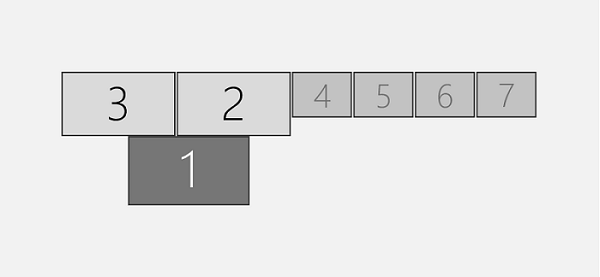
False Multiple Monitors
You may experience a behavior with the Intel HD (4200, 4400, 4600, 5000, 5100, 5200, 5300, 5500, 6000, 515, 520, 530, P530, Iris 540) graphics driver, where the system may show that there are more monitors connected to the system than are actually connected.
Windows 10: Customize Your Display
Cause
No cause information is available.
Resolution
The following workarounds can be used to resolve this behavior.
Install the Beta Driver
- Open the Device Manager.
- Expand the Display Adapters section.
- Find the Intel Graphics Driver.
- Right click Intel Graphics Driver and select Uninstall.
- Select the checkbox Delete the driver software for this device.
- Reboot the computer after uninstall process has finished.
- Once done, install the following driver version; Download Intel® Beta Graphics Driver for Windows® 10 and Windows 7*/8.1* [15.40]

More info on this workaround can be found here: https://communities.intel.com/thread/110642
Disable Hyper -V
- In the elevated Command Prompt, copy and paste the command below, and press Enter.
- Command:
dism.exe /Online /Disable-Feature:Microsoft-Hyper-V-All
Admin Command Prompt
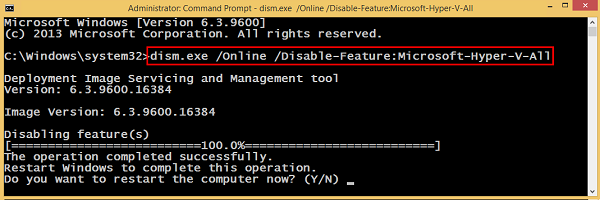
- Type Y and press Enter when prompted to restart the computer.
Article Properties
Article Number: 000133405
Article Type: Solution
Last Modified: 19 Apr 2026
Version: 5
Find answers to your questions from other Dell users
Support Services
Check if your device is covered by Support Services.