Dell Unity: How to place an SP into service mode and how to clear service mode (User Correctable)
Summary: This article covers the procedure to place a storage processor (SP) into service mode and how to clear service mode using the Unisphere GUI or CLI.
This article applies to
This article does not apply to
This article is not tied to any specific product.
Not all product versions are identified in this article.
Instructions
If an SP is in service mode, the SP cannot service host I/O. Service mode is necessary during an SP hardware component replacement or when it is necessary to stop servicing I/O by one SP.
How to place an SP into service mode using one of the two methods listed below:
1. Unisphere GUI
The example below is for SPB.
In the Service tab, navigate to "Service Tasks". For the SP that must be put into service mode, select "Enter Service Mode" and then "Execute".
A pop-up window opens and prompts for the service password. The SP reboots into service mode.
2. SSH/CLI
SSH into the SP to place the SP into service mode, set the rescue counter, and then reboot the SP.
Set the user rescue counter:
 spa:~/user# svc_rescue_state -s

NOTE: The below shutdown command may not respond as expected to a typo.  If you try to shutdown the peer SP, and you mistype the command, the command may proceed to shutdown the current SP instead.  Double-check the syntax before you press enter. Pay attention to case sensitivity as well.

Reboot the peer SP using the following command:
"svc_shutdown -r sp[x]" where x is "a" or "b".
The command should be:
spb:~/user# svc_shutdown -r spa
or
spa:~/user# svc_shutdown -r spb


Reboot the same SP as logged into:
Example below is to reboot spa from the spa prompt:
spa:~/user# svc_shutdown -r
How to clear service mode on an SP using one of the two methods listed below:
1. Unisphere GUI
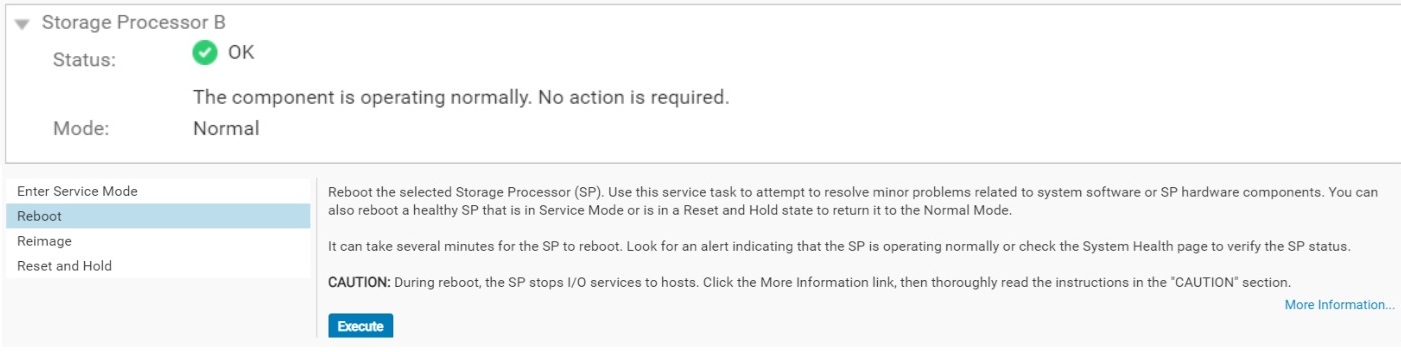
The example below is for SPB.
From the same Menu, choose "Reboot" and the SP should boot up into normal mode.
2. SSH/CLI
SSH into the SP that is in service mode, display the rescue counters, clear the rescue counters, and then reboot the SP.
Display the rescue counters of an SP:
svc_rescue_state -l
Clear the counters:
svc_rescue_state -c
Check the count column to ensure all counters have been cleared:
svc_rescue_state -l

NOTE: The below shutdown command may not respond as expected to a typo.  If you try to shutdown the peer SP, and you mistype the command, the command may proceed to shutdown the current SP instead.  Double-check the syntax before you press enter. Pay attention to case sensitivity as well.

Reboot the peer SP using the following command:
"svc_shutdown -r sp[x]" where x is "a" or "b".
The command should be:
spb:~/user# svc_shutdown -r spa
or
spa:~/user# svc_shutdown -r spb

Reboot the same SP as logged into:
Example below is to reboot spa from the spa prompt:
spa:~/user# svc_shutdown -r
If there are any questions or concerns with any points in this KB, contact Dell Support for further assistance.
Note: If the SP was not placed into service mode by a user or does not clear using the above methods, contact Dell Support for further assistance.
Additional Information
When monitoring the boot sequence of an SP, one of the following messages displays at the end of the boot sequence. The event message depends on whether the SP is booting into service mode or into normal mode.
CLI command to monitor a peer SP boot:
spa:~/user# svc_diag --monitor-peer
Event message for service mode:
...
08:07:05  : 0x02000003 (O/S running)
08:07:25  : 0x02000004 (OS Blade Being Serviced)


Event message for normal mode:
...
07:40:11  : 0x02000002 (Application running)
07:40:29  : 0x00 (Software Component Code...)
          : 0x18 (iSCSI Zones Daemon - Application Starting)
See Article Number: 000009281 for full instructions on how to monitor a peer SP reboot.
Dell Unity: How to monitor the peer SP boot sequence (Dell Correctable)
Affected Products
Dell EMC Unity FamilyArticle Properties
Article Number: 000181753
Article Type: How To
Last Modified: 01 Feb 2024
Version: 5
Find answers to your questions from other Dell users
Support Services
Check if your device is covered by Support Services.