PowerEdge: Use racadm in iDRAC Tools from GuestOS-CentOS, RHEL, ESXi-to Interact with iDRAC
Summary: Using iDRAC tools to interact with iDRAC when it is not reachable using Web Browser. It may happen that after an iDRAC firmware upgrade, the iDRAC is not reachable but GuestOS is reachable. In that case, use iDRAC tools to troubleshoot the issue and bring it back online. ...
This article applies to
This article does not apply to
This article is not tied to any specific product.
Not all product versions are identified in this article.
Instructions
Symptoms:
iDRAC is not pinging, or the iDRAC web page is not loading.
Cause:
Resetting iDRAC to default or Upgrading iDRAC Firmware may cause this issue.
Resolution:
-
Download the iDRAC tool using the below links for the respective Operating System.
- ESXi 6.5.x: Dell iDRAC Tools for VMware ESXi (R), v9.3.1 | Driver Details | Dell US
- ESXi 6.7.x: Dell iDRAC Tools for VMware ESXi 6.7 U3 (R), v10.1.0.0 | Driver Details | Dell US
- ESXi 7.0.x, ESXi 8.0.x: Dell iDRAC Tools for ESXi, v11.0.0.0 | Driver Details | Dell US
- CentOS, RHEL: Dell iDRAC Tools for Linux, v9.4.0 | Driver Details | Dell US
- For the ESXi operating system, a .zip file is downloaded. Follow the below steps to copy and install the iDRAC tools that are downloaded.
- Extract the .zip file and go to <extracted folder name
>\vib20. - Copy racadm folder to ESXi Host using WinSCP tool or any other similar tool in
/tmpfolder. - Run the below command to verify if iDRAC tools (racadm) are already installed. If no output is displayed, it means it is not installed.
- Extract the .zip file and go to <extracted folder name
esxcli software vib list | grep -i racadm
- Run the below command to install iDRAC tools (racadm). The output lists out if a reboot is required or not.
esxcli software vib install -v /tmp/racadm/<file_name.vib>

- Once it is installed, use racadm commands for further troubleshooting.
- For the CentOS, RHEL operating system, a .tar.gz file is downloaded. Follow the below steps to copy and install the iDRAC tools that are downloaded.
- Copy .tar.gz file to CentOS/RHEL Node using WinSCP tool or any other similar tool in
/tmpfolder - Run below command on Node to extract iDRAC tools package to
get.rpmfiles
- Copy .tar.gz file to CentOS/RHEL Node using WinSCP tool or any other similar tool in
cd /tmp/
tar -zxvf <filename>.tar.gz

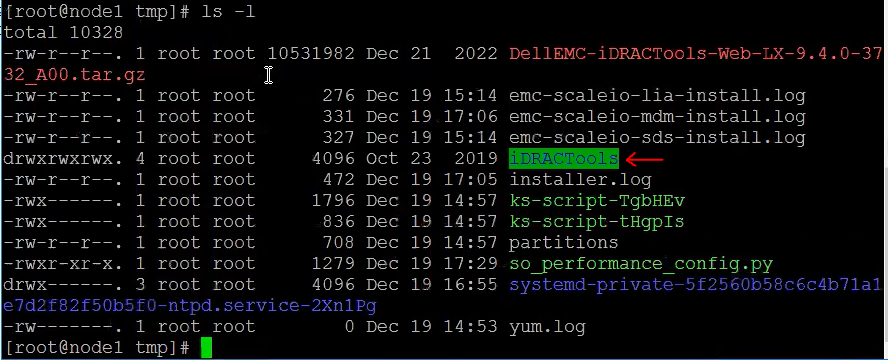
- All these files are extracted in a folder named
iDRACTools. Usels -lcommand to verify that.
- To verify if iDRAC Tools (racadm) are already installed on the node or not, run
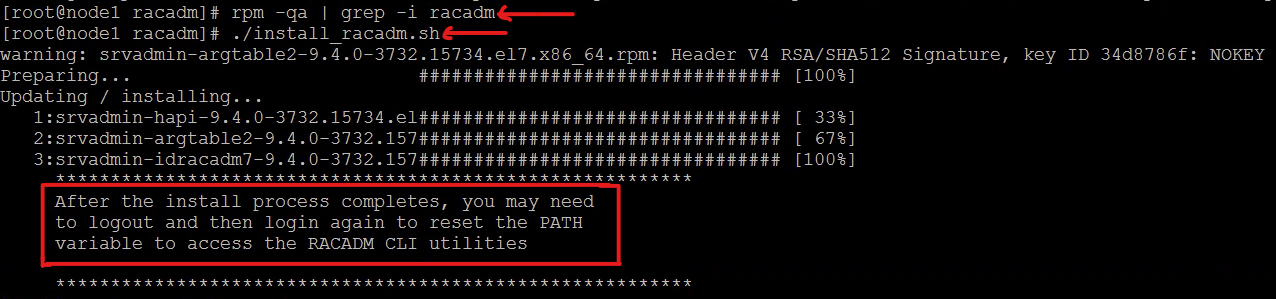
rpm -qa | grep -i racadm.If no output is displayed, it means it is not installed. - Now go to
iDRACTools/racadmfolder and runinstall_racadm.shfile using below commands.
cd /tmp/iDRACTools/racadm
./Install_racadm.sh
- Once the tool is installed open up a new SSH session or logout of SSH session and relogin to racadm commands for further troubleshooting. To check if the server requires reboot or not, run command
needs-restarting -r; echo $?

- To verify if the racadm package is installed successfully, run
rpm -qa | grep -i racadm. If it lists out the package, then it means it is installed successfully.
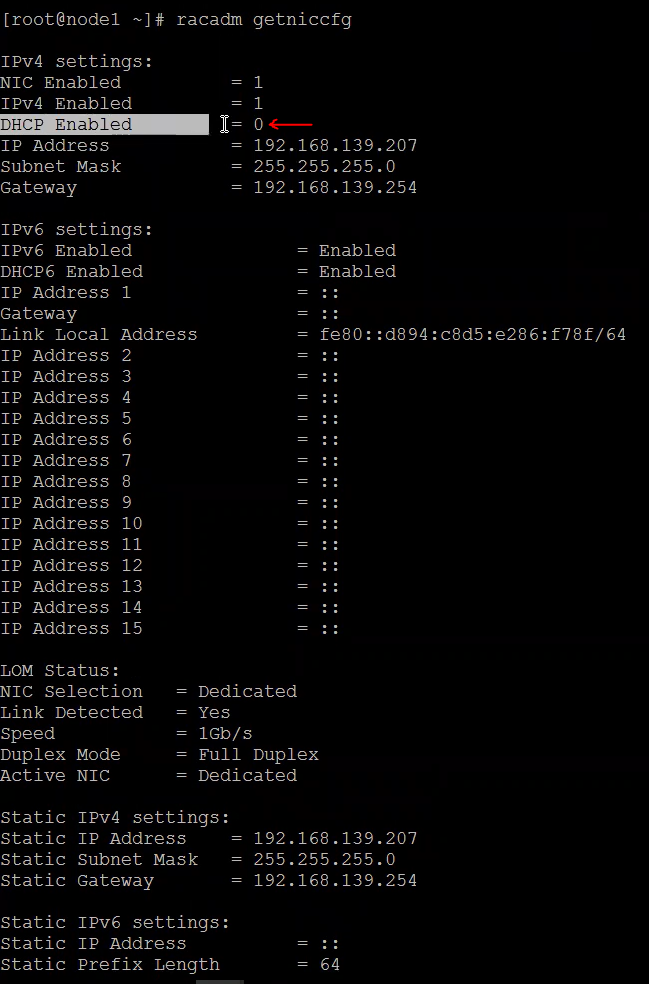
- To verify current network settings of iDRAC using racadm tool run command
racadm getniccfg. Here, validate if IP address details are correct and if DHCP is set to disabled. See the below screenshot as an example.
Note: racadm command syntax remains the same irrespective of GuestOS.
- If you notice that IP details are not correctly assigned or if DHCP is enabled, use the below command to assign IP address and disable DHCP:
- To set the IPv4 Address:
racadm set iDRAC.IPv4Address <ip_address> - To set IPv4 Netmask:
racadm set iDRAC.IPv4Netmask <subnet_mask> - To set an IPv4 Gateway:
racadm set iDRAC.IPv4Gateway <gateway_ip> - To disable DHCP:
racadm set iDRAC.IPv4DHCPEnable 0
- If you have to reset iDRAC from GuestOS, then use the below commands:
- Perform a soft reset of iDRAC:
racadm racreset soft - Perform a hard reset of the iDRAC:
racadm racreset hard - Force a soft reset of the iDRAC:
racadm racreset soft -f - Force a hard reset of the iDRAC:
racadm racreset hard -f
- For more racadm commands, run
racadm helpor to check for a specific command, runracadm <command> help - Remember to remove iDRACTools (racadm) from GuestOS (ESXi, RHEL, CentOS) especially if there is an HCI solution like PowerFlex, VxRail, so on it is recommended to remove iDRACTools (racadm) tools, or else it may cause Node upgrade to fail with automated process.
- For ESXi operating system:
- To see if iDRACTools (racadm) is installed or not, run:
esxcli software vib list | grep -i racadm
- To remove iDRACTools (racadm), run:
esxcli software vib remove -n racadm

- For RHEL, CentOS operating system:
- To verify if iDRACTools (racadm) is already installed on the node or not, run
rpm -qa | grep -i racadm.. If no output is displayed, it means it is not installed. - To remove iDRACTools (racadm) from the node, run
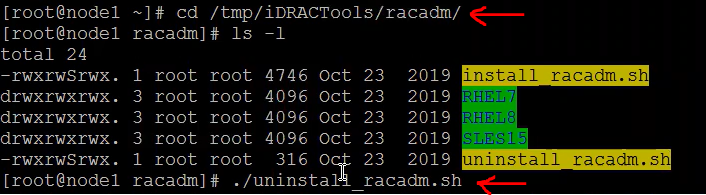
uninstall_racadm.shscript which comes up with the iDRACTools tar.gz bundle. - To run
uninstall_racadm.shscript, go to iDRACTools folder and then run./uninstall_racadm.sh
- If the issue still persists, reach out to Dell Support for further assistance.
Affected Products
iDRAC9, Red Hat Enterprise Linux Version 9, Red Hat Enterprise Linux Version 8, VMware ESXi 7.x, VMware ESXi 8.xProducts
PowerFlex rack, C Series, HS Series, Modular Infrastructure, Rack Servers, Tower Servers, XE Servers, XR Servers, ScaleIOArticle Properties
Article Number: 000206945
Article Type: How To
Last Modified: 24 Sep 2025
Version: 6
Find answers to your questions from other Dell users
Support Services
Check if your device is covered by Support Services.