PowerEdge: VRTX HDs and BP are not detected with a single Shared PERC configuration
Summary: This article describes what to do if there is a single shard PERC failure (NON-redundant layout) when the backplane and disks (storage subsystem) are no longer showing up.
This article applies to
This article does not apply to
This article is not tied to any specific product.
Not all product versions are identified in this article.
Symptoms
Shared PERC, BackPlane (BP), and hard disk drives (hard drive) are not seen in the Chassis Management Controller (CMC) Graphical User Interface (UI).
The shared PERC LED is off, and the CMC log is not detecting the Shared PERC.
The shared PERC LED is off, and the CMC log is not detecting the Shared PERC.
Cause
When a VRTX system configured with a single Shared PERC controller fails or the slot becomes faulty; communication to the BP and hard drive will be lost.
The reason the Chassis UI is unable to see the hard drive and the BP is that the BP communicates directly with the shared PERC using the SAS ports on the MB, and if the shared PERC or the slot is not functioning, then the whole chain will not be seen.
The reason the Chassis UI is unable to see the hard drive and the BP is that the BP communicates directly with the shared PERC using the SAS ports on the MB, and if the shared PERC or the slot is not functioning, then the whole chain will not be seen.
Resolution
Steps to try to troubleshoot VRTX with a single shared PERC configuration:
- Check the LED on shared PERC and main board and compare its activity in the owner's manual on page 97.
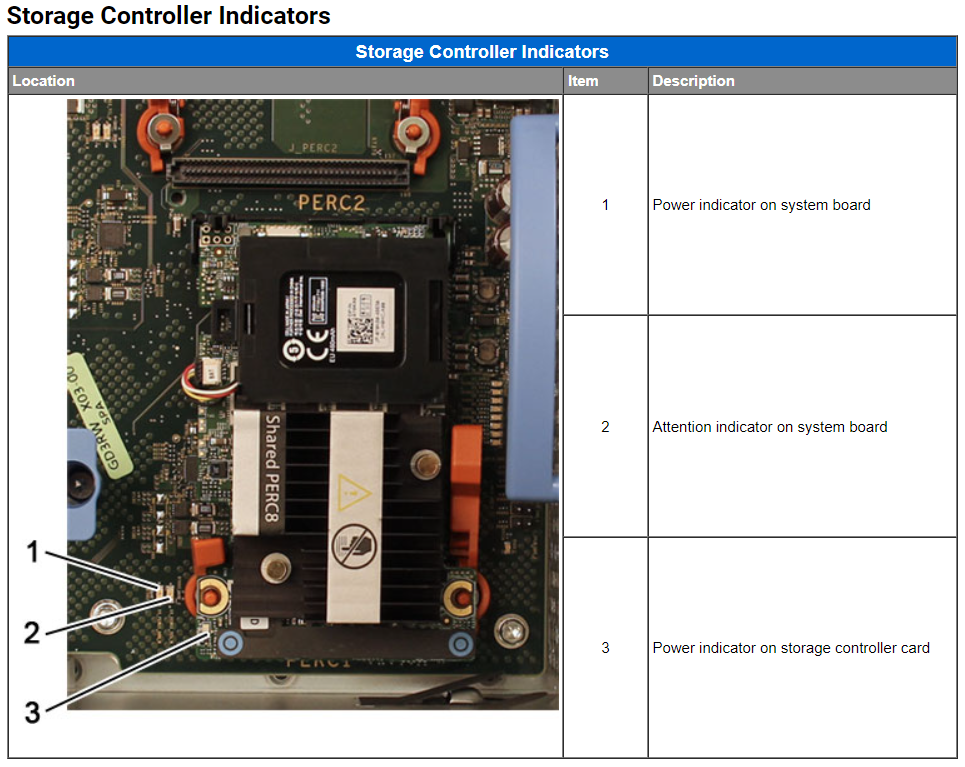

- If the issue persists and there are two CMCs then do a failover, but if there is one, then reset it (UI, CLI)
- If the issue still persists, test the suspect SPERC in the second slot to check if it is the shared PERC or the slot by making sure to do the exact steps below
- Power drains the chassis by doing the following
- Power off the Chassis
- Remove the power cable
- Press and hold the power button for 10 seconds
- Put the suspect SPERC in the second slot
- Power the VRTX on and wait between 15 to 20 minutes to allow the chassis to power on to get an accurate result.
- Power drains the chassis by doing the following
- If the issue follows the shared PERC, then replace it, otherwise replace the system board.
- If unable to troubleshoot, then start by replacing only the shared PERC
- If the issue still remains, proceed with replacing only the System board.
Additional Information
Affected Products
POWEREDGE VRTXArticle Properties
Article Number: 000210034
Article Type: Solution
Last Modified: 29 Oct 2025
Version: 5
Find answers to your questions from other Dell users
Support Services
Check if your device is covered by Support Services.