PowerProtect VM backup fails due to independent disks
Summary: The PowerProtect Data Manager virtual machine (VM) protection solutions fail to protect a VM with an independent disk.
This article applies to
This article does not apply to
This article is not tied to any specific product.
Not all product versions are identified in this article.
Symptoms
The PowerProtect Data Manager is used to protect the vSphere environment. The Transparent Snapshot Data Mover (TSDM) and virtual machine (VM) Direct solution fail to protect a specific VM. The VM configuration job and the backup job fail indicating the asset contains an independent disk. The VM configuration job under "Jobs > System Jobs" and the VM backup job under "Jobs > Protection Jobs" show:
ABV0025: VM Direct engine is unable to back up the virtual machine 'my-vm-name' on vCenter 'my-vcenter'.

The VM Direct engine cannot complete protection of this virtual machine because the protection configuration was unsuccessful.

Review the error details and summary log in the Jobs window, or export the job logs and review the log files for more information. If the issue persists, contact Dell Customer Support.

Read Less
Unable to configure protection for the asset because independent disks are not supported.

Cause
The PowerProtect Data Manager VMware Protection Solutions do not support independent disks, which is documented in the PowerProtect Data Manager Virtual Machine User Guide. For your convenience, the most recent versions of the PowerProtect Data Manager documentation are also available for download on the Dell Support website.
Resolution
The independent disks can be excluded from protection to allow the protection of the remaining disks. Here is an overview to identify the independent disks and exclude them from protection.
- Authenticate to the vSphere Web Client interface.
- Select the affected VM in the inventory and then "Actions > Edit Settings."
- Expand the hard disks to determine which disks have a Disk Mode of independent (persistent or nonpersistent).
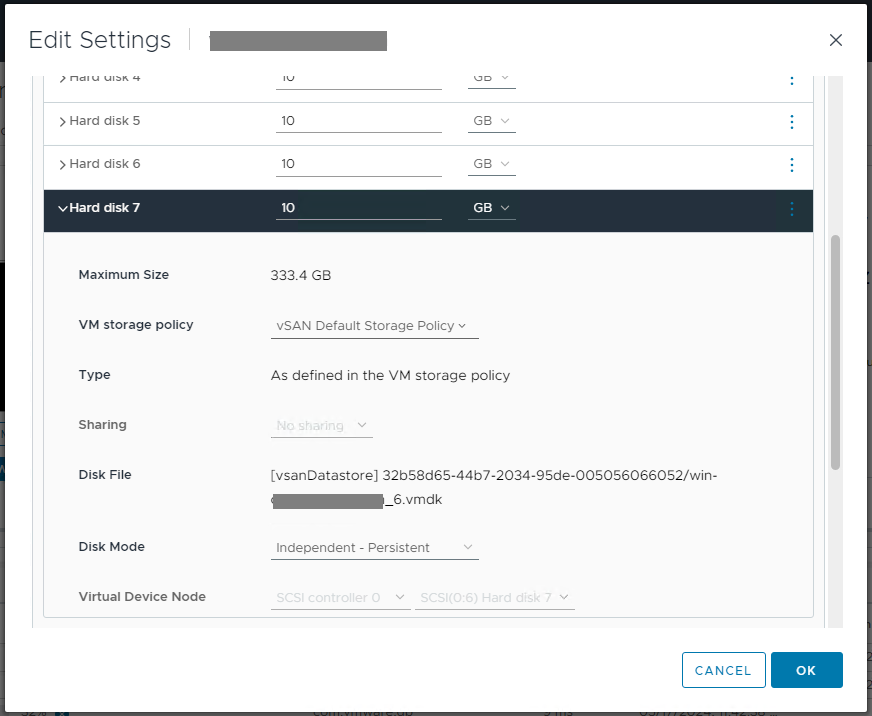
- Authenticate to the PowerProtect Data Manager interface.
- Browse to "Infrastructure > Assets > Virtual Machines."
- Select the affected VM to show the hyperlink under the "Disk Excluded" column.
- The hyperlink opens the "Exclude Disks" properties page.
- Select the toggle button to exclude the independent disks from protection.
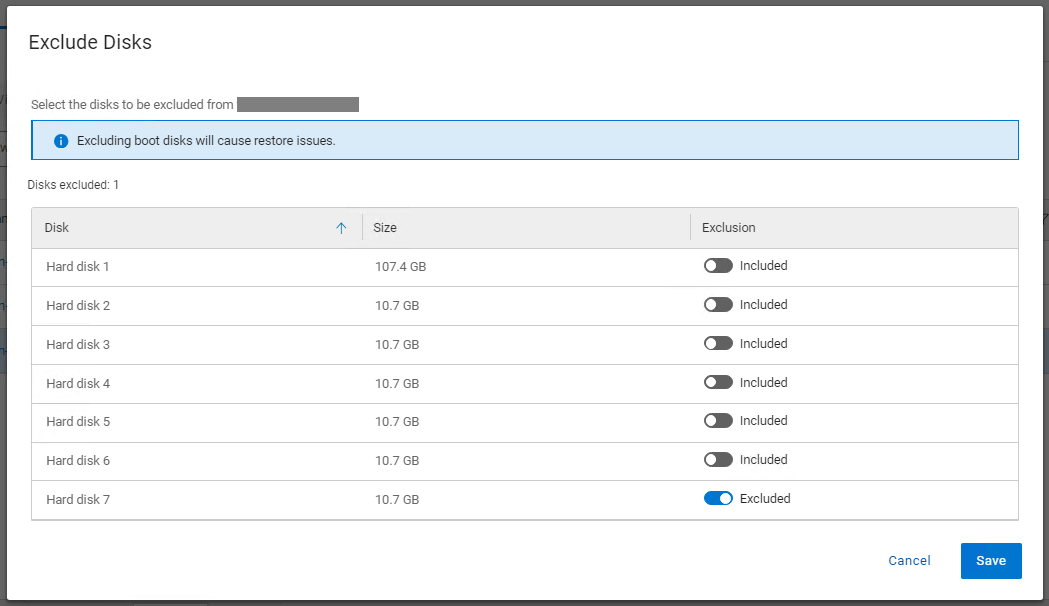
- Run the Protection Policy to automatically trigger the configuration of the VM for the remainder of the disks.
Article Properties
Article Number: 000225183
Article Type: Solution
Last Modified: 21 Nov 2025
Version: 2
Find answers to your questions from other Dell users
Support Services
Check if your device is covered by Support Services.