How To Configure Android Phones in Dell ThinOS in a Virtual Environment
Summary: This article provides steps to connect Android smartphones in Dell ThinOS in a virtual environment using Remote Desktop Protocol (RDP), Citrix, or VMware.
This article applies to
This article does not apply to
This article is not tied to any specific product.
Not all product versions are identified in this article.
Instructions
Affected Platforms:
- OptiPlex 3000 Thin Client
- OptiPlex 5400 All-In-One
- OptiPlex 7410 All-In-One
- OptiPlex 7420 All-In-One
- Latitude 3440
- Latitude 5450
- Latitude 3420
- Latitude 5440
- Wyse 3040
- Wyse 5070
- Wyse 5470 Mobile
- Wyse 5470 All-In-One
Affected Operating Systems:
- Dell ThinOS
- Android
Table of Contents:
- Prerequisites
- RDP USB redirect Android
- Citrix USB redirect Android
- Android device USB redirection through Citrix Configuration Editor
- VMware (Blast) USB redirect Android
Note: When connecting a phone to a device with ThinOS, it is not detected in the Virtual Desktop Interface (VDI) session.
Prerequisites:
Note: These steps must be completed before continuing to the redirection settings.
- Configure Group Policy Object (GPO):
- When you are using a supported Windows operating system (2012R or later), you must disable: Do not allow supported Plug and Play device redirection
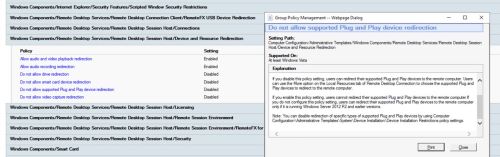
- When you are using a supported Windows operating system (2012R or later), you must disable: Do not allow supported Plug and Play device redirection
- Collect the VID and PID of your USB device.
- Connect the phone using a USB cable to the ThinOS client (USB Preferences is displayed).
- Change Transfer mode to the following:
- USB controlled by: This Device
- Use USB for: File Transfer/Android Auto
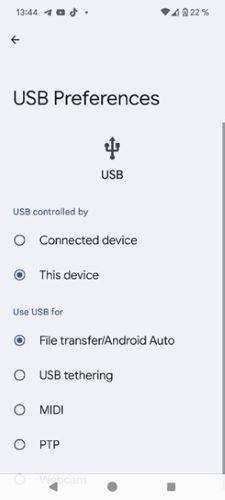
- Open ThinOS System Information or System Tools
Note: VID and PID from System Information or System Tools:

RDP USB redirect Android
Note:
- Since ThinOS 2308 RDP USB redirect is also supported for RDP: Dell ThinOS 2311, 2308, 2306, and 2303 Release Notes
- For RDP no further environmental settings are needed.
- Go to Wyse Management Suite (WMS) settings > add the VID and PID information from above.
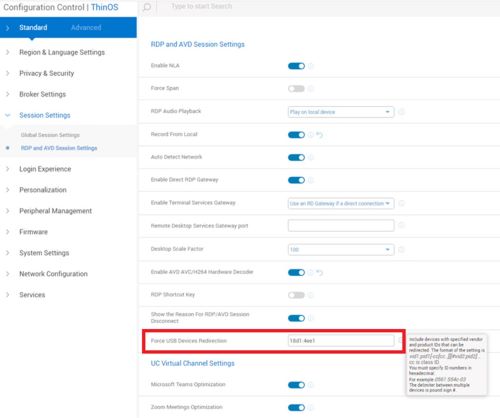
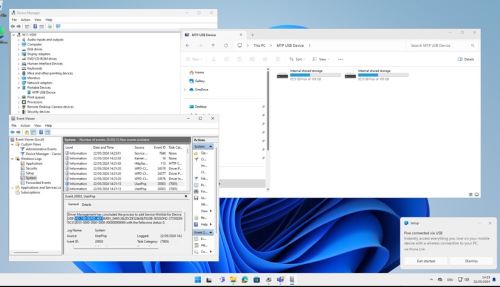
- Test the RDP connection

- Check the following:
- File Explorer
- Device Manager
- Event Viewer
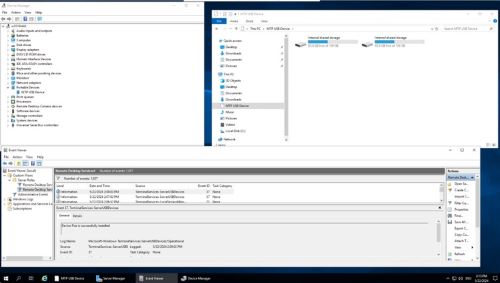
- RDP Direct connected to Windows 11 VDI, check the following:
- File Explorer
- Device Manager
- Event Viewer

Citrix USB redirect Android
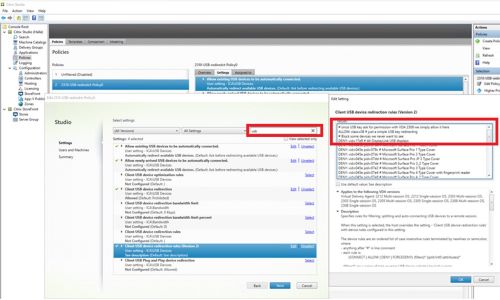
Newer Virtual Desktop Agent (VDA) also need the GPO enabled: Client USB device redirection rules (Version 2)
If not set, you must enable the Desktop Viewer Toolbar to give your users the chance to manually redirect devices:
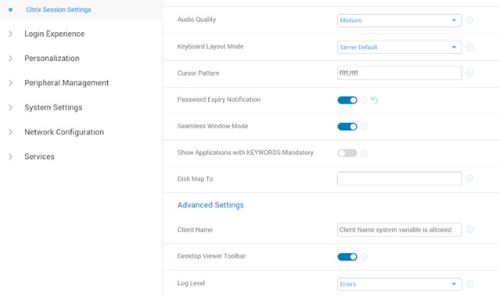
Desktop Viewer Toolbar with enabled Client USB device redirection rules (Version 2) all configured devices are preselected:

Note:
- Starting with ThinOS 2402 and WMS 4.3 > Dell has improved Android USB redirecting using VDI Configuration Editor
- Dell ThinOS 2402 Release Notes
Android smartphone USB redirection through Citrix Configuration Editor
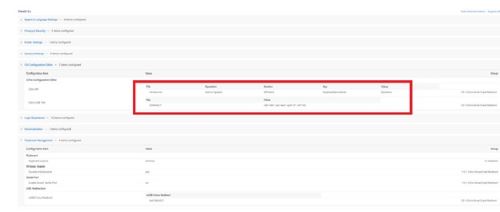
From ThinOS 2402 and Citrix Workspace App 2311, you can configure the Android smartphone device redirection using Citrix USB File Settings in Citrix Configuration Editor.
To redirect the Android smartphone into an Independent Computing Architecture (ICA) session, do the following:
- In the Key field, enter CONNECT.
- In the Value field, enter
vid=04e8 pid=6860 split=01 intf=00.Note:- The VID and PID of your Android smartphone replaces the VID and PID in the Value field.
- If you have already configured Citrix USB File Settings to redirect the device, do not configure USB Redirection in Peripheral Management > USB Redirection > vUSB Force Redirect.
- Test Citrix connection
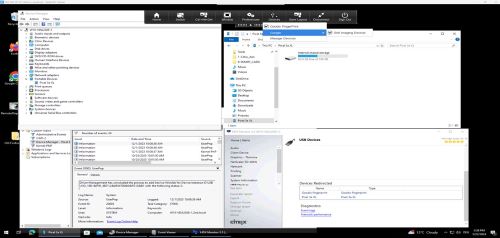
VMware (Blast) USB redirect Android
- Check that USB redirecting is installed with Horizon Agent:
- Check the registry to ensure USB redirect feature:
HKEY_LOCAL_MACHINE\SOFTWARE\VMware, inc.\Installer\Features_HorizonAgent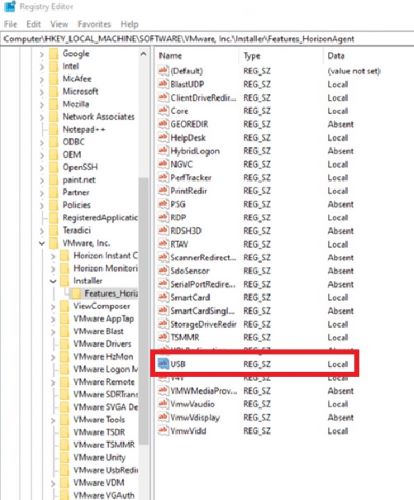
- Check the registry to ensure USB redirect feature:
Note: WMS settings for VMware changed with ThinOS 2308, reference the Dell ThinOS 2311, 2308, 2306, and 2303 Release Notes.
VMware Horizon Limitations
If you are unable to access the Samsung Galaxy S21 and Google Pixel 4a, follow these steps and add the configuration in Wyse Management Suite:
- Go to Advanced > VDI Configuration Editor > Horizon Blast Configuration Editor.
- In Add Horizon Blast Key-Value Settings, click +Add Row.
- In File, select etc config.
- In Operation, select Add or Update.
- Enter
usb.quirks.device0. - Enter
0x<vid>:0x<pid> skip-reset, skip-refresh, skip-setconfig, e.g., 0x04e8:0x6865 skip-reset, skip-refresh, skip-setconfig - Click Save and Publish
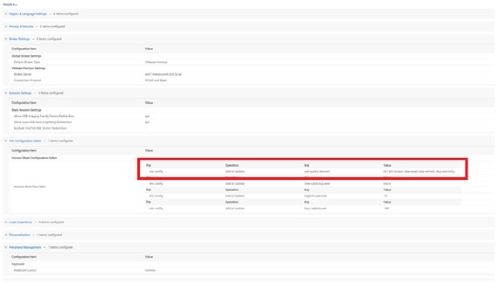
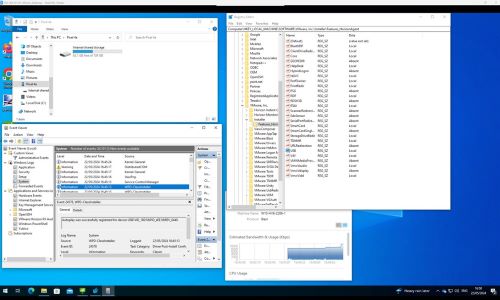
- Test VMware Connection
Affected Products
Latitude 3420, Latitude 3440, Latitude 5440, Latitude 5450, OptiPlex 3000 Thin Client, OptiPlex 5400 All-In-One, OptiPlex All-In-One 7410, OptiPlex All-in-One 7420, Wyse 3040 Thin Client, Wyse 5070 Thin Client, Dell ThinOSArticle Properties
Article Number: 000226177
Article Type: How To
Last Modified: 18 Jun 2024
Version: 1
Find answers to your questions from other Dell users
Support Services
Check if your device is covered by Support Services.