$19.99
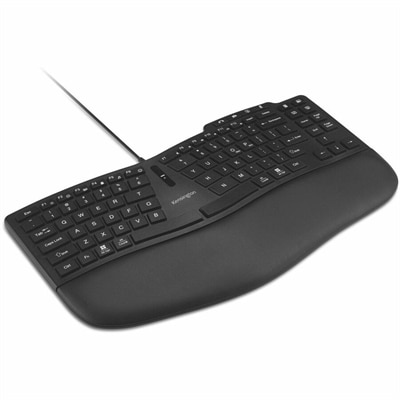
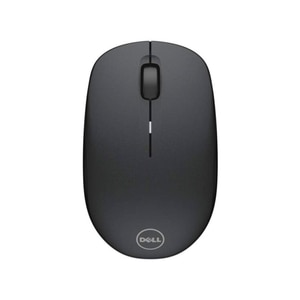
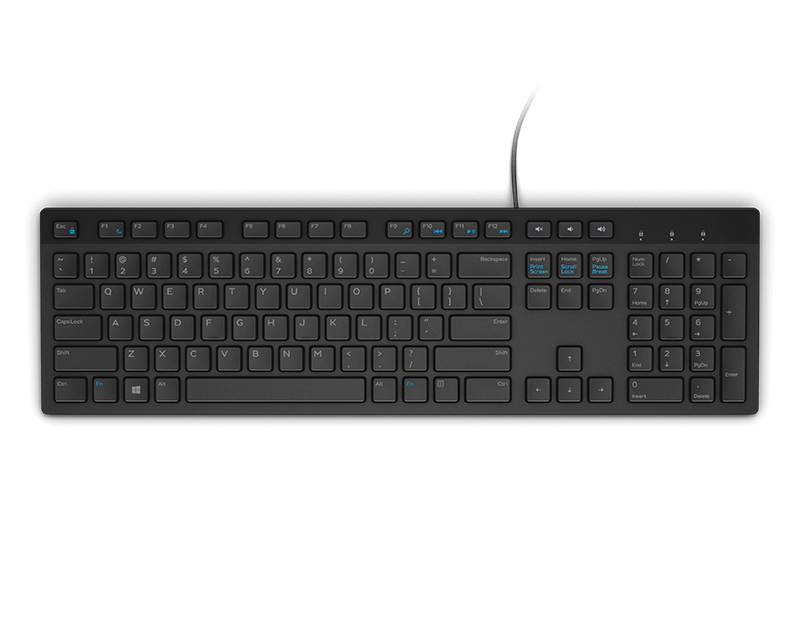
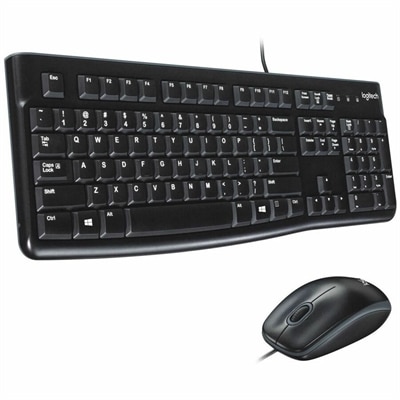
A reliable wired keyboard and ambidextrous optical mouse combo featuring USB plug-and-play connectivity and comfortable full-size designs.
Ergonomic keyboards for data entry are designed to help create a comfortable and efficient workspace, especially for those who spend extended hours typing. These keyboards offer layouts and designs that support natural hand positioning, which can contribute to a smoother data entry experience. Whether setting up a home office or upgrading your professional workstation, exploring ergonomic keyboards for data entry can be a valuable step toward enhancing productivity and comfort throughout the workday.
A reliable wired keyboard and ambidextrous optical mouse combo featuring USB plug-and-play connectivity and comfortable full-size designs.
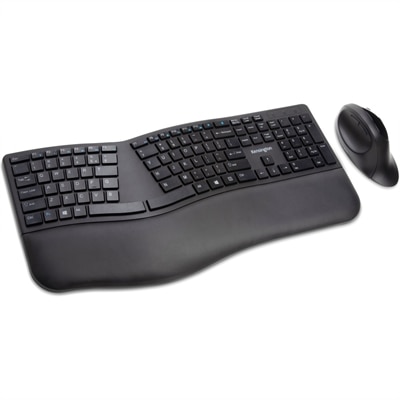
An ergonomic wired keyboard with a curved TKL layout, wrist pad, customizable keys, and video-conferencing controls.
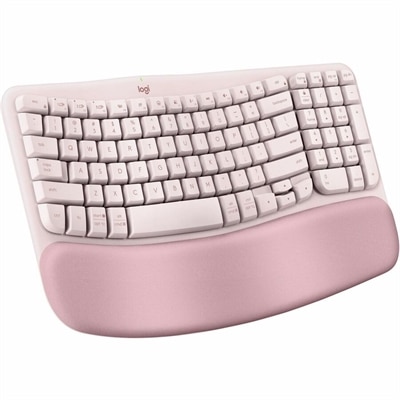
A rose ergonomic keyboard with cushioned memory foam palm support, Bluetooth, Easy-Switch, and three-year battery life.
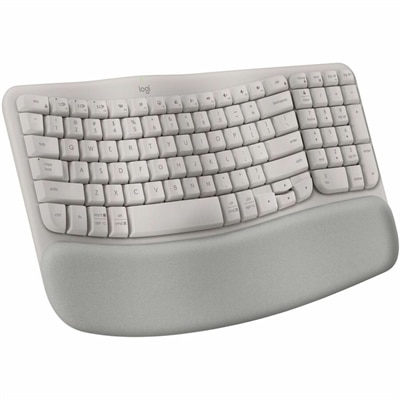
A sand-colored ergonomic wireless keyboard with a cushioned memory-foam palm rest, Bluetooth, Easy-Switch, and long-lasting battery.
Ergonomic keyboards for data entry combine layouts designed around hand positioning with the practical controls needed for repeated typing, number entry, and record updates. For someone moving through invoices, entering appointment details, or reconciling spreadsheet columns, the most useful features often include a dedicated number pad, clearly grouped navigation keys, and a shape that allows the wrists to stay relatively straight. A full-size ergonomic keyboard keeps letters, numbers, and common editing controls together, making it a natural fit for work that alternates between written descriptions and numeric fields. The number pad is especially useful for people accustomed to entering quantities, dates, and amounts by touch, while accessible Tab, Enter, Backspace, and Delete keys support the rhythm of moving from one field to the next. Split layouts angle the left and right key groups apart, which may make a comfortable hand position easier to maintain. Some use a fixed split within a single frame; others have two separate sections that can be positioned to suit shoulder width and desk space. Curved or wave-shaped layouts offer another approach, adjusting the arrangement or height of the keys while keeping the overall keyboard familiar. No single shape is best for every user, and comfort depends on the keyboard’s relationship to the chair, desk, and pointing device as much as its appearance. An integrated number pad provides a consistent location for numeric input, but it also adds width and can place a mouse farther from the body. A compact ergonomic keyboard paired with a separate number pad offers more flexibility, particularly on a narrow desk or in a workspace shared by different people. For accounting staff, administrative assistants, researchers, and anyone processing batches of records, the right layout balances numeric access with comfortable reach. Familiar key spacing and predictable control placement also matter: a keyboard that supports an established typing pattern can make the transition to an ergonomic shape less disruptive during a busy workday.
The feel of an ergonomic keyboard becomes particularly noticeable during repetitive data entry, when small differences in key resistance, travel, and surface texture accumulate across thousands of keystrokes. Light key actuation can reduce the effort required for each press, although keys that feel too sensitive may lead to unintended entries for some typists. More pronounced tactile feedback provides a noticeable response as a key activates, while a softer, quieter action may be preferable at a reception desk, in a shared office, or during calls. Mechanical and membrane designs can each suit data entry; the more meaningful distinction is how consistently the keys respond and whether their feel matches the user’s typing habits. Keycap shape also affects the experience. Slightly concave surfaces help fingertips settle into position, and readable legends make occasional checks easier when entering unfamiliar codes or switching between applications. Durable plastic housings, securely fitted keycaps, and stable feet contribute to a keyboard that feels steady rather than shifting with every quick sequence of numbers. A textured finish can provide grip, while smooth surfaces are generally easier to wipe clean. Palm supports may use foam, fabric, or coated cushioning, with differences in firmness, breathability, and cleaning requirements. Their role is to support the base of the palms during pauses, rather than encourage pressure directly against the wrists while typing. A soft surface alone does not establish a comfortable fit; the support’s height and position need to work with the keyboard’s front edge and the user’s seated posture. Adjustable tilt can help refine that fit, but raising the back of a keyboard is not automatically more comfortable, since it can bend the wrists upward. Some designs offer a flatter position or negative tilt, with the front higher than the back. These details are relevant for long sessions spent correcting records, transcribing forms, or navigating dense worksheets, where a relaxed typing position and reliable key response matter more than decorative features.
Connections, compatibility, and everyday upkeep round out the practical differences among ergonomic keyboards for data entry. A wired connection offers a straightforward setup without batteries to replace or recharge, making it well suited to a dedicated workstation. Wireless designs reduce cable clutter and allow more freedom to reposition the keyboard, although battery maintenance, charging arrangements, and connection requirements become part of daily use. Bluetooth and USB receiver connections have different setup needs, and compatibility depends on the computer, operating system, and workplace policies. Basic typing functions may work immediately, while programmable keys, custom shortcuts, or device switching can require additional software or supported settings. In repetitive workflows, an accessible shortcut for a frequently used command can be useful, provided it behaves consistently within the application handling the records. Physical fit deserves equal attention: enough desk depth for the keyboard and palm support, space for the mouse nearby, and clearance beneath the desk for a comfortable seated position. Adjustable split sections need room to move without crowding paperwork or other accessories. Care is usually simple but should follow the manufacturer’s directions. Disconnecting or powering off the keyboard before cleaning, keeping liquids away from openings, and using an appropriate soft cloth help protect the surfaces and electronics. Loose debris around keys can affect their feel, while fabric-covered palm supports may need different care from wipeable coatings. Spill resistance, where specified, should not be treated as waterproofing. For a shared workstation, easy-to-clean materials and straightforward adjustments can be especially useful between users. Comfort-focused browsing may also include Ergonomic Keyboards For Carpal Tunnel, though an ergonomic keyboard is not a treatment or a guarantee against pain or injury. Persistent numbness, tingling, or discomfort warrants advice from a healthcare professional. For everyday data entry, the strongest fit brings together an appropriate numeric layout, manageable key effort, dependable construction, and positioning that supports relaxed shoulders and relatively straight wrists. Those qualities make the keyboard a practical part of a workstation built for accurate, sustained administrative work.
Add the products you would like to compare, and quickly determine which is best for your needs.